Manage languages
Languages in Docentric CE determine which languages are available when generating documents and creating Docentric Data Source Packages (DDSP). System administrators can add languages to your Power Platform environment, and Docentric CE administrators can control which of those languages are active for use with Docentric CE Languages.
Prerequisites
- You have the Docentric CE Administrator security role assigned.
- You have System Administrator permissions if you need to add languages to your Power Platform environment.
Add languages to your environment
Languages must first be enabled in your Power Platform environment before they become available in Docentric CE.
To add languages to your environment, see Enable languages in Microsoft Power Platform environments.
NOTE
During Docentric CE installation, the Languages table is automatically populated with all languages and the ones currently enabled in your Power Platform environment are activated.
Repair Languages after adding new ones
If you add new languages to your environment after installing Docentric CE, the repair Languages option will bring in the newly added languages to Docentric CE Languages.
To repair Languages, follow these steps:
- On the Settings page, select the Languages section.
- On the command bar, choose Repair languages.
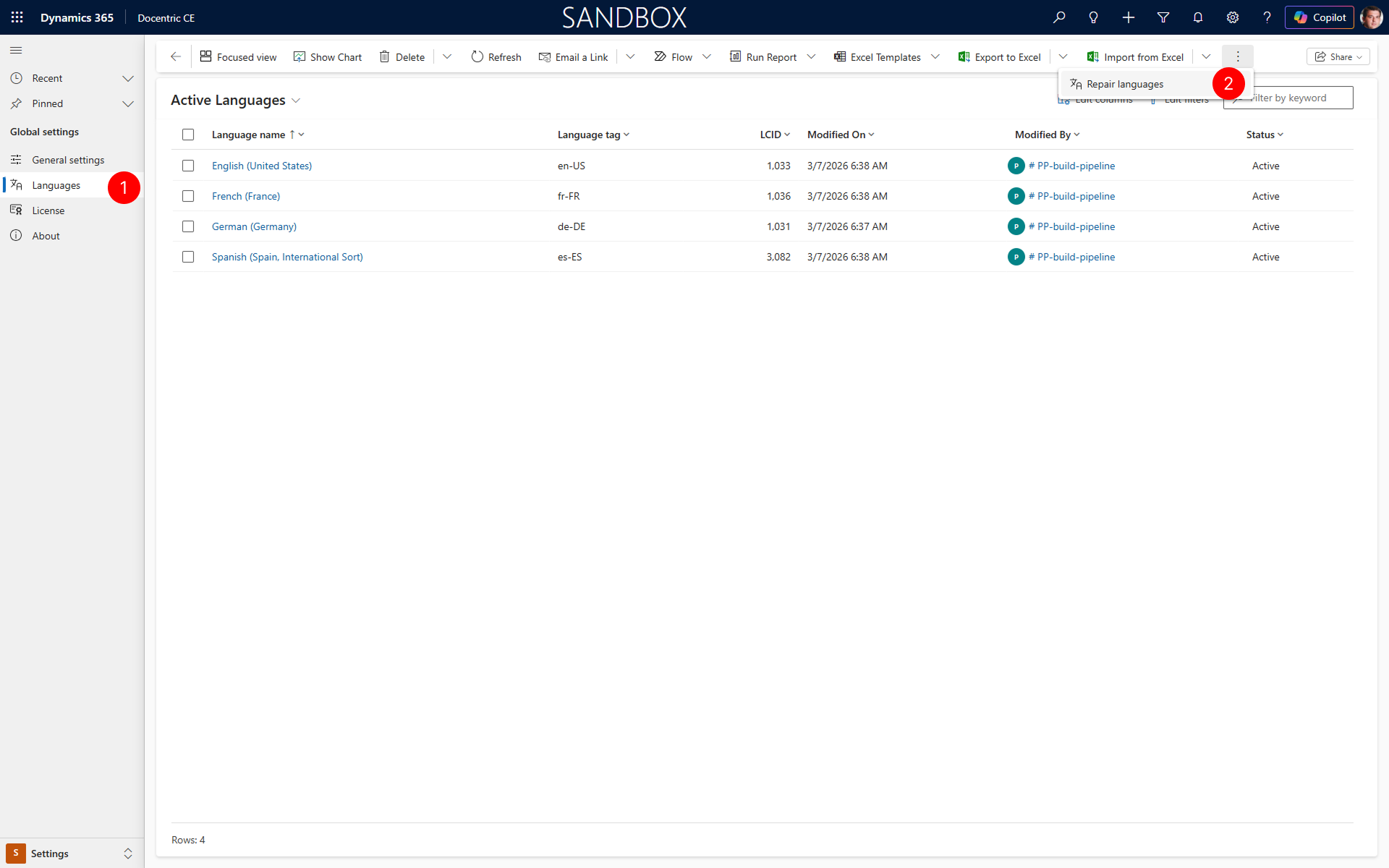
The Docentric CE application updates the Languages table with any new languages that have been added to your environment.
Activate or deactivate Docentric CE Languages
Activate or deactivate Languages to control which ones can be used in document and DDSP generation.
To activate or deactivate a Language, follow these steps:
- On the Settings page, select the Languages section.
- Select the Language you want to activate or deactivate.
- On the command bar, choose Activate or Deactivate.
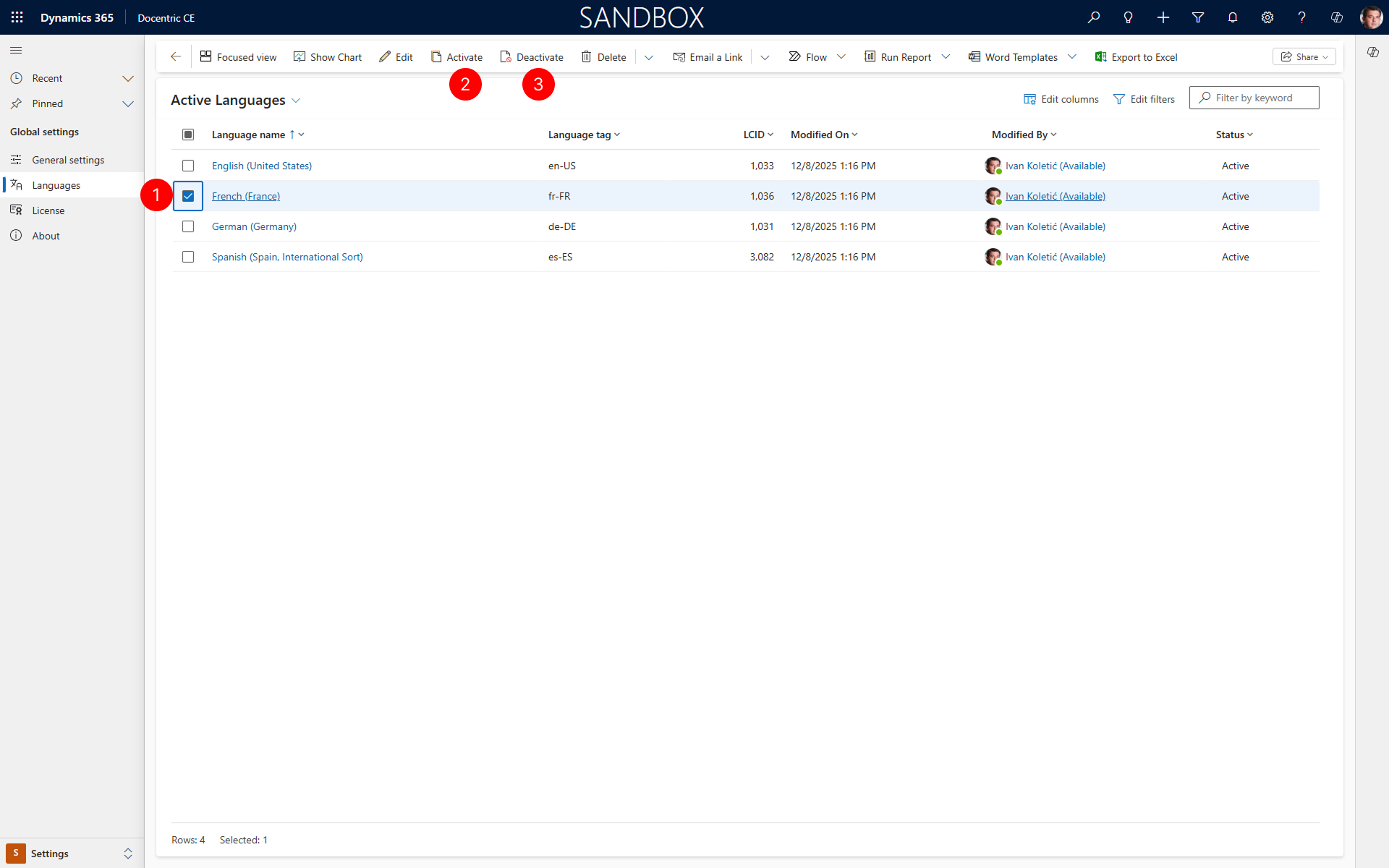
Active Languages appear in the Language selection dropdown when you run a Document Flow and when you generate a DDSP file.
Next steps
- Run Document Flow to use active Languages when generating documents
- Generate Data Source from Document Setup to include active Languages in your data source package