If tagging element
Use the If (conditional) tagging element to control whether a part of your document will be included or excluded during document generation based on specific data conditions. Conditional tagging elements allow you to create dynamic documents that adapt their content based on the data being processed.
The If tagging element is a container element that can wrap around other content, including text, images, tables, and even other tagging elements. When the condition evaluates to true, the content inside the If tagging element is included in the generated document; when it evaluates to false, the content is omitted entirely.
Prerequisites
- Template Designer installed. For more information, see Install Docentric Designer.
- A document template set up with a Data Source Package (DDSP) loaded. For more information, see Set up a document template.
- An If (conditional) tagging element inserted in your template. For more information, see Tagging elements overview.
- An Elements tree pane shown. For more information, see Elements tree pane
Bind If tagging element to condition
Before you can configure the invert option, bind the Conditional tagging element to a boolean expression or data field. The condition value must evaluate to true or false. For detailed steps, see Bind tagging element to data.
Configure condition inversion
Control whether to reverse the conditional logic by inverting the condition result.
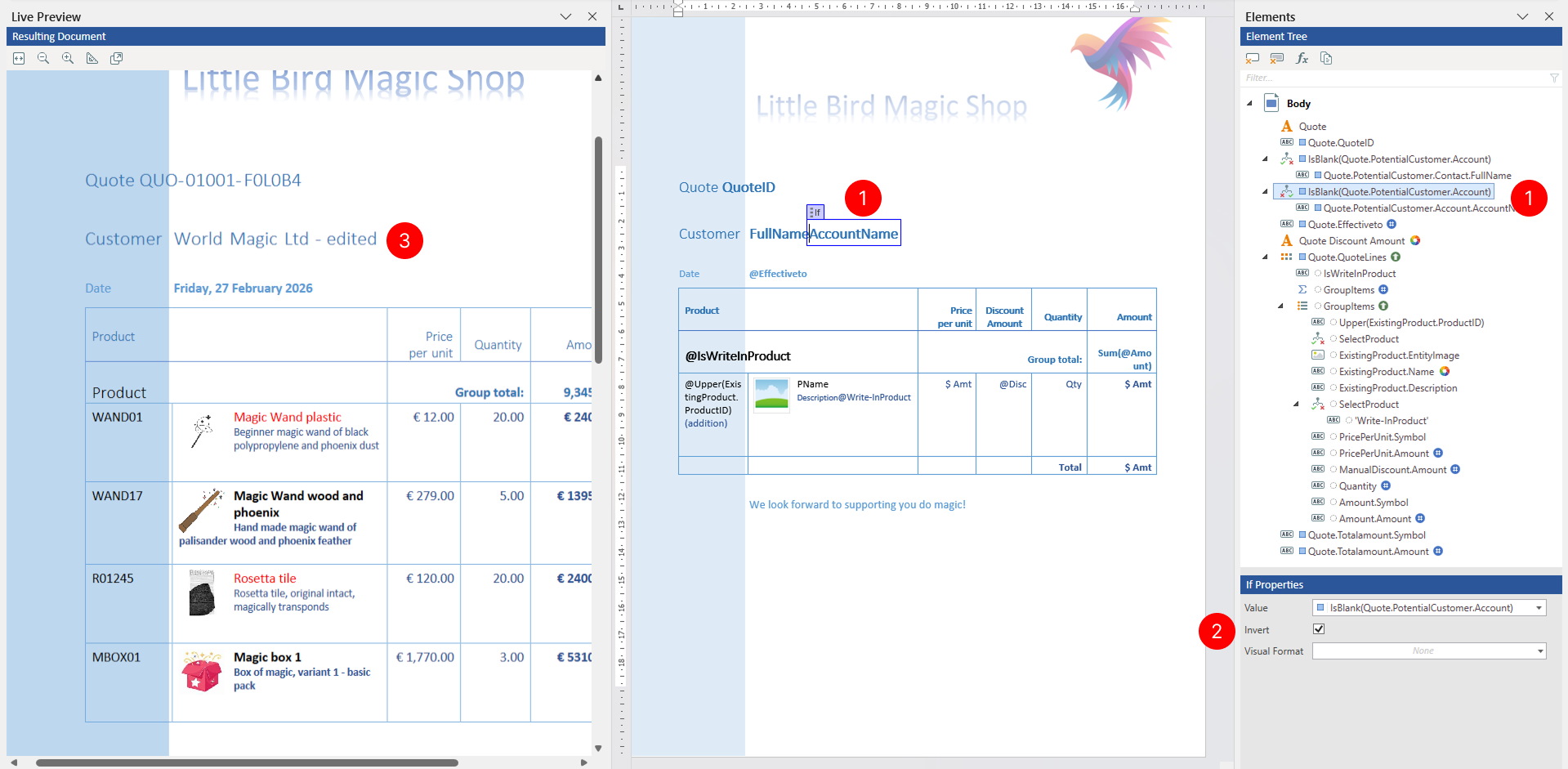
- Select the Conditional tagging element to view its properties.
- In the Properties pane, locate the Invert property. Check the checkbox to invert the condition:
- When Invert is checked - Content is shown when the condition evaluates to false and hidden when it evaluates to true
- When Invert is unchecked - Content is shown when the condition evaluates to true and hidden when it evaluates to false
- Review results in Live Preview pane.
Apply visual formatting
You can specify visual formatting rules on the Conditional (If) tagging element to control the visual appearance of related content in the generated document in a dynamic, data-driven manner. For detailed steps, see Apply visual formatting to tagging elements.