Migrate document configurations between environments
Migrate your Document Setups and related configurations between Dataverse environments by using the Export and Import features in Docentric CE. This allows you to move document automation configurations from development to test or production environments, or to replicate configurations across multiple environments.
The migration process involves two main steps: exporting configurations from a source environment and importing them into a target environment. During export, you create a configuration package file that contains selected Document setups, Data models, Document templates, and related settings. During import, you load this package file into the target environment.
Prerequisites
- You have the Docentric CE Administrator or Docentric CE Maker security role in both source and target environments
- Access to both source and target Dataverse environments where Docentric CE is installed
Export configuration from source environment
Export Document Setups and related artifacts from your source environment to create a configuration package.
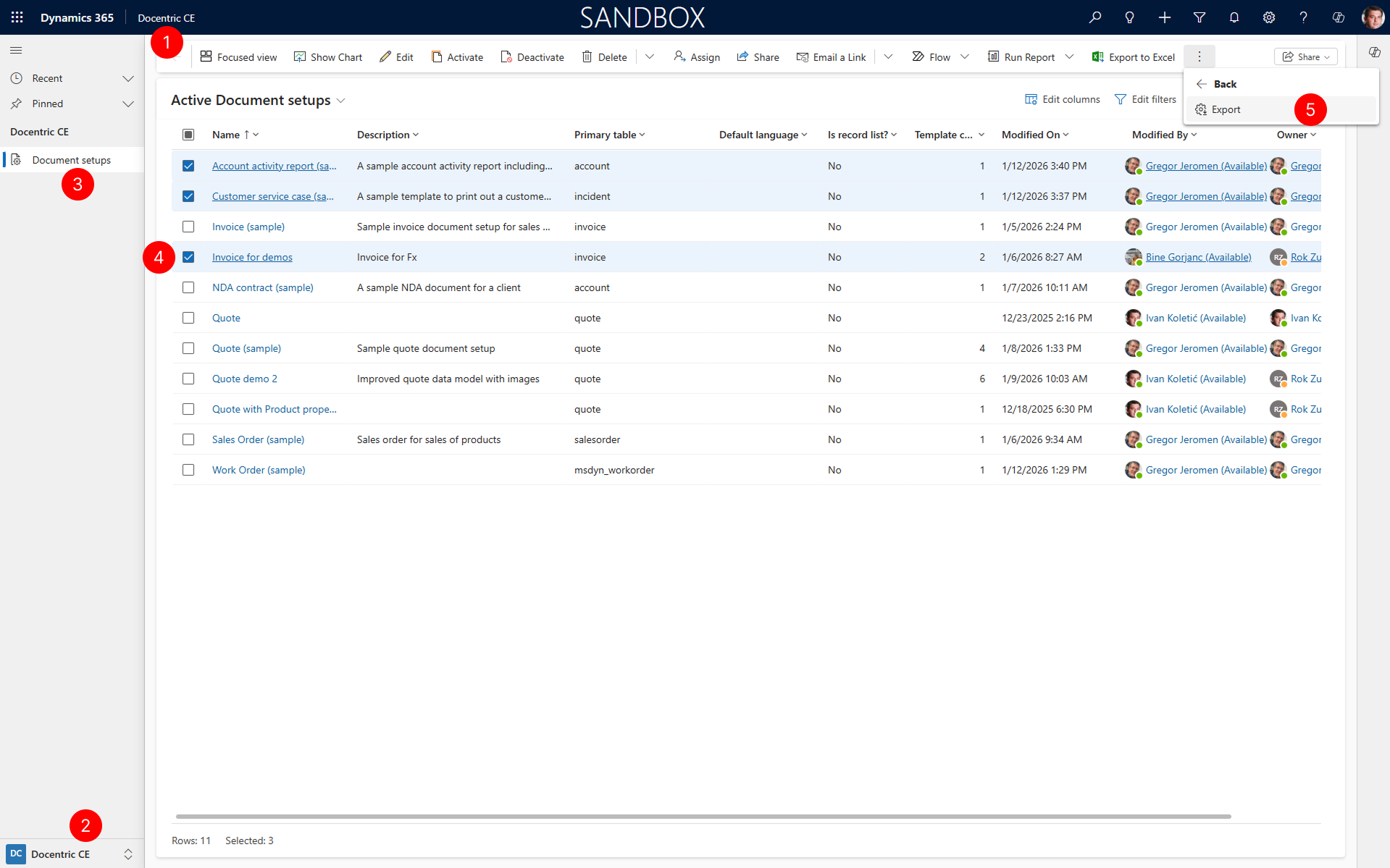
- Open Docentric CE in your source Dynamics 365 environment.
- In the navigation pane, select Docentric CE area.
- In the site map, select Document setups.
- Select Document setups that are to be exported in a configuration package.
- Choose Docentric CE Configuration > Export to open the Configuration export dialog.
Complete the Export Configuration dialog
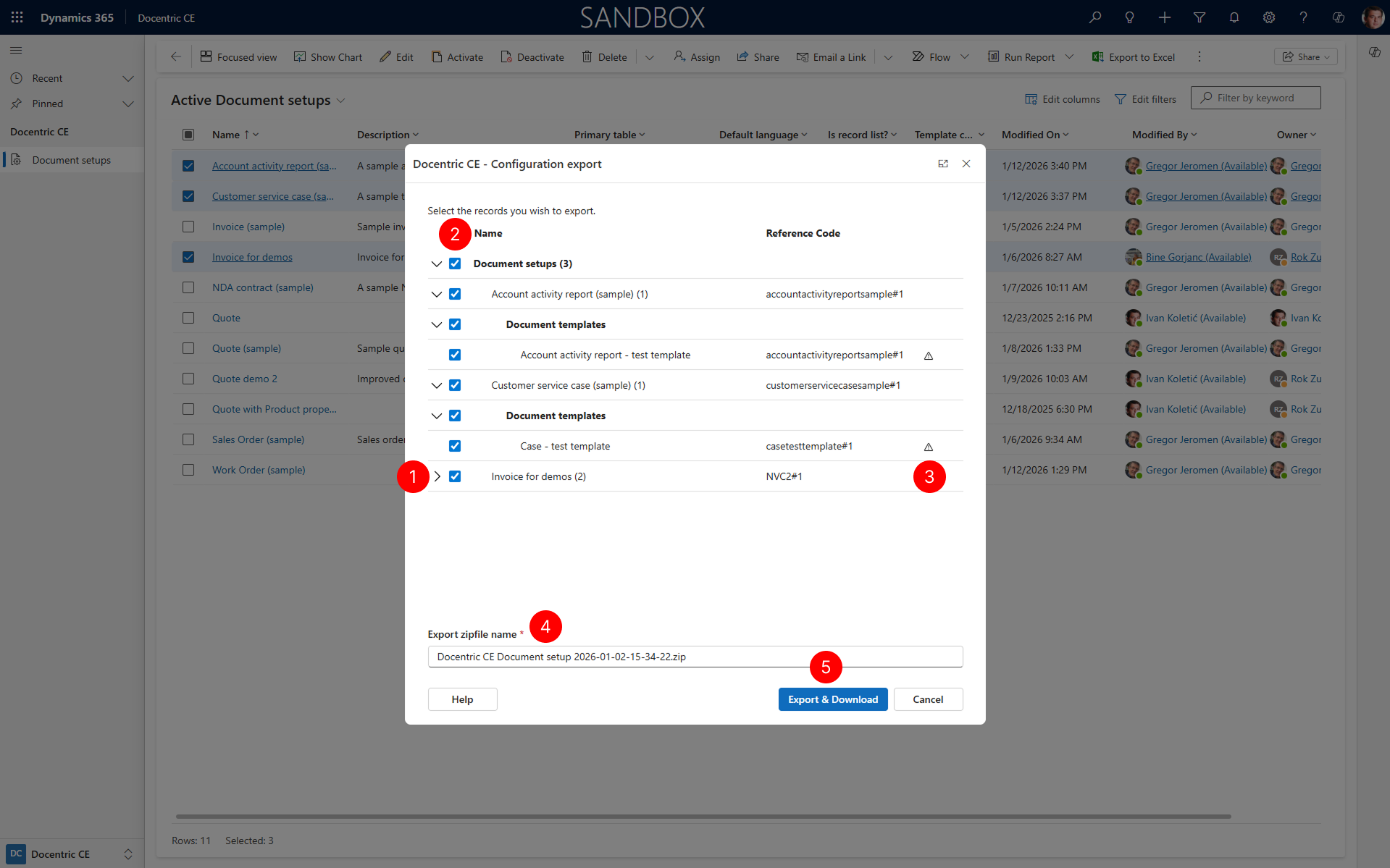
Review the configurations to include in the export package and generate the configuration file.
- In the Export Configuration dialog, use the caret to expand or collapse configurations to export.
- Select the Document Setups and related configurations you want to export.
- Review the status of selected configuration to ensure all required configurations are valid.
- Choose Export & Download to generate the configuration package file and have it download to your device.
NOTE
The configuration package includes Document setups, Data models, Document templates, and other related settings. Reference codes are preserved during export to ensure proper identification across environments.
Import configuration in target environment
Import the configuration package, such as the one exported from your source environment, into your target environment.
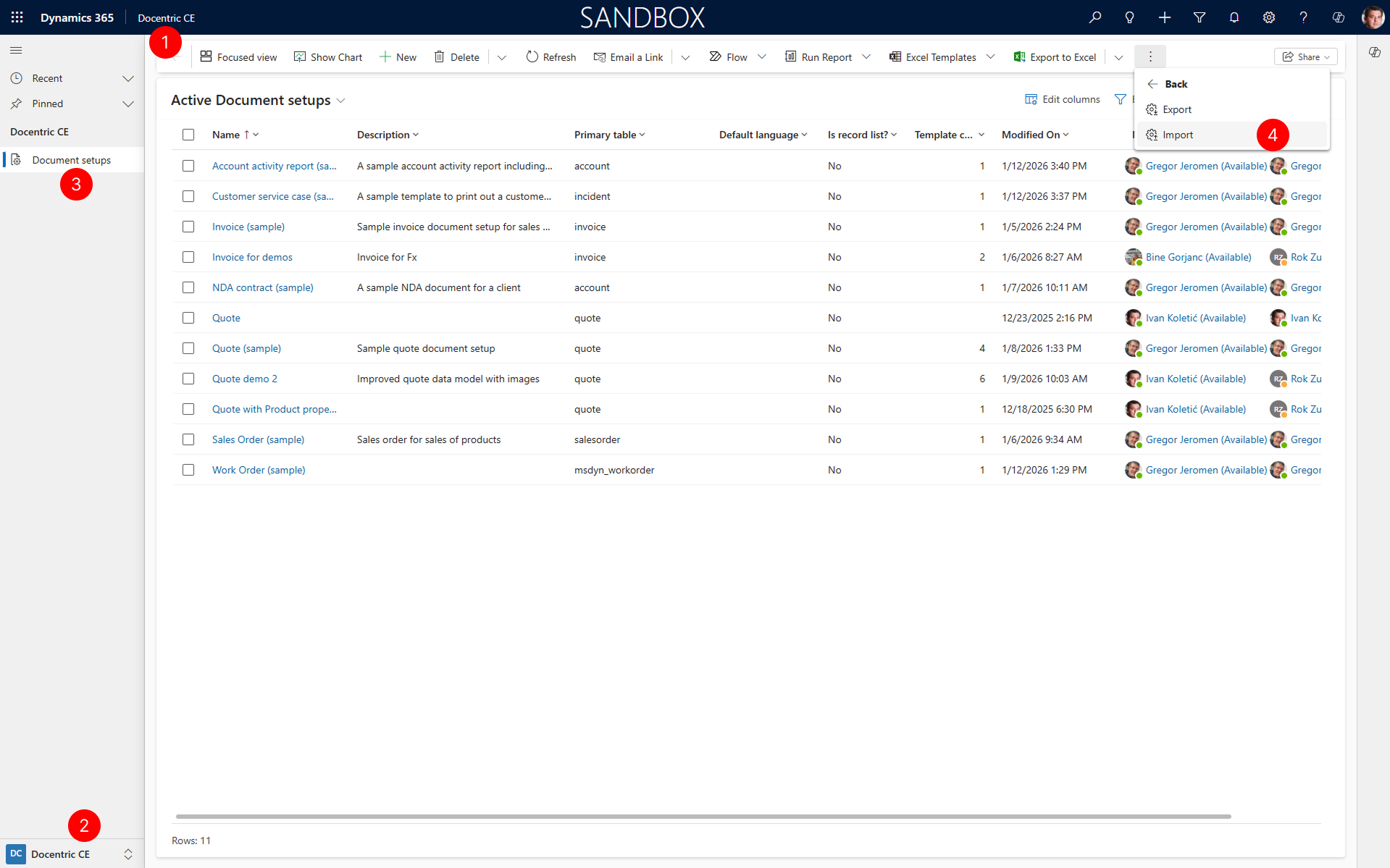
- Open Docentric CE in your target Dynamics 365 environment.
- In the navigation pane, select Docentric CE area.
- In the site map, select Document setups.
- Choose Docentric CE Configuration > Import to open the Configuration import dialog.
TIP
Make sure no Document setups are selected when importing configuration. When Document setup record is selected, Import action will be hidden in the ribbon.
Complete the Import Configuration dialog
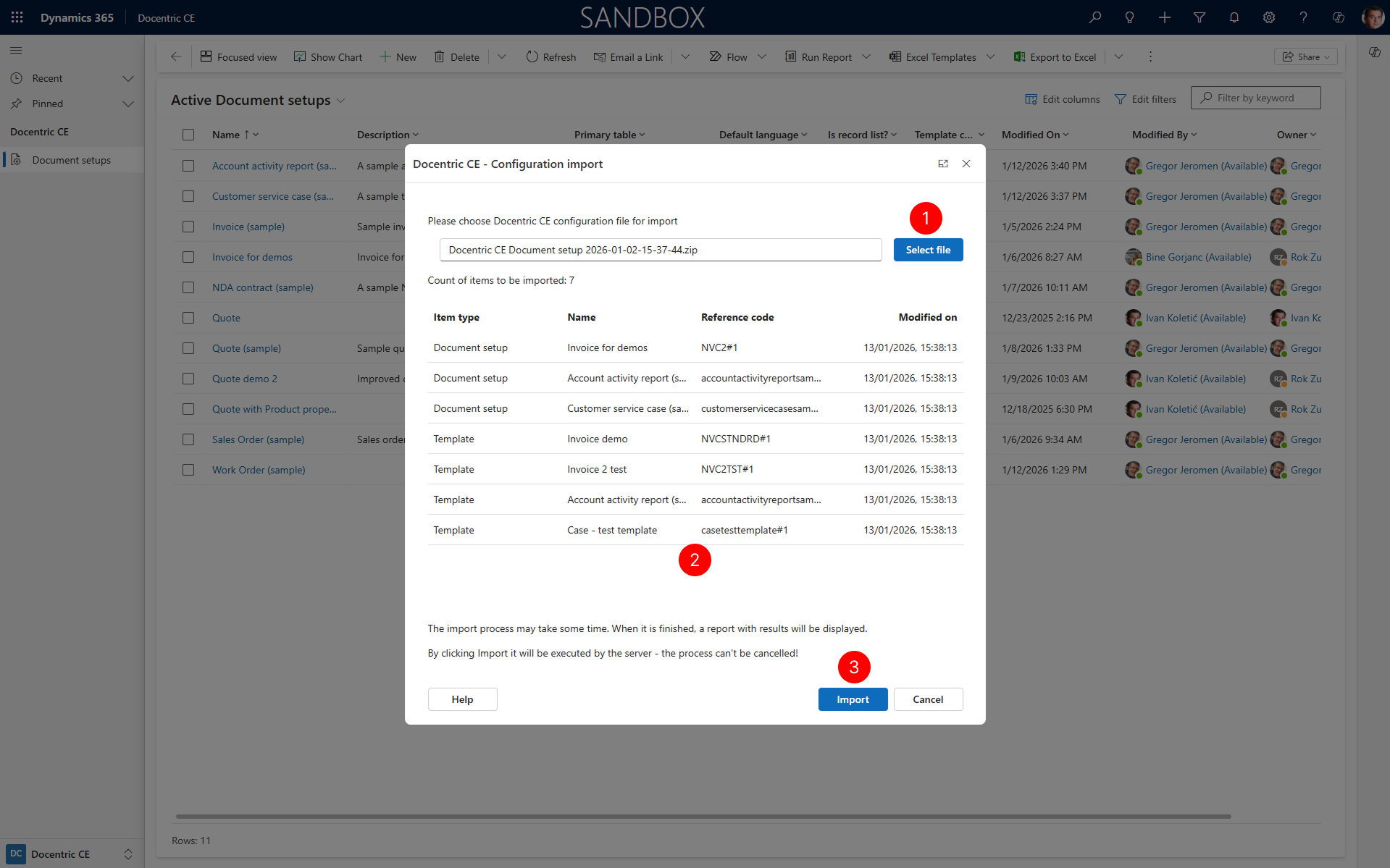
Load the configuration package file.
- In the Configuration import dialog, choose Select file to select the configuration package file you exported from the source environment.
- Review the list of configurations that will be imported.
- Choose Import to begin the import process.
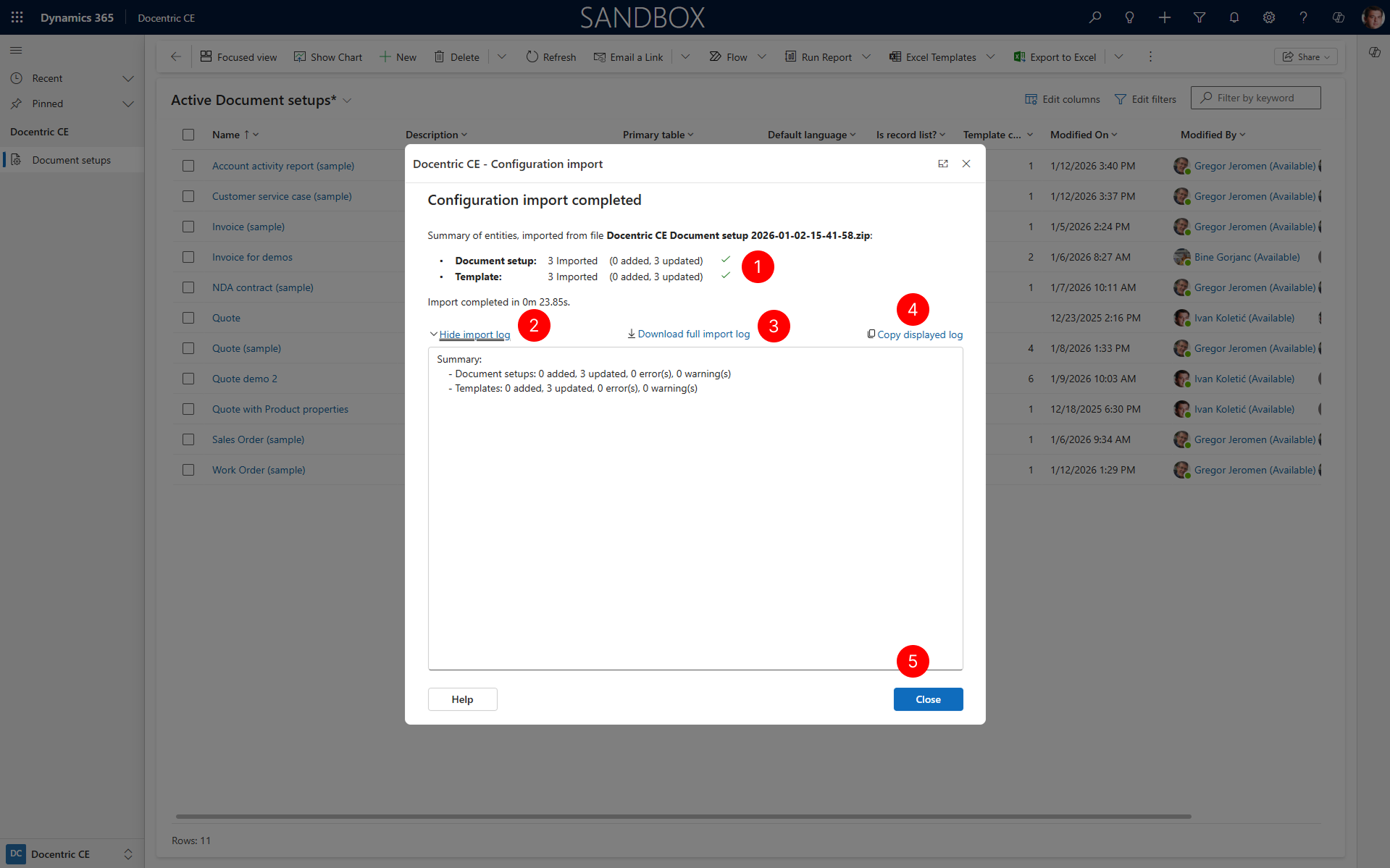
Monitor import status
- Review the summary of configurations imported.
- Choose Show details the view import result details to verify that all configurations were imported successfully.
- Choose Download full import log to download import result details to, for example, share with support.
- Choose Copy displayed log to copy import result details to, for example, share with support.
- Choose Close to close the dialog.
NOTE
If a Document setup or other configuration with the same Reference code already exists in the target environment, the import process will update such record with data from the imported configuration data. Otherwise, it will create new records in target environment.
Troubleshooting
Export or Import actions are not visible in the ribbon
If you don't see the Docentric CE Configuration, Export, or Import actions in the ribbon, try the following:
- Check More Commands – Choose the More Commands (⋮) icon in the ribbon to see if the actions are available there.
- Check record selection – These actions are context sensitive:
- Export – Only appears when at least one Document Setup record is selected.
- Import – Only appears when no Document Setup records are selected. Clear any selections before importing.
Next steps
Configure Document Setup — Review and update imported Document setups as needed