Hyperlink tagging element
Use the Hyperlink tagging element to create clickable links in your generated documents. Hyperlink tagging elements transform any wrapped content into a hyperlink, allowing you to dynamically generate links based on data from your Data Source.
Prerequisites
- Template Designer installed. For more information, see Install Docentric Designer.
- A document template set up with a Data Source Package (DDSP) loaded. For more information, see Set up a document template.
- A Hyperlink tagging element inserted in your template. For more information, see Tagging elements overview.
- An Elements tree pane shown. For more information, see Elements tree pane
Bind Hyperlink tagging element to URL
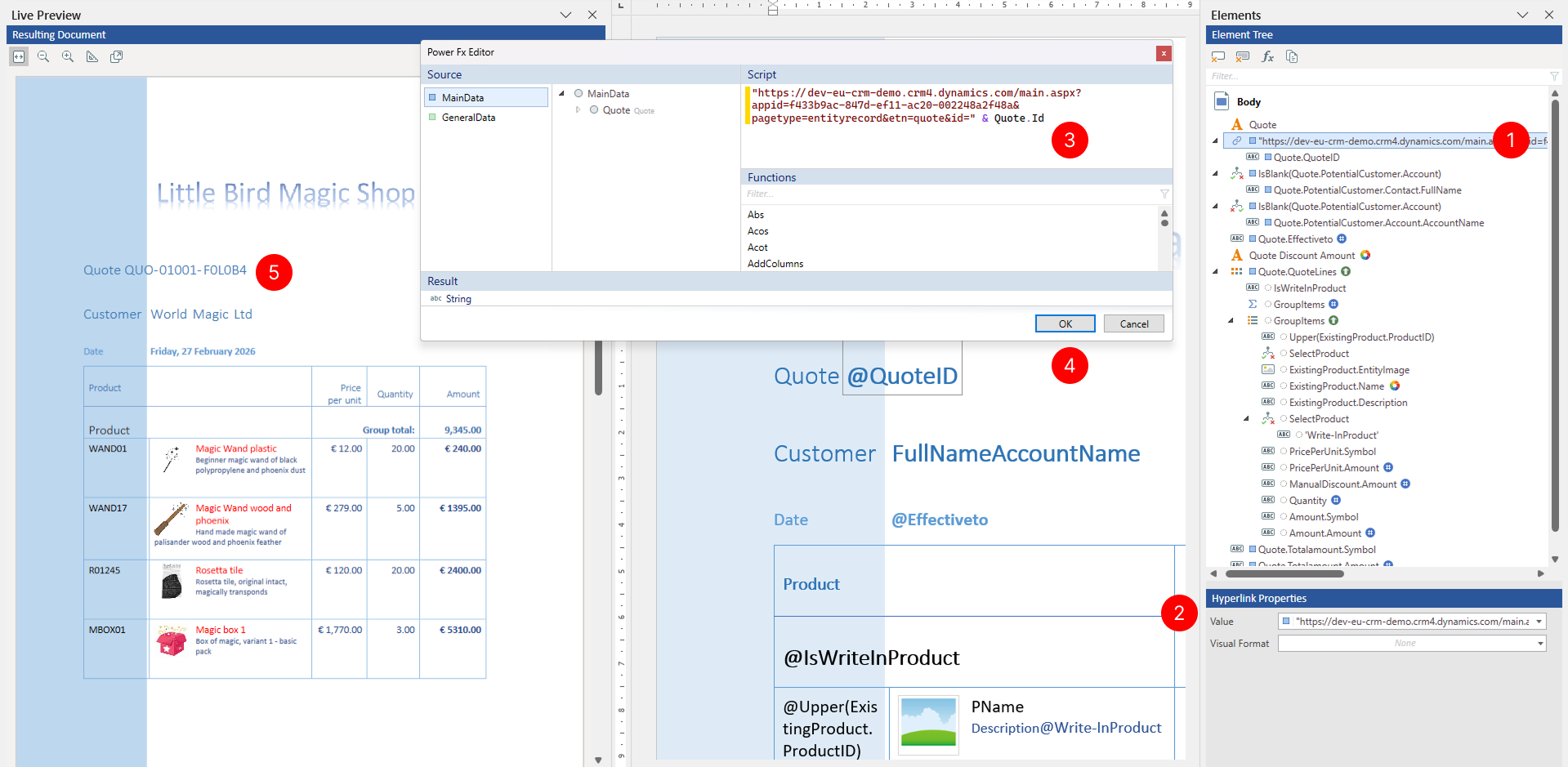
Bind the Hyperlink tagging element to a data field or expression that contains a valid URL.
- Select the Hyperlink tagging element to view its properties.
- In the Properties pane, locate the Value property and choose the value button to open the value binding panel.
- Under Source, select the data section that contains your URL data and under Path, navigate the data structure tree and select the data field containing the URL, or enter a Power Fx expression that evaluates to a valid URL. The value must be a valid web address (for example,
https://www.example.com). - Choose the OK button to confirm the binding.
- Review results in Live Preview pane.
Apply visual formatting
You can specify visual formatting rules on the Hyperlink tagging element to control the visual appearance of related content in the generated document in a dynamic, data-driven manner. For detailed steps, see Apply visual formatting to tagging elements.