Use Subdocument tagging element
The Subdocument tagging element allows you to embed external documents directly into your generated documents. Use it to include reusable content such as terms and conditions, legal disclaimers, or any other document stored in Dataverse or retrieved from external sources. Subdocuments can be in Word (.docx) or HTML format, making it easy to modularize your templates and maintain consistent content across multiple documents.
Prerequisites
- Template Designer installed. For more information, see Install Docentric Designer.
- A document template set up with a Data Source Package (DDSP) loaded. For more information, see Set up a document template.
- A Subdocument tagging element inserted in your template. For more information, see Tagging elements overview.
Bind subdocument to data and configure format
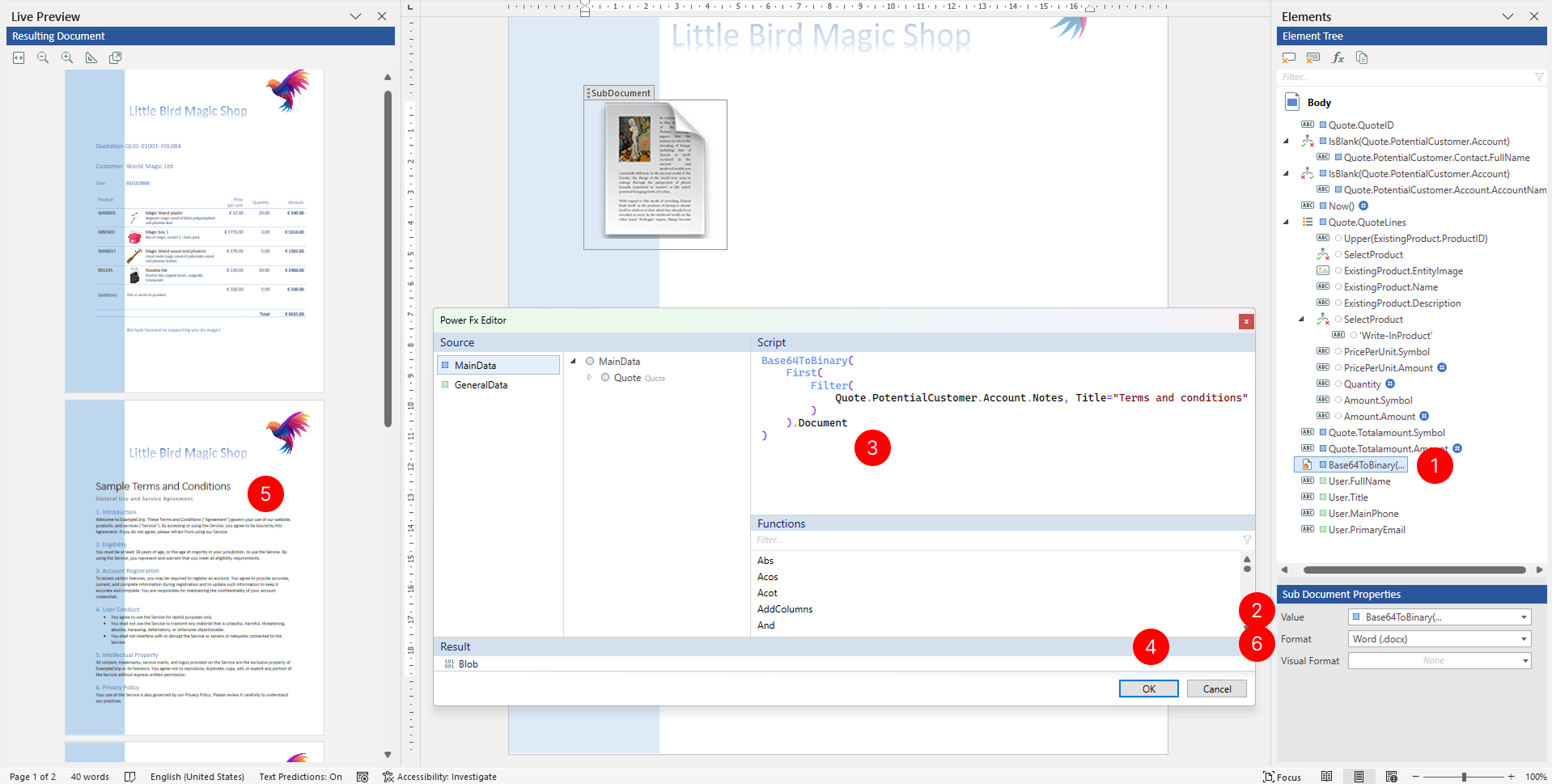
Bind the Subdocument tagging element to a data field that contains the document content you want to embed. In most cases, documents stored in Dataverse (such as Note attachments, Email attachments, or Annotations) are stored as Base64-encoded strings. You'll need to use the Base64ToBinary custom Power Fx function to convert these strings to binary format before they can be rendered as subdocuments. For more information, see Docentric Power Fx helper functions.
In case a document is stored as a binary file, which is not that common, you can bind subdocument tagging element to it as any other field. For more information about data binding, see Bind data to a tagging element.
Select the Subdocument tagging element in your template or in the Elements pane.
In the Properties pane, select the Value property to open the value binding panel. To bind to a Base64-encoded field from Dataverse (such as a Note attachment), switch to Script view or Power Fx Editor.
In the Script field enter a Power Fx expression. For example, to retrieve a specific Note attachment by title:
Base64ToBinary( // Convert Base64-encoded document to binary format
  First( // Get the first matching record
    Filter( // Filter the collection of Notes
      Quote.PotentialCustomer.Account.Notes, Title="Terms and conditions"
    )
  ).Document // Access the Document field from the Note record
)
TIP
If your subdocument is stored as binary data or retrieved from an external URL using the
DownloadFilefunction, you can bind directly to the field without usingBase64ToBinary.Choose the OK to confirm the binding.
Verify subdocument rendered correctly in Live Preview pane.
In the Format dropdown, select the format that matches your subdocument content:
- Word - Use this option when embedding Word documents (.docx files).
- HTML - Use this option when embedding HTML content. Use this when your subdocument is stored as HTML markup or when you retrieve HTML content from external sources.
NOTE
Make sure the selected format matches the actual format of your subdocument content. If there's a mismatch, the subdocument may not render correctly in the generated document.
Apply visual formatting
You can apply visual formatting rules to control the appearance of the Subdocument tagging element based on conditions. For example, you can hide the subdocument based on data values or apply conditional styling to the surrounding content.
For detailed instructions on applying visual formatting, see Apply visual formatting to tagging elements.