Select template and files
When you run a document from your Dynamics 365 app, such as Sales, Field Service, or any model-driven app, the first step of the Document Run dialog asks you to select a document template and language. This selection determines which template will be used to generate your document and in which language it will be displayed. The dialog generates a document preview so you can verify the template selection before proceeding.
Prerequisites
- You have the one of following Docentric CE security roles assigned:
- Docentric CE User or
- Docentric CE Maker or
- Docentric CE Administrator
- A Document Setup has been defined for the entity you're working with in your model-driven app.
- You have selected a record of that entity type
Select template and files step
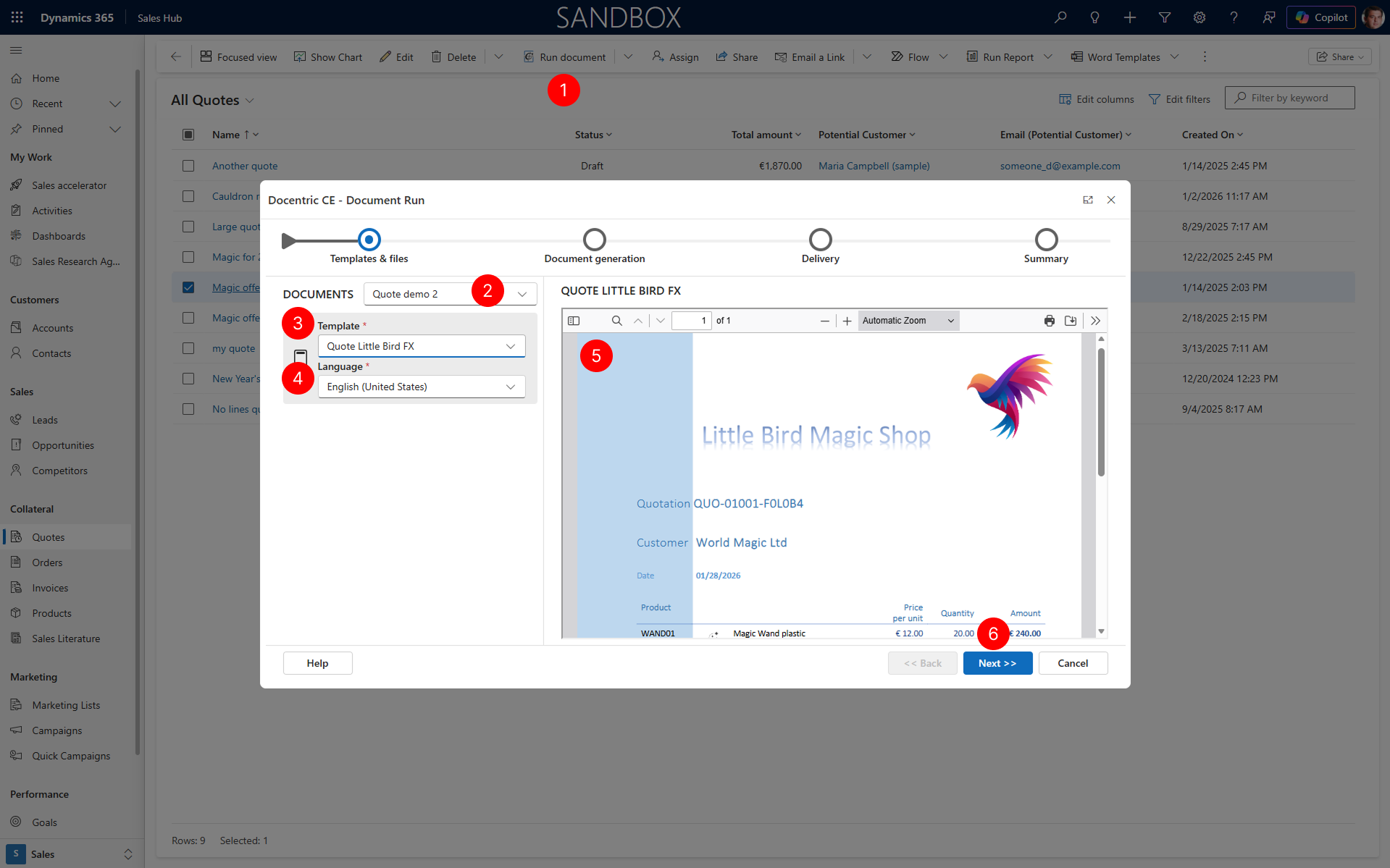
Choose Run Document action to open the Document Run dialog.
In the DOCUMENTS panel of the Document Run dialog, select Document setup to use to generate a document.
Choose the document template you want to use to generate your document, in Template dropdown of the action card.
(Optional) If your organization uses multiple languages, select a language from the Language dropdown. This determines the language in which the document will be generated.
NOTE
The language for document generation in Document Run dialog is determined using the following priority:
- Use the language explicitly selected in Document Run dialog if set
- Use Base Language set in your environment settings
The dialog automatically generates a preview of the document based on your template and language selection. Review the preview on the right side of the dialog to verify that the correct template and content are displayed.
Choose Next to proceed to Document generation step.
Next steps
Document generation - Learn how to configure generation settings such as file format and output file name