Barcode tagging element
Use the Barcode tagging element to display data as barcodes in your generated documents. Barcode tagging elements support various barcode symbologies, allowing you to encode information such as product codes, tracking numbers, or URLs in machine-readable format.
Prerequisites
- Template Designer installed. For more information, see Install Docentric Designer.
- A document template set up with a Data Source Package (DDSP) loaded. For more information, see Set up a document template.
- A Barcode tagging element inserted in your template. For more information, see Tagging elements overview.
- An Elements tree pane shown. For more information, see Elements tree pane
Bind Barcode tagging element to data
Before you can configure the barcode symbology, bind the Barcode tagging element to a data field containing the value to encode. For detailed steps, see Bind tagging element to data.
Configure barcode symbology
Select the barcode format according to your requirement.
- Select the Barcode tagging element to view its properties.
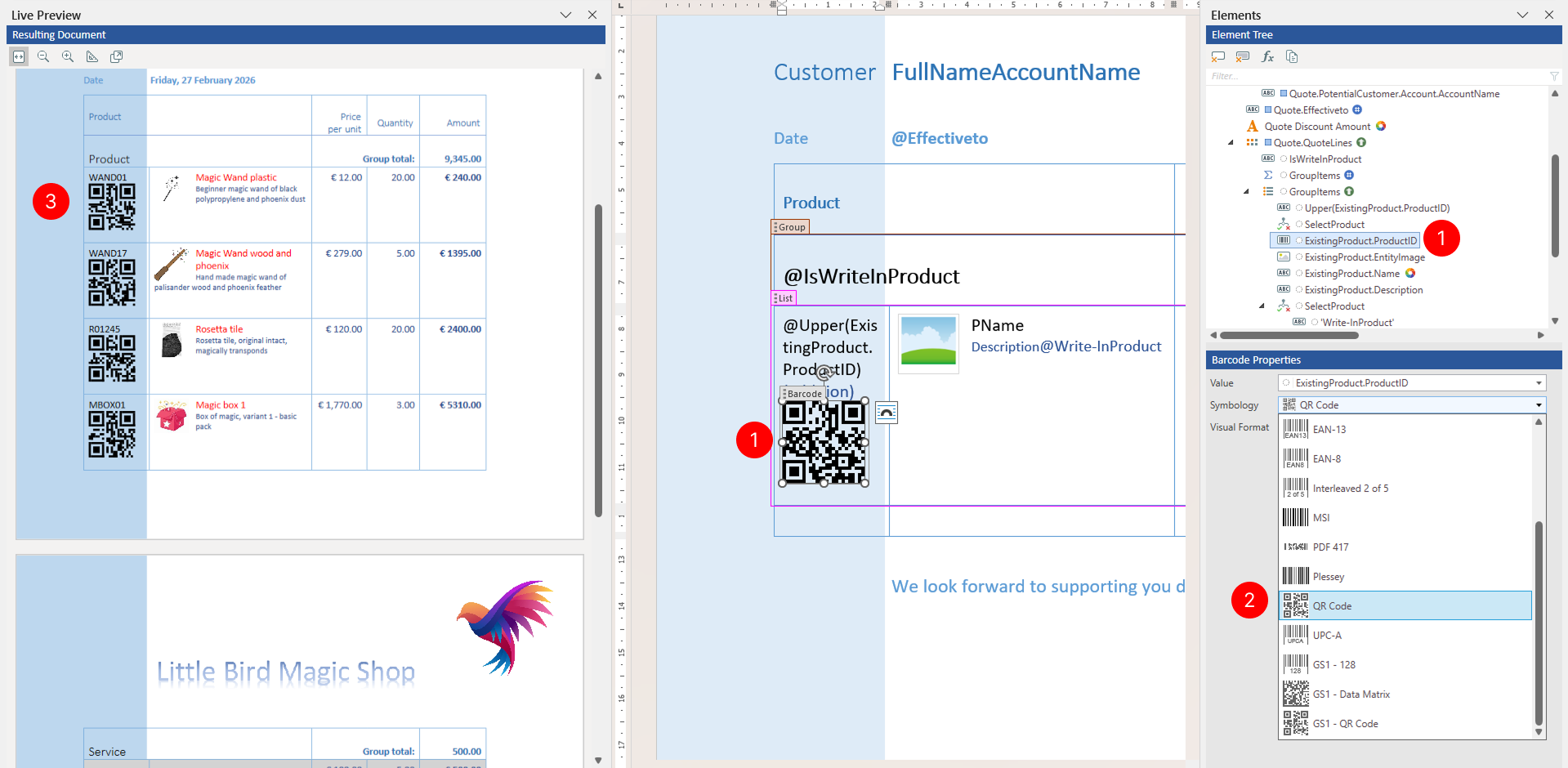
- In the Properties pane, locate the Symbology property. Select one of the following barcode symbologies from the dropdown:
- Aztec - 2D matrix barcode supporting large amounts of data
- Code 128 - High-density 1D barcode for alphanumeric data
- Code 39 - 1D barcode widely used in non-retail environments
- Codabar - 1D barcode commonly used in libraries and blood banks
- Data Matrix - 2D barcode for small items with limited space
- EAN-13 - Standard 1D barcode for retail products (13 digits)
- EAN-8 - Compact 1D barcode for small retail products (8 digits)
- Interleaved 2 of 5 - 1D barcode for numeric data in logistics
- MSI - 1D barcode used in warehouse and retail applications
- PDF 417 - 2D stacked barcode for large amounts of data
- Plessey - 1D barcode for retail and library applications
- QR Code - 2D barcode widely used for URLs and mobile applications
- UPC-A - Standard 1D barcode for retail products in North America (12 digits)
- GS1 - 128 - 1D barcode with GS1 application identifiers for supply chain
- GS1 - Data Matrix - 2D Data Matrix barcode with GS1 application identifiers
- GS1 - QR Code - 2D QR Code barcode with GS1 application identifiers
- Review results in Live Preview pane.
Apply visual formatting
You can specify visual formatting rules on the Barcode tagging element to control the visual appearance of related content in the generated document in a dynamic, data-driven manner. For detailed steps, see Apply visual formatting to tagging elements.
Best practices for barcode elements
When working with barcodes in document templates, consider these practices:
- Prepare data to fit specific data requirements - Some of the barcode formats have specific constraints, such as accepting only numeric data or requiring exact data length etc. Take these requirements into account to insure proper display.
- Include human-readable text - Always place a Field tagging element bound to the same value below or beside the barcode for manual reference. Users should be able to read the encoded value even if the barcode cannot be scanned.
- Vector-based output - Barcodes are rendered as vector graphics, ensuring precision at any size or resolution.
- Resize and rotate - You can resize and rotate barcode elements to fit your template layout while maintaining quality.
Example: Barcode with human-readable ID
- Insert a Barcode tagging element and bind it to a document ID field (e.g.,
ProductId). - Below the barcode (or next to it for some 2D formats), insert a Field tagging element bound to the same field.
- This provides both machine-readable and human-readable representations of the same data.