Install Docentric Template Designer
In order to design document templates for Docentric CE, you need to install the Docentric Template Designer add-ins for Microsoft Word and/or Microsoft Excel (in Preview). These two add-ins enhance the capabilities of Word and Excel. Add-ins enable you to design Word or Excel-based templates. Valid document templates for Docentric CE can (currently) only be created using the Docentric Designer add-in for Microsoft Word.
IMPORTANT
If you use both products, Docentric CE and Docentric AX, be aware of a temporary incompatibility between their respective Docentric Template Designer versions. Docentric CE uses the new Docentric Template Designer version 7.0, while Docentric AX still requires Docentric Template Designer 6.1.
Two versions of the Docentric Template Designer cannot be installed on the same machine, and if you need to be able to design document templates for Docentric AX and Docentric CE, you must have both versions of Docentric Template Designer installed, each on a different (virtual) machine. This limitation is temporary, and will be lifted with the release of the upcoming major release of Docentric AX.
Prerequisites
- Windows operating system
- Microsoft Office (desktop version, version 2019 or higher)
- Download the Docentric Template Designer installer from this link.
Run the installer
NOTE
You must have Local Administrator rights on the PC where you install Docentric Template Designer.
Follow the setup wizard to install Docentric Designer on your computer.
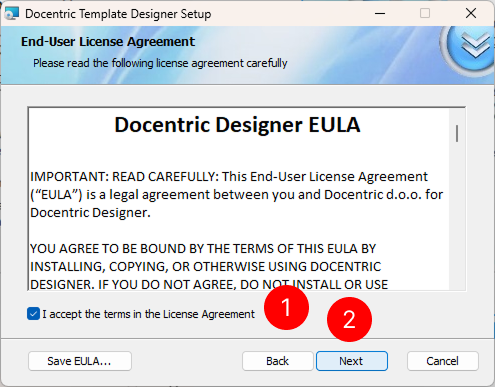
Locate and double-click the downloaded installer file to launch the setup wizard. Review the license agreement, select I accept the terms in the License Agreement.
On the End-User License Agreement screen, select Next to begin the installation.
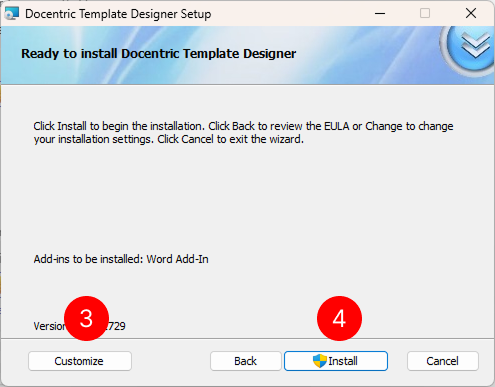
On the Ready to install Docentric Template Designer step, choose Customize optionally if you want to customize the installation.
NOTE
When you choose Customize you can decide to also install Docentric Template Designer for Excel (Preview). By default, only Docentric Template Designer for Word will be installed.
Choose Install to start the installation process.
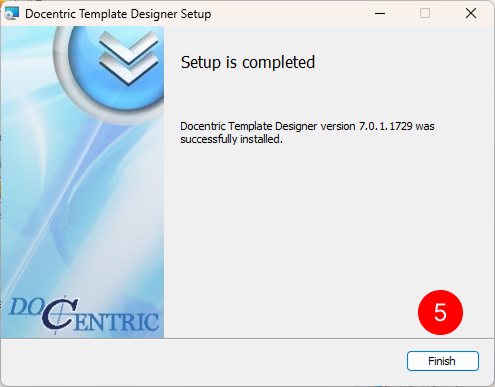
Wait for the installation to complete. On the completion screen, select Finish to exit the setup wizard.
Verify the installation
After installation, open Microsoft Word and confirm that the Docentric ribbon tab appears in the ribbon. The Docentric ribbon tab provides access to all Template Designer features.
If the Docentric ribbon tab doesn't appear, close and reopen Word or Excel.