Run Document flow
In Docentric CE, you generate and distribute business documents by running a Document Flow. When you select a record in your Dynamics 365 app, such as Sales, Field Service, or any model-driven app, that has a Document Setup configured for the related table, you can use the Run Document action to start a wizard that guides you through the document generation and delivery process.
Prerequisites
- You have the one of following Docentric CE security roles assigned:
- Docentric CE User or
- Docentric CE Maker or
- Docentric CE Administrator
- A Document setup has been defined for the entity you're working with in your model-driven app.
Run the Document wizard
To generate a document, follow these steps:
In your Dynamics 365 app, such as Sales, Field Service, or your custom model-driven app, select a record of an entity that has a Document Setup defined.
On the ribbon, choose Run Document. The Document Run wizard opens, displaying the first step.
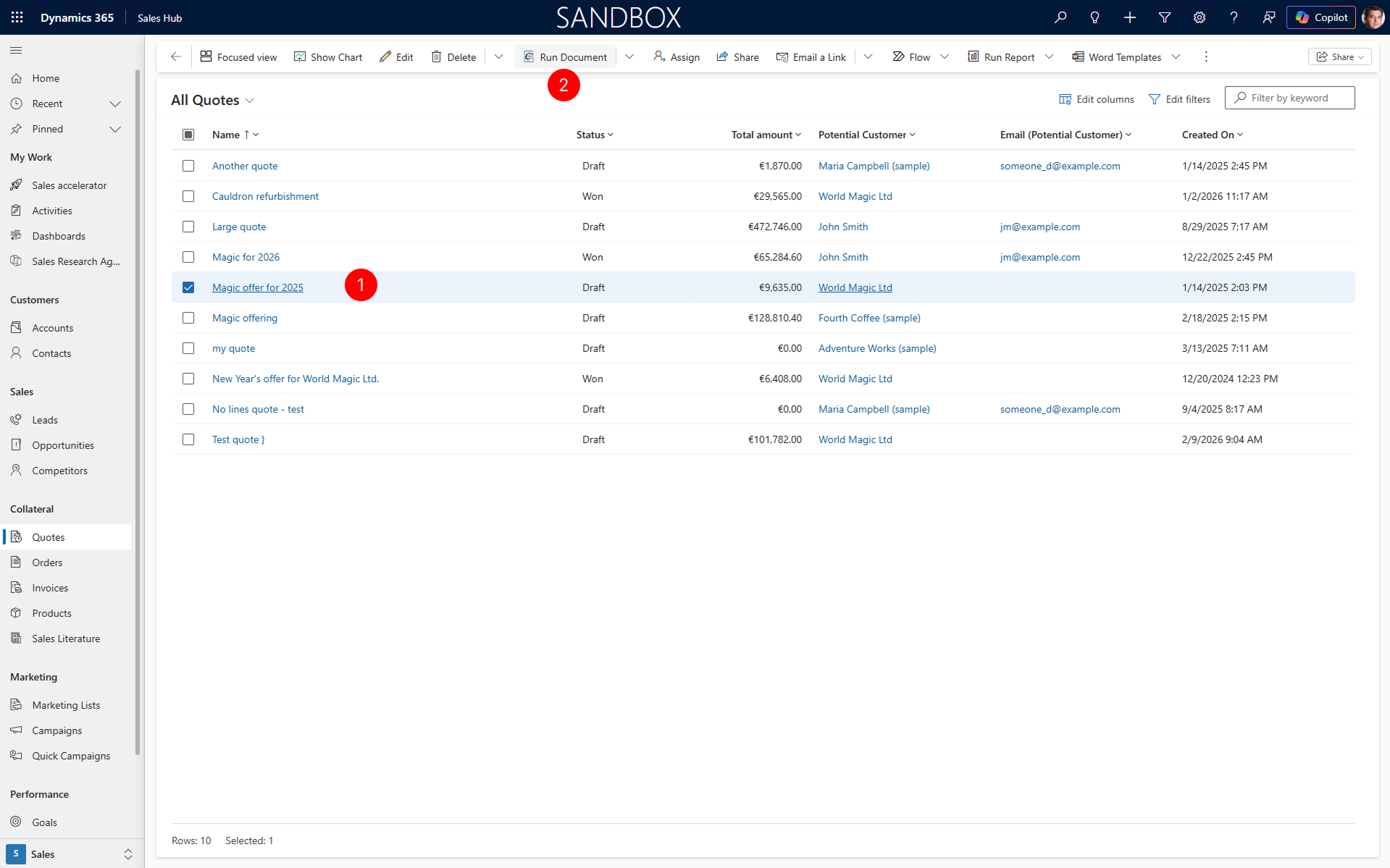
Follow each step of the wizard in order:
- Select templates and files – Choose which document template to use and select any supporting files if needed.
- Document generation – Configure document generation settings such as file format and output file name.
- Delivery – Specify where the generated document should be sent (such as email, download, or note).
- Summary – Review your selections and confirm to generate and send the document.
After you complete all steps, Docentric CE will generate and distribute your document.
Troubleshooting
Run Document action is not visible in the ribbon
If you don't see the Run Document action in the ribbon, try the following:
- Check More Commands – Choose the More Commands (⋮) icon in the ribbon to see if the action is available in the overflow menu.
- Select one record – The Run Document action is context sensitive and only appears when at exactly one record is selected. Make sure you have selected one record from the list or opened a record form.
Next steps
Select Template and files - Learn how to select templates in Document Flow.