Generate Docentric Data Source Package (DDSP) from a record
To design a document template with Docentric Template designer, you need a Docentric Data Source Package (DDSP) file. A DDSP file contains all the information that is needed to design and test a Document template in Docentric Template designer.
When you generate a DDSP file from a record in your Dynamics 365 app or custom model-driven app, the selected record is automatically included as sample data. This is useful when you need a DDSP file with specific real data for template design or testing.
A DDSP file contains:
- The complete data source schema as defined by the Data Model. This way, Template designer knows what data (records and fields) is available for use in the template.
- Sample data from the selected record that allows you to test the template by previewing it from within Template designer.
- Label translations for all the selected preview languages. This information allows for multilingual document previewing.
Prerequisites
- You have one of the following Docentric CE security roles assigned:
- Docentric CE User or
- Docentric CE Maker or
- Docentric CE Administrator
- A Document setup has been defined for the entity you're working with in your model-driven app.
Open Generate Data Source Package dialog
To start generating a DDSP file, follow these steps:
- In your Dynamics 365 app, such as Sales, Field Service, or your custom model-driven app, select a record of an entity that has a Document setup defined.
- Choose the caret in the Run Document split button to view additional actions in the split button.
- On the ribbon, choose Generate data source. The Generate Data Source Package dialog opens.
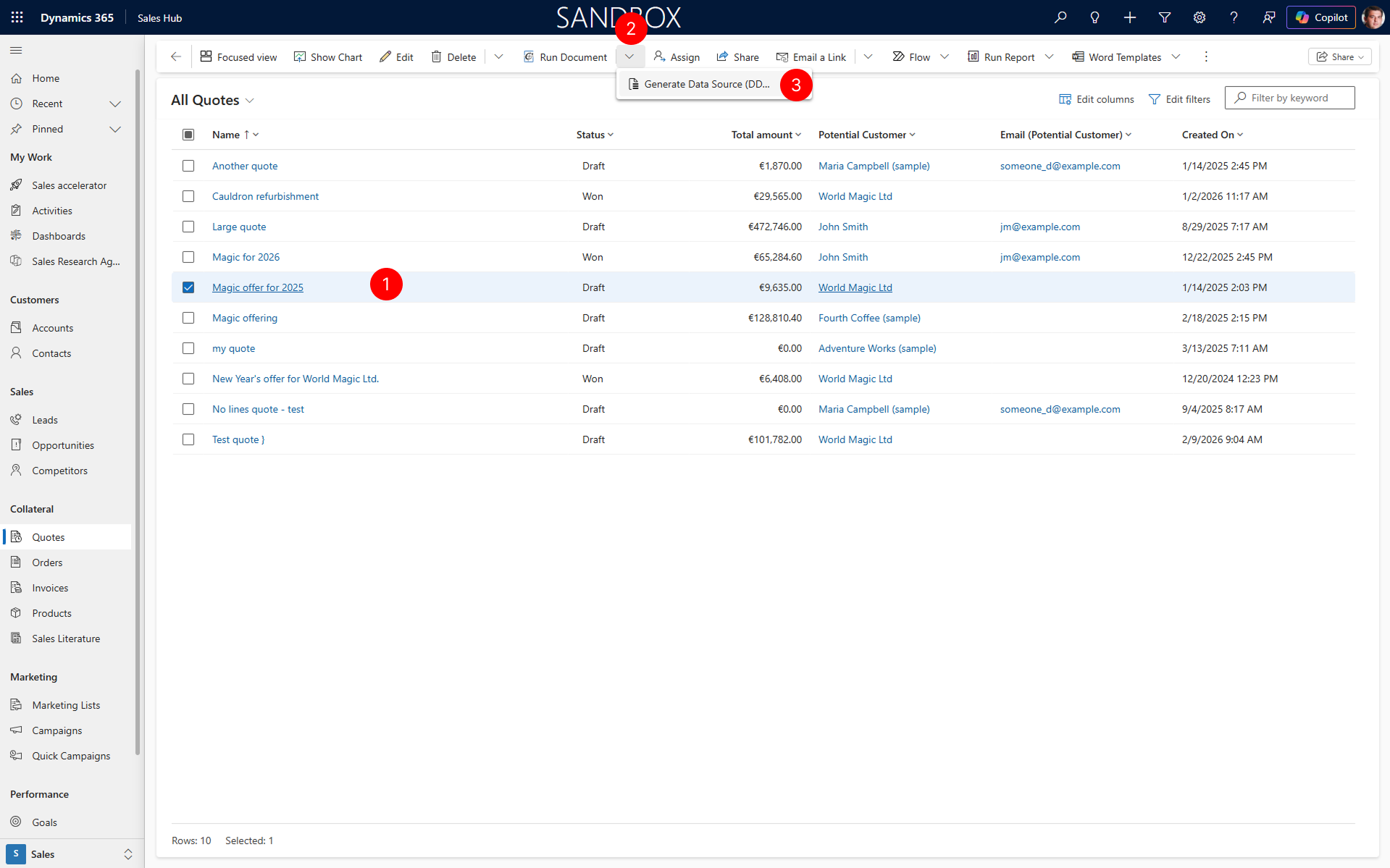
Generate Data Source
After opening the Generate Data Source Package dialog, configure the settings and generate the file:
- In the Generate from document setup field, select the Document setup you want to use as the data source.
- Review that the selected record is displayed in the context field, such as Quote record.
- In the Language field, select one or more languages to include additional sample data and label translations for multilingual template preview. You can clear all selections but one if you don't need additional languages.
- In the DDSP filename field, enter the name for the generated DDSP file. The file extension
.ddspis added automatically. - Choose Generate to create and download the DDSP file.
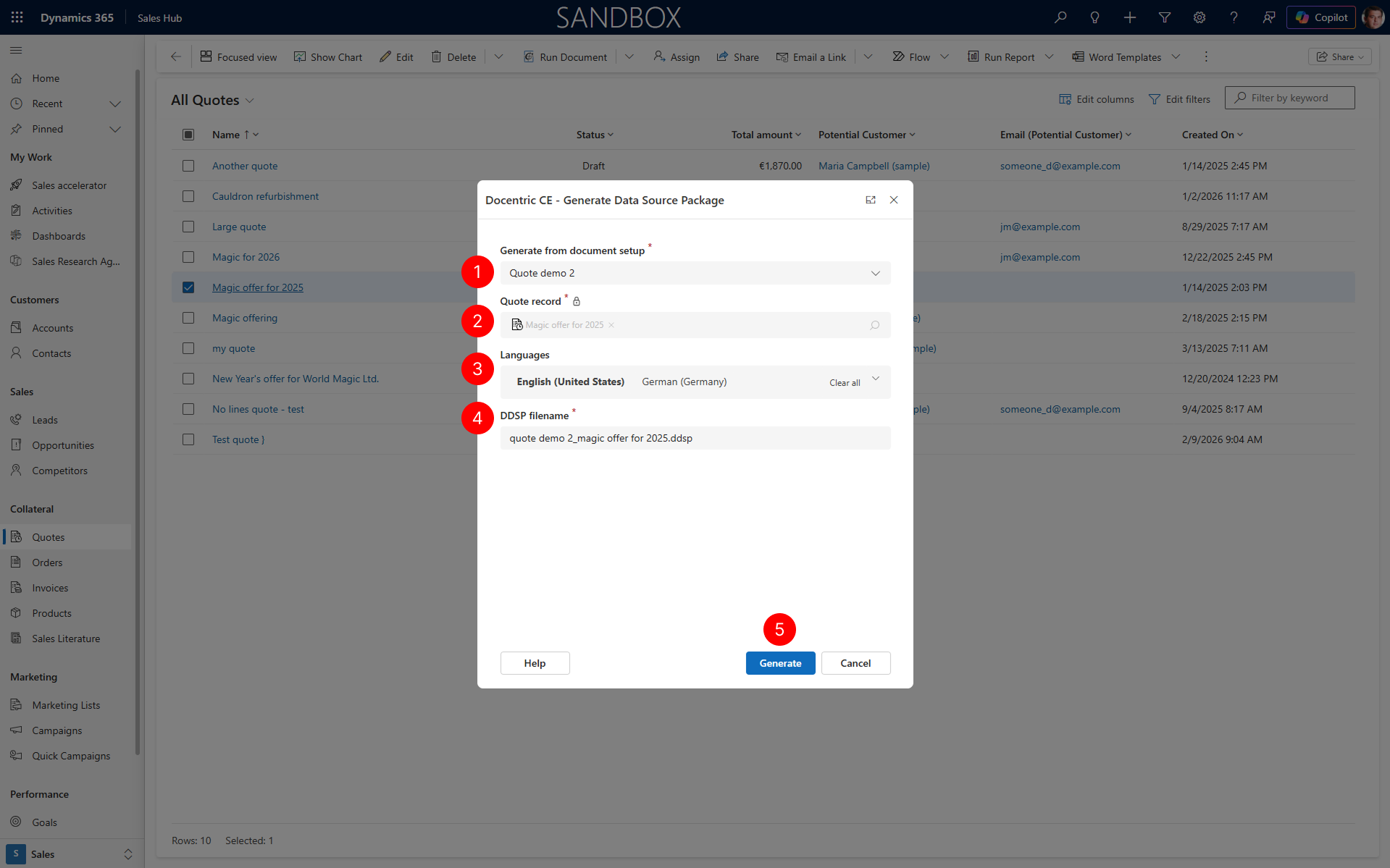
The DDSP file is downloaded to your default downloads folder and can be used by the Template designer.
Troubleshooting
Generate data source action is not visible in the ribbon
If you don't see the Generate data source action in the Run Document split button, try the following:
- Check More Commands – Choose the More Commands (⋮) icon in the ribbon to see if the action is available there.
- Select a record – The Generate data source action is context sensitive and only appears when at least one record is selected. Make sure you have selected a record from the list or opened a record form.
Next steps
Welcome to Docentric CE Template designer for Word - Learn how to design templates using the generated DDSP file.