Bind data to a tagging element
Data binding connects tagging elements in your Document Template to data fields or records from the Data Source. When you bind a tagging element, you specify which data from the Data Source should be inserted into the generated document. You can bind to data fields and records, or even write Power Fx formulas to perform complex calculations and data manipulations.
A binding is defined by two main components:
- Source - specifies the source from which to select data.
- Path or Script - specifies the exact data field or record within the selected source, or a Power Fx formula.
Prerequisites
- Template Designer installed. For more information, see Install Docentric Designer.
- A document template set up with a Data Source Package (DDSP) loaded. For more information, see Set up a document template.
- A tagging element inserted in your template. For more information, see Tagging elements overview.
- An Elements tree pane shown. For more information, see Elements tree pane
Bind a tagging element to a data field or record using a path
Most of the time, you will bind tagging elements to specific data fields or records from your Data Source.
- Select the tagging element to view its properties and select the Value property to open the value binding panel.
- Under Source, select the data section that contains your data:
- MainData - the primary data defined in the Data Model
- GeneralData - general data and information that does not belong to a specific entity
- Data Context - data context provided by a parent tagging element
- Enter name of a field or record to search in the data structure tree in the search box to quickly locate it in the tree.
- Under Path, navigate the data structure tree and select the specific data field or record.
- Once you select field or record result type will be shown in bottom left.
- Choose the OK button (
 ) to confirm the binding.
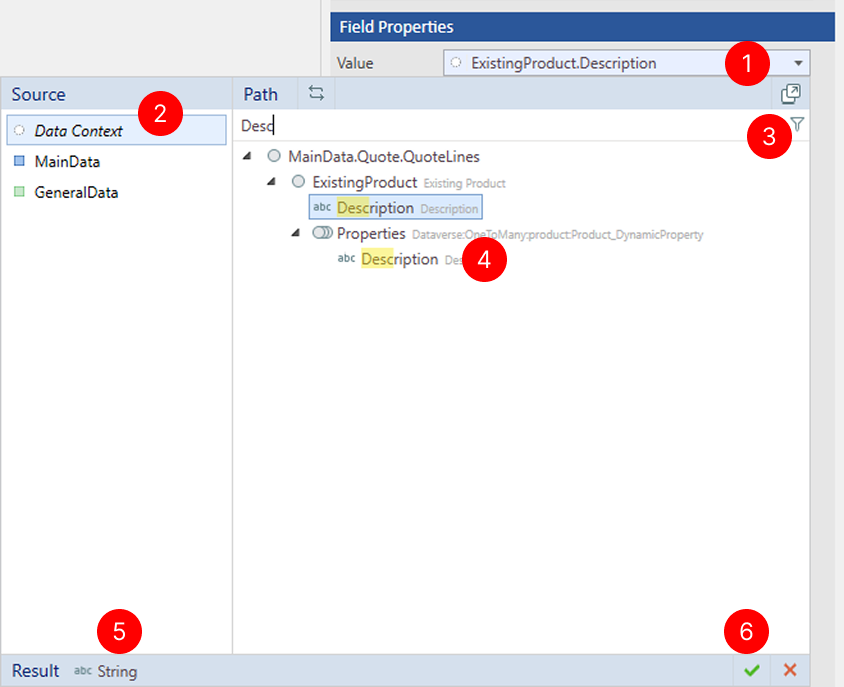
The tagging element is now bound to the selected data field or record. When you generate a document, the actual data value will replace the placeholder.
Bind tagging element to data using Power Fx expressions
If binding to data requires more than just selecting a field or record, you can write a formula in the form of a Power Fx expression. Power Fx is a low-code language used by Docentric Template Designer for data manipulation and calculations. It is the same language used across the Microsoft Power Platform.
To write a Power Fx expression for data binding, you can:
- Use the inline script editor for simple Power Fx expressions
- Use the full Power Fx editor for advanced and more complex formulas.
Bind using the Simple Power Fx Editor
- Select Path-Script switch button (
 ) to switch between static path and simple script expression binding and to edit your binding using simple script.
 - Enter your script expression in the editor. You can reference data fields and use basic operators.
- Choose the OK button () to confirm the binding.
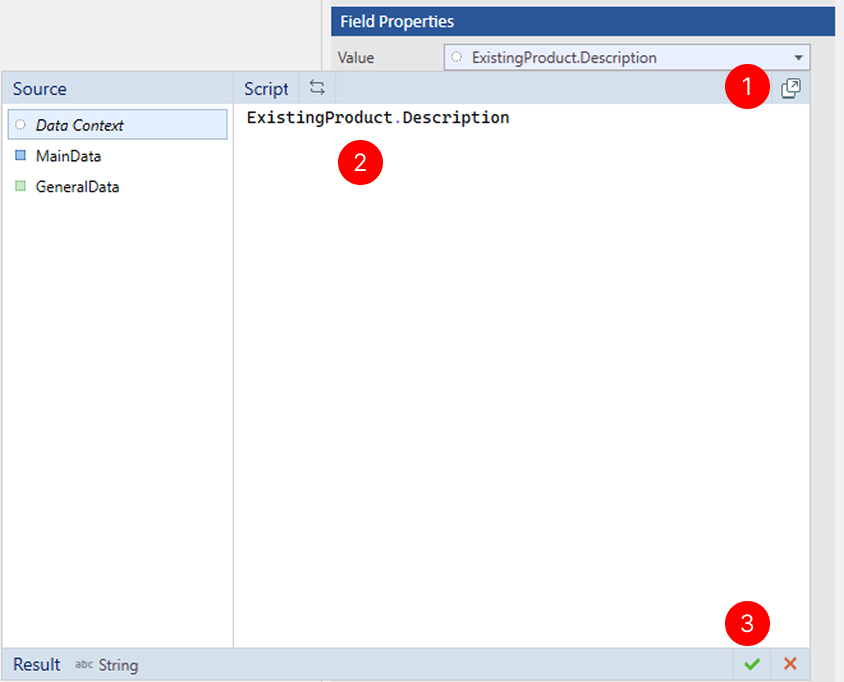
The tagging element is now bound to the selected data field or record. When you generate a document, the actual data value will replace the placeholder.
Bind using the Full Power Fx Editor
The full Power Fx editor provides a rich environment for writing complex Power Fx formulas for data binding. It has a bigger editing area, and provides help in the form of a list of available Power Fx functions.
- Select Open script editor button (
 ) or Edit value binding script button (
 ) or select Edit Expression from right-click menu to open Power FX script editor and to edit your binding using script editor.
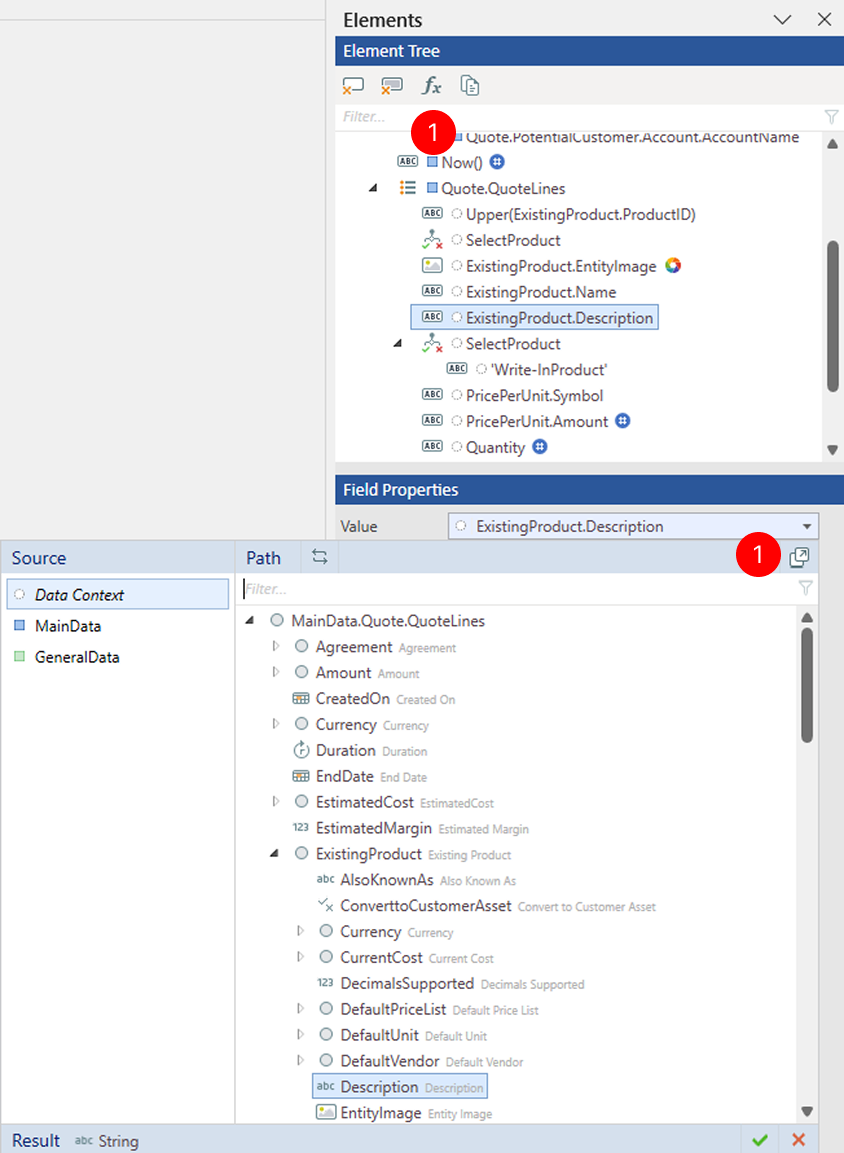
With your Power FX script editor open, follow next steps to enter formula.
- Enter your Power Fx formula in the editor. For more information, see Power Fx formulas.
- Browse the list of available Power FX functions you can use in your Power Fx formulas.
- During editing of your Power Fx formula, IntelliSense provides suggestions for available fields and functions.
- Choose the OK button () to confirm the binding.
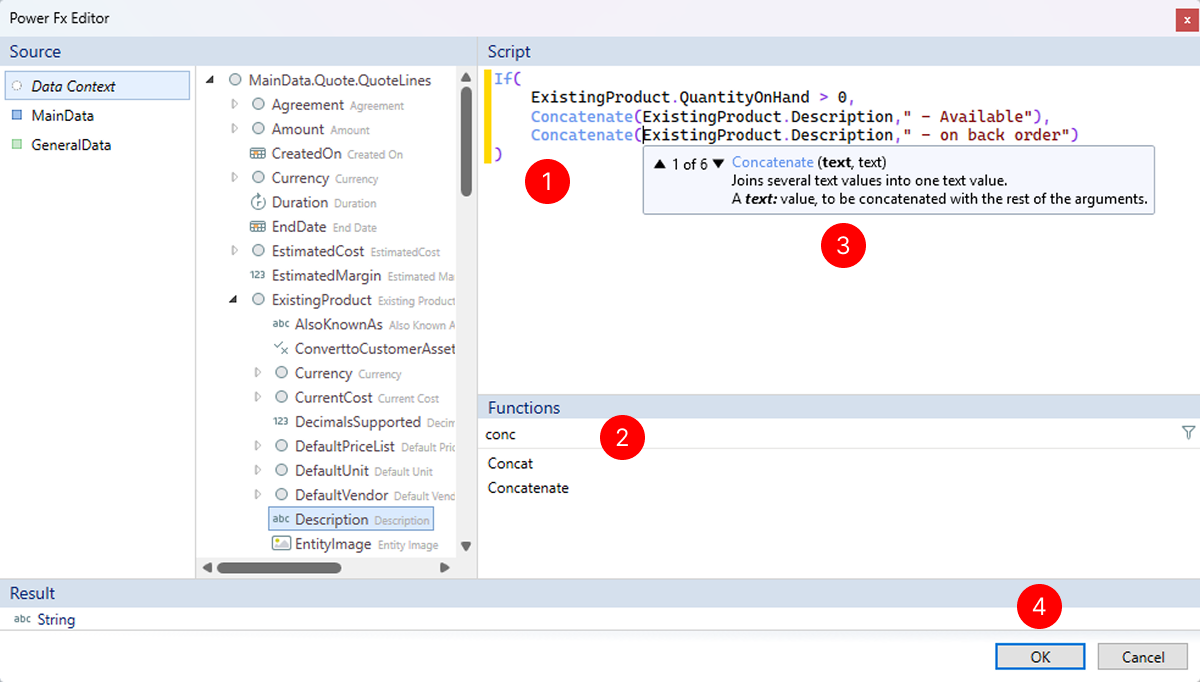
The tagging element is now bound to the Power Fx expression. When you generate a document, the Power Fx formula will be evaluated and its result will be used to replace the tagging element.
Understand data context binding
A container tagging element (List, Group, Context) sets the Data Context for everything inside it. Data Context means “the data scope provided by the container”:
- List: Data Context is the current record (one item from the record set that List is bound to).
- Group: Data Context is the current group, meaning a set of records plus the group key(s).
- Context: Data Context is whatever record or records set the Context element defines.
Inside the container, bindings are typically relative to Data Context (no full path). Bindings can also use the outer scope (often the root record), but keep in mind that values from the outer scope don't change inside the container, so you can use them as constants or parameters for calculations.
Example: print a list of product families for a Quote
Use inside scope (Group Data Context) for product families
- bind Field 1 to
DataContext.GroupKey→ Product Family (changes per group)
Use outside scope (Quote header) for quote number
- Bind Field 2 to
Quote.QuoteNumber→ Quote No. (same in every group)
Example output:
| Field 1 | Field 2 |
|---|---|
| Services | Q-10025 |
| Hardware | Q-10025 |