Install Docentric CE from AppSource
Docentric CE is available on Microsoft AppSource as a free trial. This article guides you through the installation process, from AppSource to the Power Platform Admin Center.
NOTE
Docentric CE is available only for cloud deployments. On-premises installations of Microsoft Dynamics CRM are not supported.
Prerequisites
- You have the System Administrator security role in your target Power Platform environment.
- You are signed in to AppSource with a work or school account.
Start the installation from AppSource
Begin the installation by requesting the free trial from the Docentric CE AppSource page.
- Go to the Docentric CE page on AppSource.
- Select Free trial.
- Confirm installation and your contact details or select Edit to modify them.
Install in Power Platform Admin Center
After starting the installation from AppSource, complete the setup in Power Platform Admin Center.
- Select the environment where you want to install Docentric CE.
- Review and agree to Microsoft's legal terms and privacy policy.
- Review and agree to Docentric's legal terms and privacy policy.
- Select Install.
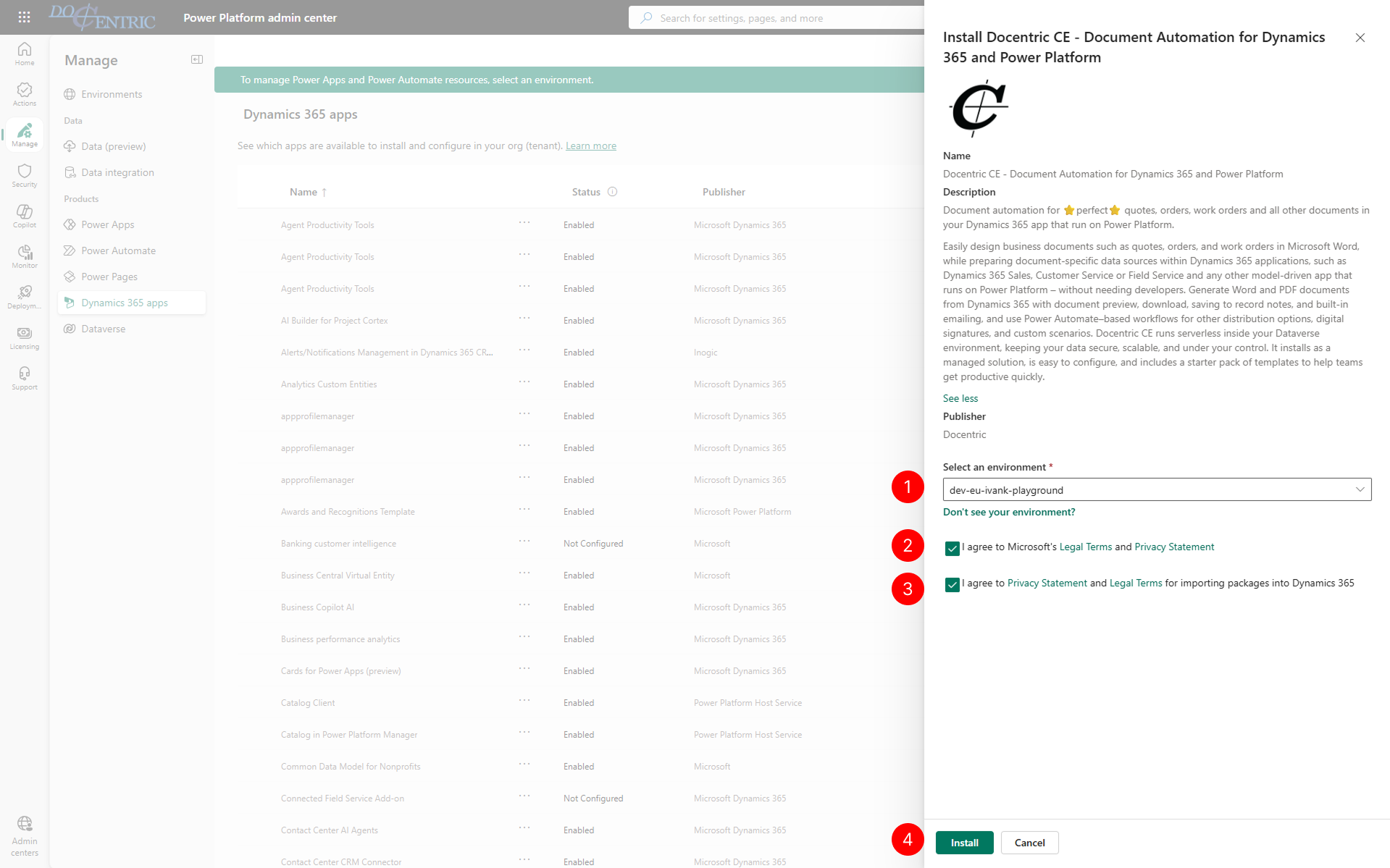
The installation begins and may take several minutes to complete.
Troubleshooting
Installation shows as failed, but solution history shows success
Symptom: The installation appears failed in the admin center, but when you check solution history, it shows as successful.
Cause: If another installation is running at the same time, Docentric CE installation may complete but fail to initialize Languages and Fonts.
Resolution: Initialize the missing components manually:
- Languages: Run the Repair languages action. For instructions, see Repair Languages after adding new ones.
- System fonts: Open the Template fonts settings page and select Run report to initialize system fonts. For instructions, see Check available fonts.
Next steps
After installing Docentric CE, assign security roles to users who need access. See Assign Docentric CE security roles to users.