Group tagging element
Use the Group tagging element to organize a collection of data records into groups based on one or more group keys. Group tagging elements are ideal for creating hierarchical structures in documents, such as grouping quote line items by product category or sales orders by customer.
Prerequisites
- Template Designer installed. For more information, see Install Docentric Designer.
- A document template set up with a Data Source Package (DDSP) loaded. For more information, see Set up a document template.
- A Group tagging element inserted in your template. For more information, see Tagging elements overview.
- An Elements tree pane shown. For more information, see Elements tree pane
Bind Group tagging element to data
Before you can configure grouping, bind the Group tagging element to a collection of data records. For detailed steps, see Bind tagging element to data.
Configure grouping
Define how data records should be grouped by specifying group keys.
- Select the Group tagging element to view its properties.
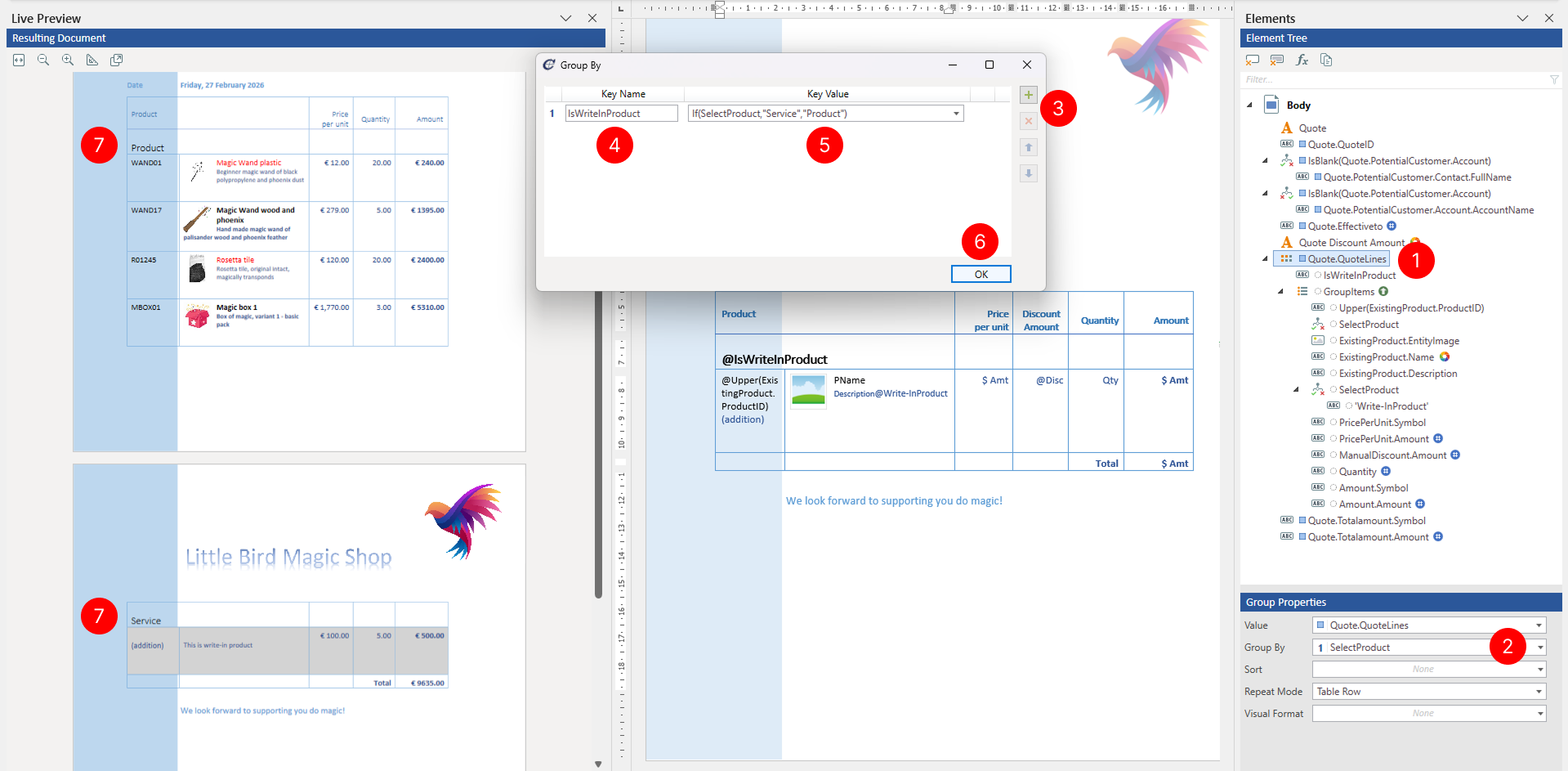
- In the Properties pane, locate the Group By property and choose the group by button to open the Group By dialog.
- In the Group By dialog, you can add multiple Group By entries to group by multiple fields or remove them. Use the up and down arrows to change the priority of grouping rules.
- Enter group Key Name.
- In the Key Value select the field or expression to be used to group your records.
- Choose OK to apply the grouping configuration.
- Review results in Live Preview pane.
Configure sorting
Control the order in which records within each group appear in the generated document by adding sorting rules.
- Select the Group tagging element to view its properties.
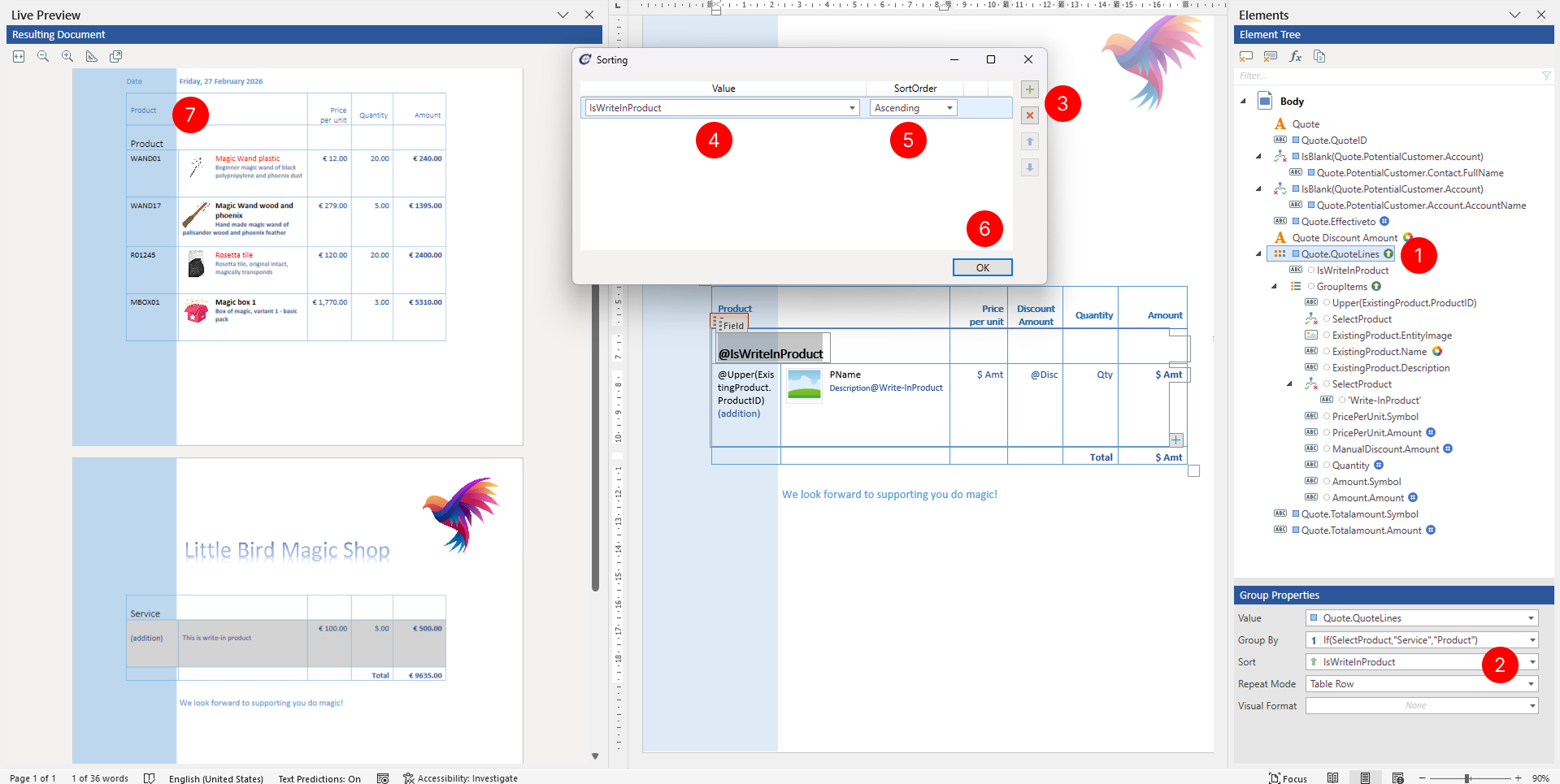
- In the Properties pane, locate the Sorting property and choose the sorting button to open the Sorting dialog.
- In the Sorting dialog, you can add multiple sorting rules to sort by multiple fields or remove them. Use the up and down arrows to change the priority of sorting rules.
- Select field Value based on which group will be sorted
- Select SortOrder to define whether to sort group in Ascending or Descending order.
- Choose OK to apply the sorting configuration.
- Review results in Live Preview pane.
Configure Repeat Mode
By specifying the Repeat Mode property, you can control how the List tagging element repeats its content in the document structure. This is particularly useful when the List tagging element wraps different types of content, such as table rows, cells, or any other type of content.
- Select the Group tagging element to view its properties.
- In the Properties pane, locate the Repeat Mode property and select one of the options. For example, if Group tagging element spans entire table row and you pick Table Row in Repeat Mode, new table rows are created for each group.
- If Group tagging element boundaries span table cell, and you pick Table Cell in Repeat Mode, new table cells are created for each group.
- If Group tagging element boundaries span table cell, and you pick Arbitrary Content in Repeat Mode, content for all groups will be placed in that single cell.
- The selection determines how the template structure repeats for each group in the collection.
TIP
You can repeat basically any content, not just parts of a Word table. Select a paragraph, part of a page or whole page(s), that need to be repeated and insert a Group tagging element to wrap it in the Group.
Apply visual formatting
You can specify visual formatting rules on the Group tagging element to control the visual appearance of related content in the generated document in a dynamic, data-driven manner. For detailed steps, see Apply visual formatting to tagging elements.