Var tagging element
Use the Var tagging element to define a variable that stores a value for reuse within a document template. To use a Var tagging element, you need to set the variable name and then define its value by binding it to a data field or expression. Once defined, you can reference the variable in Power Fx expressions of other tagging elements throughout your template.
Prerequisites
- Template Designer installed. For more information, see Install Docentric Designer.
- A document template set up with a Data Source Package (DDSP) loaded. For more information, see Set up a document template.
- A Variable tagging element inserted in your template. For more information, see Tagging elements overview.
- An Elements tree pane shown. For more information, see Elements tree pane
Define variable value
To use a Var tagging element to define a variable holding a reusable value, follow these steps:
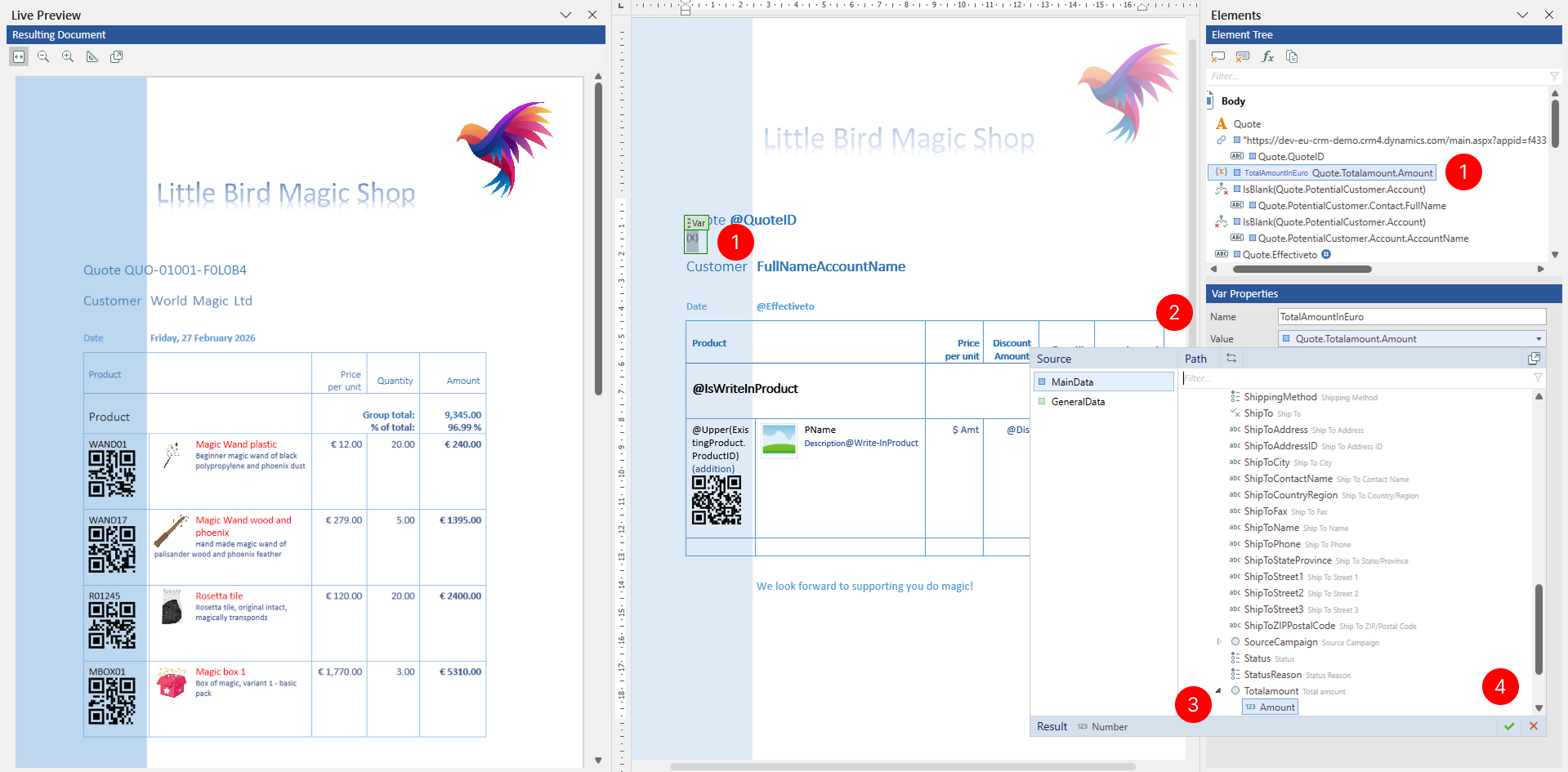
- Select the Variable tagging element in your template or in the Elements pane to view its properties.
- In the Var Properties pane, enter a descriptive Name for the variable that you will use to reference it later.
- Locate the Value property and choose the value button to open the value binding panel. Under Source, select the data section that contains your data. Under Path, navigate the data structure tree and select the data field, or enter a Power Fx expression that calculates the value to store.
- Choose the OK button (
 ) to confirm the binding.
Reuse variable in template
Templates are processed from left to right and top to bottom. After you define a variable, you can use it anywhere later in the template by referencing it from the Variables container in Power Fx expressions or other tagging elements.
To use a variable in an expression:
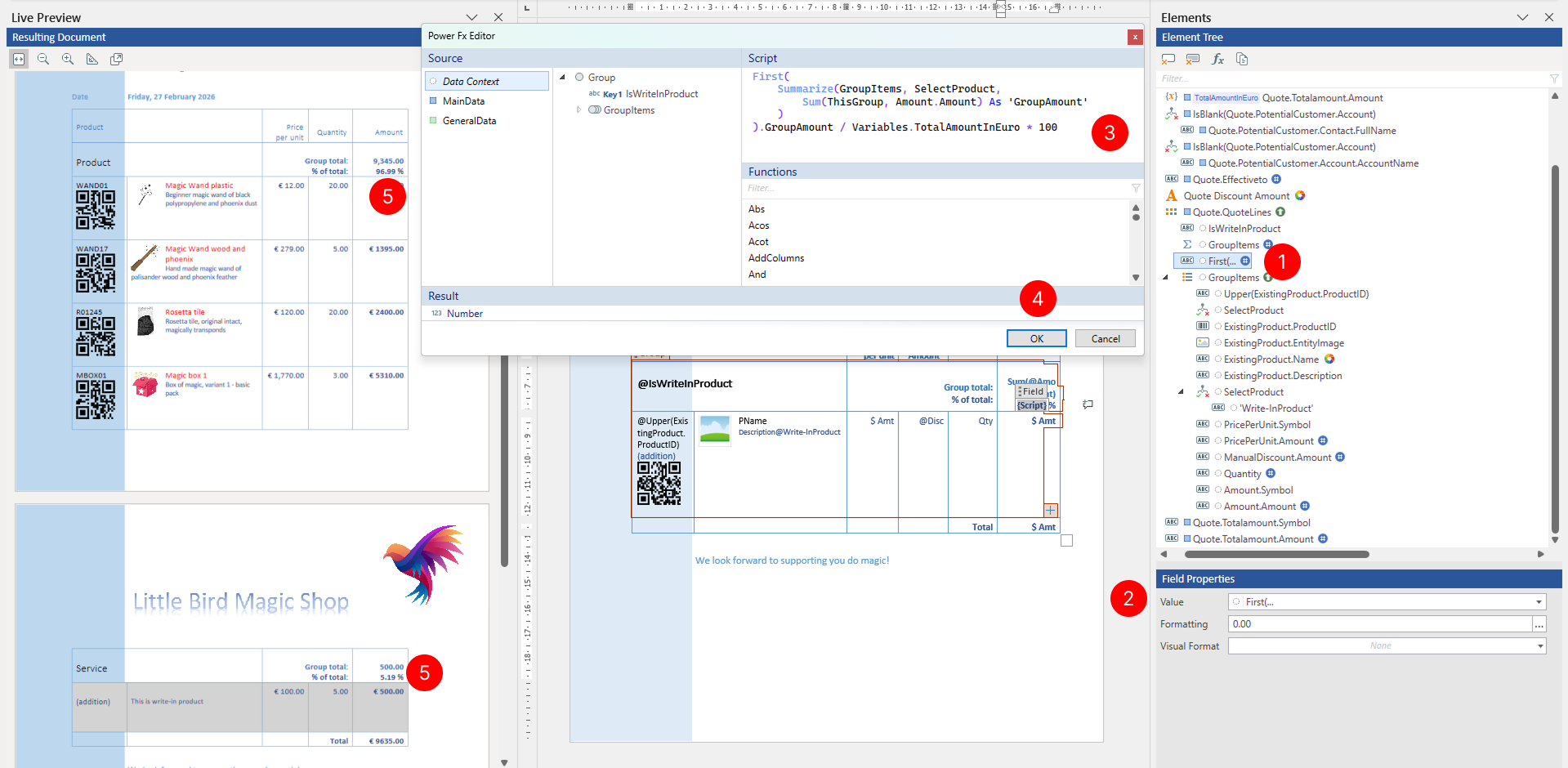
Select the tagging element in the Elements Tree pane.
Select the Value property to open the Power Fx Editor.
Type a Power Fx formula that returns the value you need. For example, below is a Power Fx expression used in a Field tagging element within a Group tagging element that calculates the percentage of group total in total amount and uses previously defined variable
TotalAmountInEuro.First( //Take first and only result from summarized table Summarize( GroupItems, //summarize group items collection SelectProduct, //summarize by Select Product field Sum( //Aggregation function ThisGroup, //Source of values to sum up Amount.Amount) As 'GroupAmount' //Source field to sum up and project as 'GroupAmount' so it can be reused further ) ).GroupAmount //Use 'GroupAmount' from first result of summarized table / //Divide Variables.TotalAmountInEuro * 100 //Divide by TotalAmountInEuros variable and multiply by 100 to get percentageChoose the OK button to confirm the binding.
Review results in Live Preview pane.
TIP
Use Variable tagging elements to calculate values once and reuse them multiple times, such as storing a calculated tax amount that appears in different sections of the document.
Apply visual formatting
You can specify visual formatting rules on the Var tagging element to control the visual appearance of related content in the generated document in a dynamic, data-driven manner. For detailed steps, see Apply visual formatting to tagging elements.