Set up Document templates
This topic explains how to create and configure Document Templates in Docentric CE. Document Templates define the structure and layout of documents Docentric CE generates. You can add multiple Document Templates within a single Document Setup to support different document layouts or formats.
Prerequisites
- You have created a Document setup. See Configure Document Setup for instructions on creating and configuring a document setup.
- You have a Document Template designed using Docentric Designer. Document Templates must be designed with Docentric Designer before you add them to your document setup. See Welcome to Docentric Designer in the Docentric Designer documentation to learn how to design templates.
Create a Document template
To create a Document template in your Document setup:
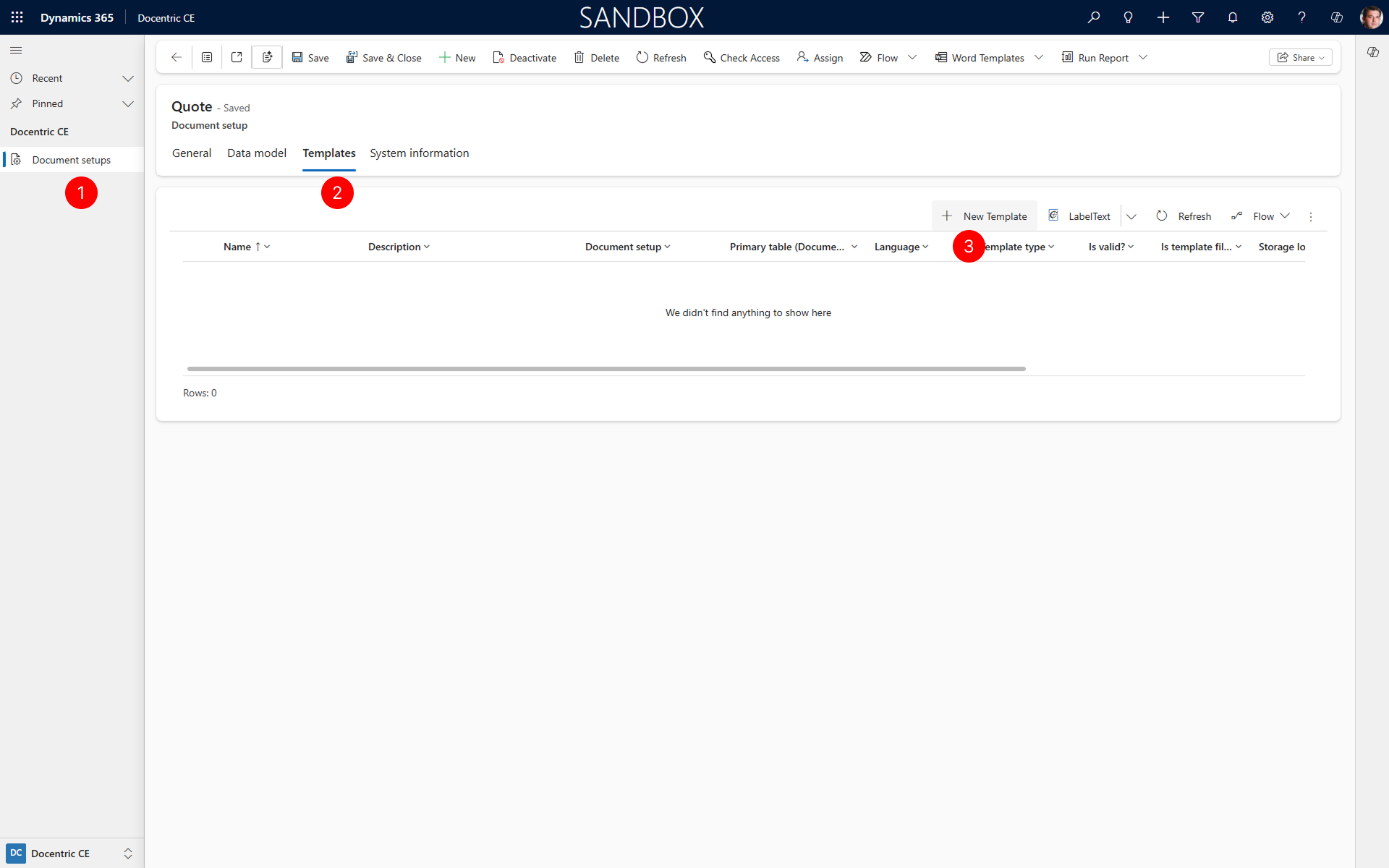
Open Document setup that you want to add a template to.
Select the Templates tab.
Choose New to create a new Template in subgrid command bar.
Enter the document template Name. Use a descriptive name that identifies the Template's purpose (for example, "Quote Template" or "Work Order Template").
Enter the document template Description. Provide details about what the Template generates or its key characteristics.
Choose Save to add the Template to your Document setup.
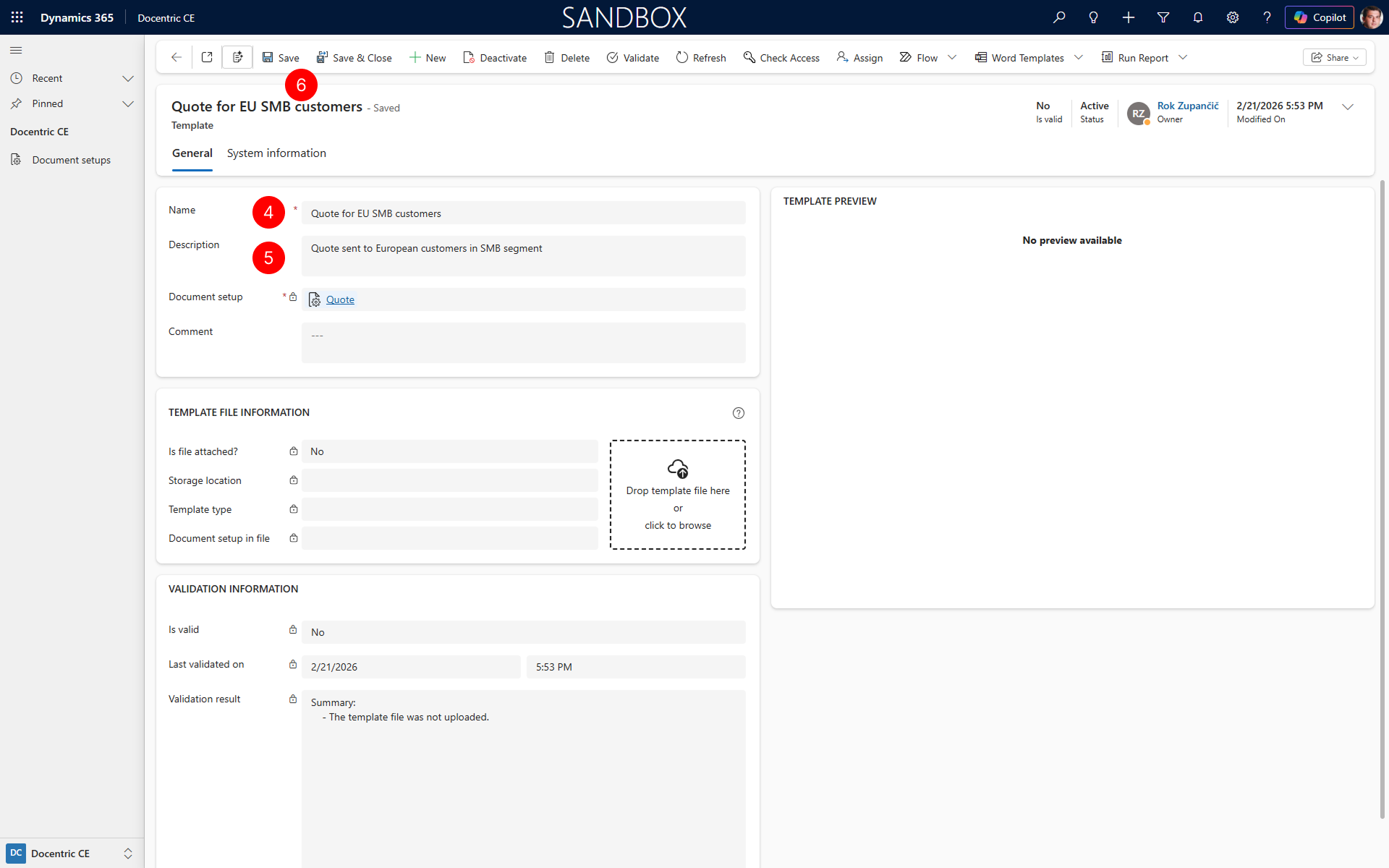
Your Template is now ready to be designed.
Upload a Template
To upload a Template designed with Docentric Template designer:
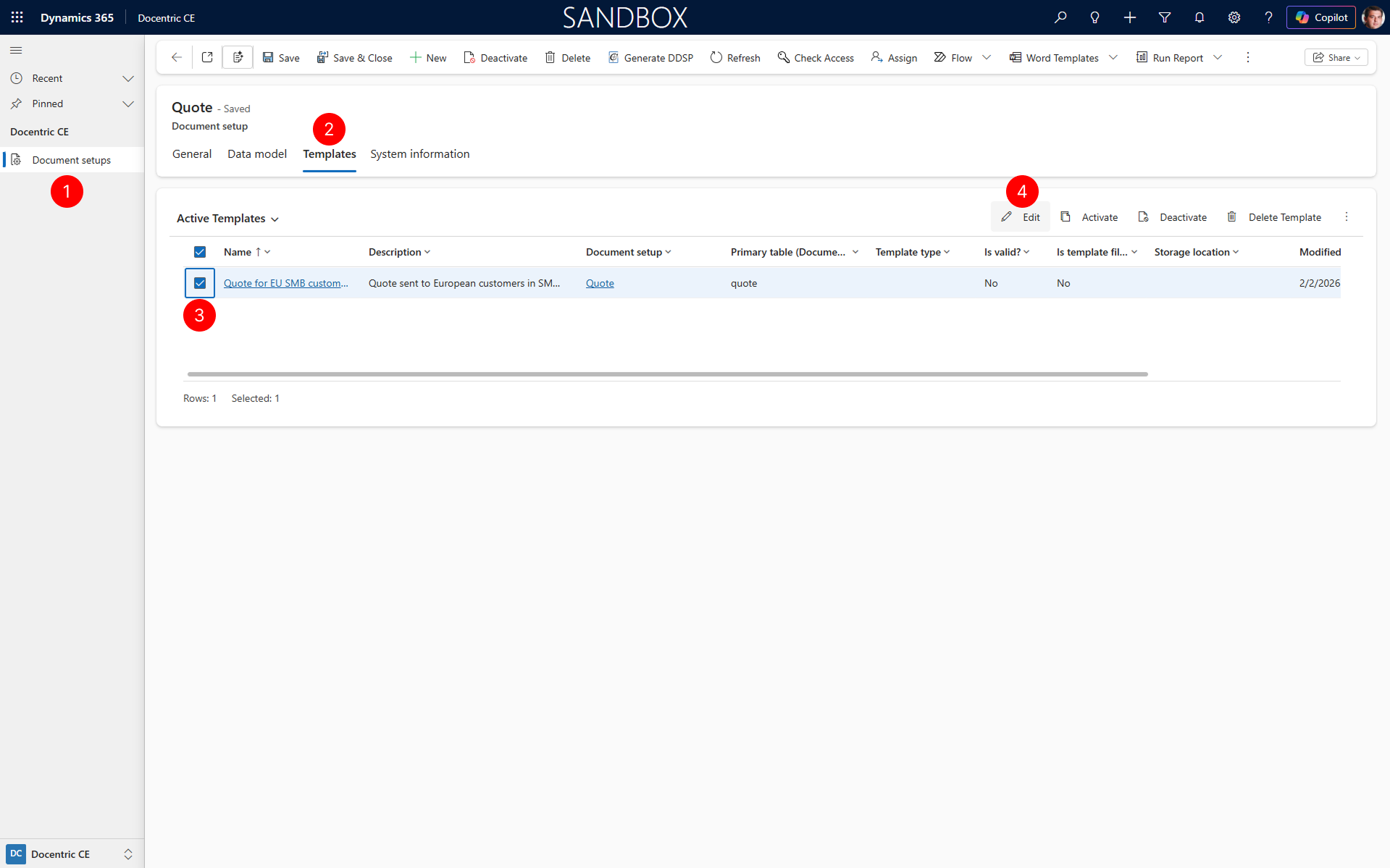
Open Document setup that you want to upload a template to.
Select the Templates tab.
Select the templates you want to edit
Choose Edit action in Templates command bar.
Choose template file by clicking Drop template file here or click to browse or drag prepared template file to Template file information section.
After upload, template will be validated and results will be shown in Validation result field.
Template preview section will show preview of generated document based on sample data you used to design your Template.
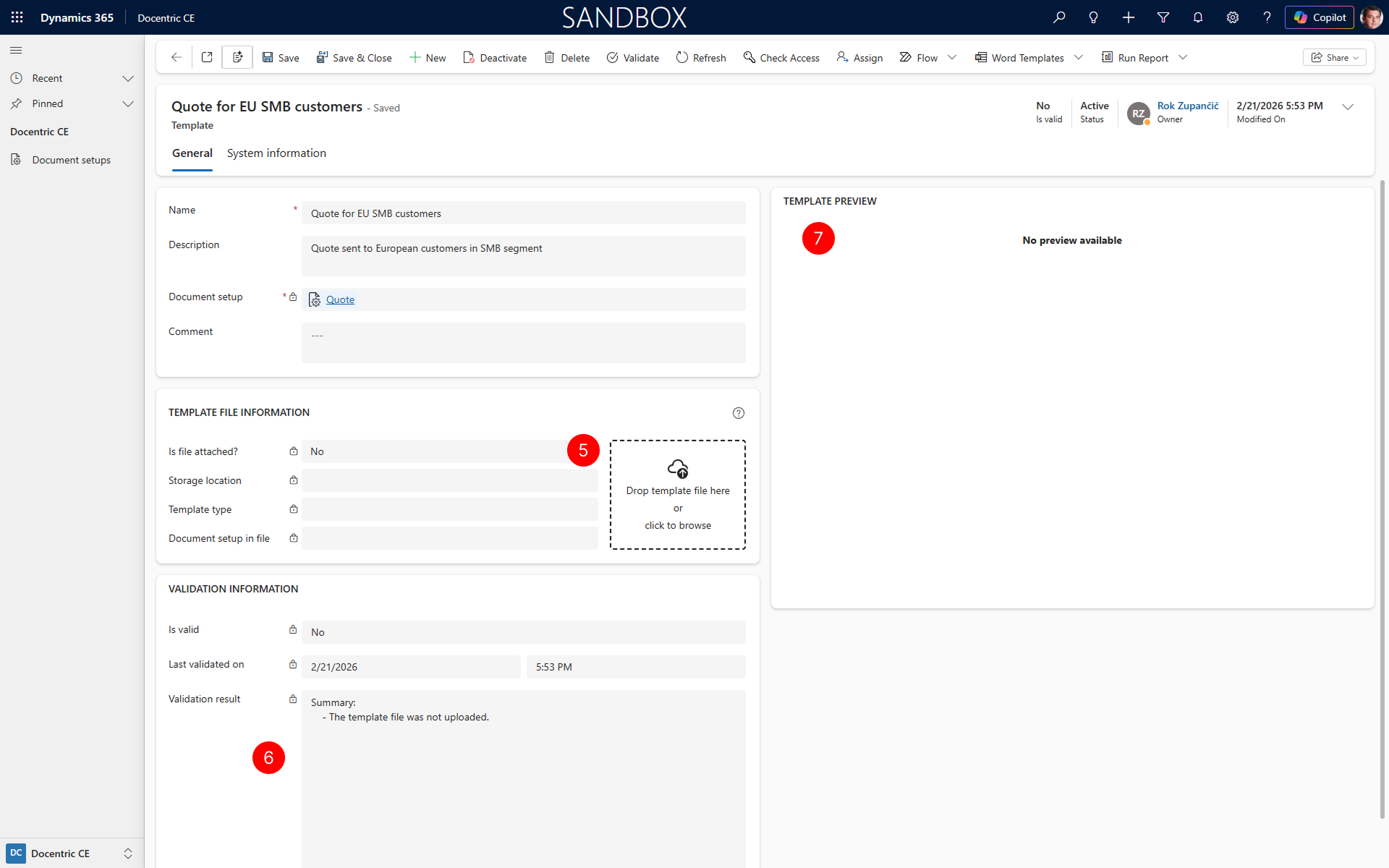
Your Document Template is now available for document generation.
Troubleshoot validation errors
When you upload or validate a Template, validation errors may appear in the Validation results field. This section describes common validation errors and how to resolve them.
Template file was not uploaded
Error message: "The template file was not uploaded."
Cause: No template file has been uploaded to the Template record.
Resolution: Upload a template file by choosing Drop template file here or click to browse in the Template file information section, or drag and drop your template file to this area.
Uploaded file is not a valid template file
Error message: "The uploaded file is not a valid template file."
Cause: The file you uploaded is not recognized as a valid Docentric template file.
Resolution: Ensure you are uploading a template file created with Docentric Template Designer. The file must be saved in the correct Docentric template format (.docx with Docentric tagging elements and Docentric Data Source File loaded to it).
Template cannot be used in Docentric CE
Error message: "The template cannot be used in Docentric CE. It was prepared for ActualProductName."
Cause: The template was created for a different Docentric product and is not compatible with Docentric CE.
Resolution: Open the template in Docentric Designer and ensure it is configured for Docentric CE. Re-save the template and upload it again.
Data model contains errors
Error message: "The data model contains one or more errors. Please check the data model tab for additional details."
Cause: The Data model associated with the Document setup has validation errors.
Resolution:
- Open the Document setup associated with this Template.
- Select the Data model tab.
- Select Validate to review validation errors.
- Fix all Data model errors as described in the Troubleshoot validation errors section of the Set up Data model topic.
- Return to the Templates tab and re-validate your template.
Template initialized with different document setup
Error message: "The template document was initialized with a different document setup: templateDocumentSetupName (templateDocumentSetupCode)."
Cause: The template file was designed for a different Document setup than the one it's being uploaded to.
Resolution:
- If you want to use the template with the current Document setup, open the template in Docentric Designer, initialize it with the current Document setup's data model, and re-design the template as needed.
- If you want to use the template with its original Document setup, upload it to the correct Document setup instead.
Templating engine failure
Error message: "The templating engine returned a failure message during generation."
Cause: The templating engine encountered an error while processing the template.
Resolution:
- Ensure that diagnostic data collection is enabled in your Docentric CE settings. See Configure diagnostics for instructions.
- Contact Docentric support and include the complete validation error message from the Validation results field.
- If diagnostics are not enabled, enable them and reproduce the error, then send the diagnostic information to support.
Error converting HDM value to PowerFx
Error message: "Warning: Error converting HDM value to PowerFx: Field '<fieldname>' is not present in RecordType '<RecordType>'."
Cause: The data source loaded in the Docentric Data Source Package (DDSP) is out of sync with the Data Model of the Document Setup used to create it. This typically happens when you update the Data Model after the DDSP was generated, and then import a template that was created using the earlier DDSP.
Resolution:
- Open the Document Setup and generate a new DDSP to reflect the updated Data Model.
- Open the template in Docentric Template Designer and load the newly generated DDSP.
- Check the data sources to confirm the fields reported in the warning are present.
- Save the template and upload it again to the Document Setup.
Next Steps
Generate Docentric Data Source Package from Document setup — Learn how to generate Docentric Data Source Package (DDSP) for Document setup.