Summary Field tagging element
Use the Summary Field tagging element to perform aggregate calculations on a collection of data records from your Data Source. Summary Field tagging elements allow you to compute values such as totals, averages, counts, minimums, and maximums for a specified field within a record collection.
Prerequisites
- Template Designer installed. For more information, see Install Docentric Designer.
- A document template set up with a Data Source Package (DDSP) loaded. For more information, see Set up a document template.
- A Summary Field tagging element inserted in your template. For more information, see Tagging elements overview.
- An Elements tree pane shown. For more information, see Elements tree pane
Bind Summary Field tagging element to data
Before you can configure the aggregate function, bind the Summary Field tagging element to a collection of data records. For detailed steps, see Bind tagging element to data.
TIP
To use only select records from the collection, bind the Summary Field tagging element to a Power Fx expression using Filter function. An example of a filter expression to select only Quote Lines where Quantity is larger than 1: Filter(Quote.QuoteLines, Quantity > 1)
Configure aggregate function
Define which aggregate calculation to perform on the data collection.
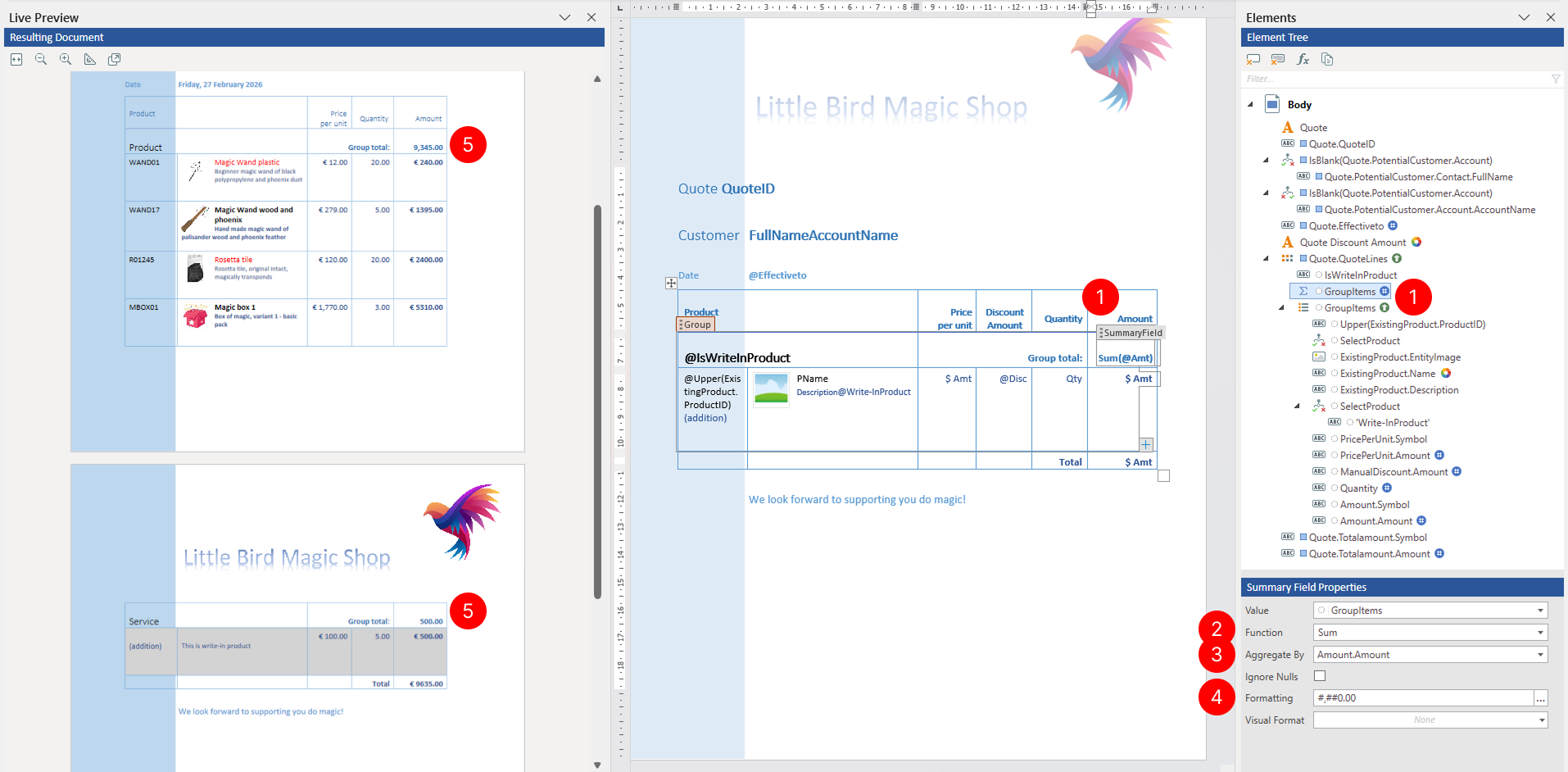
- Select the Summary Field tagging element to view its properties.
- In the Properties pane, locate the Function property. Select one of the following aggregate functions from the dropdown:
- Sum - Calculates the total of all values
- Average - Calculates the mean of all values
- Min - Returns the minimum value
- Max - Returns the maximum value
- StdDev - Calculates the standard deviation of all values
- Count - Returns the number of records
- First - Returns the first value in the collection
- Last - Returns the last value in the collection
- Select Aggregate by to specify the value to aggregate. Choose a field or enter a Power Fx expression whose result will be aggregated. Use Ignore Nulls to control blank values: check it to skip blanks in the calculation, or clear it to include them.
- Select among predefined numeric and date time formatting options or enter custom format in Formatting property. Depending on the result type of the selected function:
- For numeric results (Sum, Average, Min, Max, StdDev, Count) - Configure numeric formatting options as described in Field tagging element - Format numeric data
- For date-time results (First, Last, Min, Max when applied to date-time fields) - Configure date-time formatting options as described in Field tagging element - Format date and time data
- Review results in Live Preview pane.
NOTE
Numeric and date-time formatting is driven by the Preview language selected in the Preview group on the Docentric ribbon tab. The same value may display differently based on the selected preview language culture settings.
Apply visual formatting
You can specify visual formatting rules on the Summary Field tagging element to control the visual appearance of related content in the generated document in a dynamic, data-driven manner. For detailed steps, see Apply visual formatting to tagging elements.