Template Designer panes
The Template Designer provides several panes to help you design Document Templates efficiently. You can show or hide these panes based on your current needs to customize your workspace and focus on specific design tasks.
Prerequisites
- Template Designer installed. For more information, see Install Docentric Designer.
- A document template set up with a Data Source Package (DDSP) loaded. For more information, see Set up a document template.
Show or hide individual panes
Each pane can be toggled on or off independently using buttons in the View group of the Docentric ribbon tab.
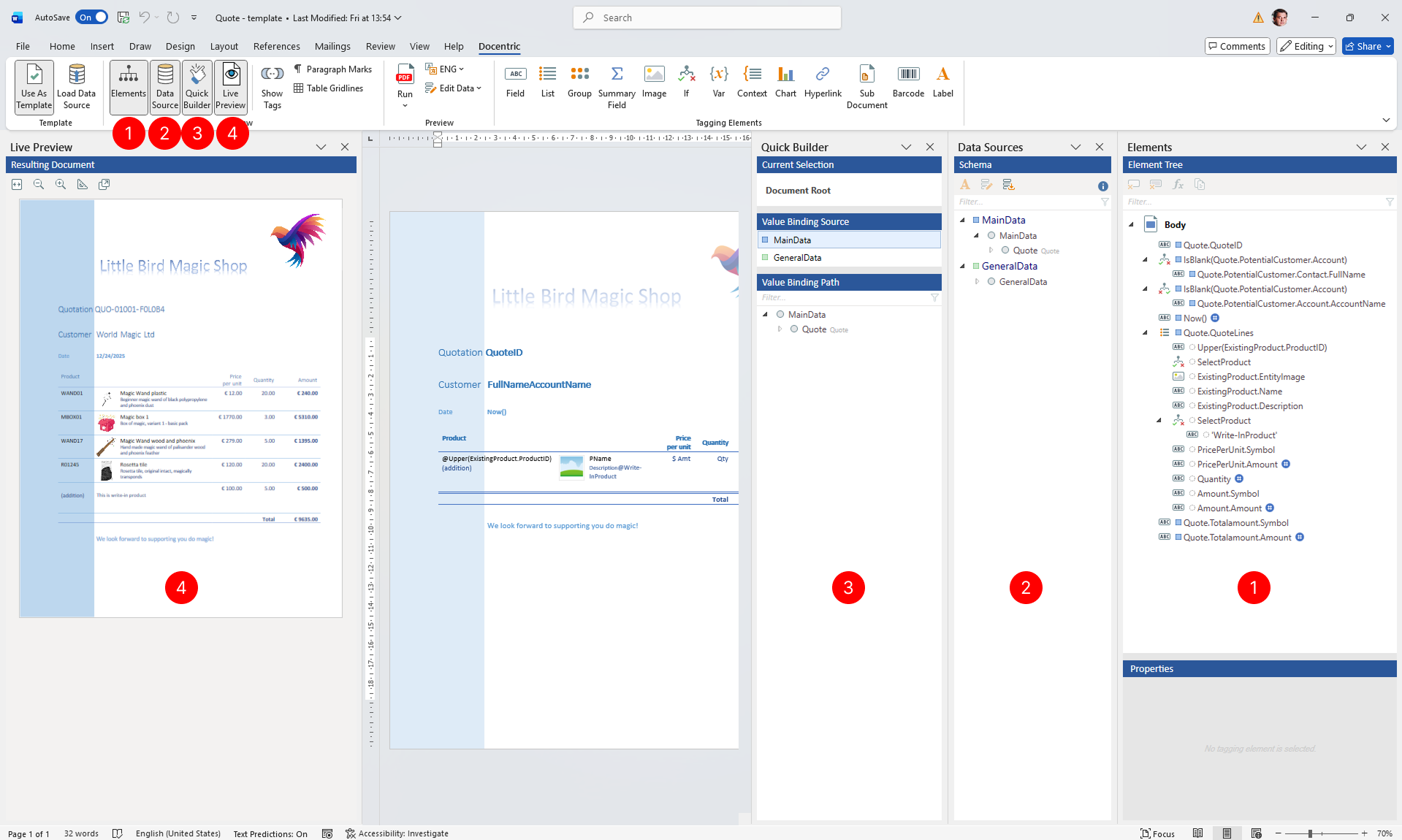
- Choose Elements to toggle the Elements pane, which displays the hierarchical structure of all tagging elements in your template.
- Choose Data Source to toggle the Data Source pane, which shows the data schema and structure available for binding.
- Choose Quick Builder to toggle the Quick Builder pane, which provides a simplified interface for quickly adding tagging elements.
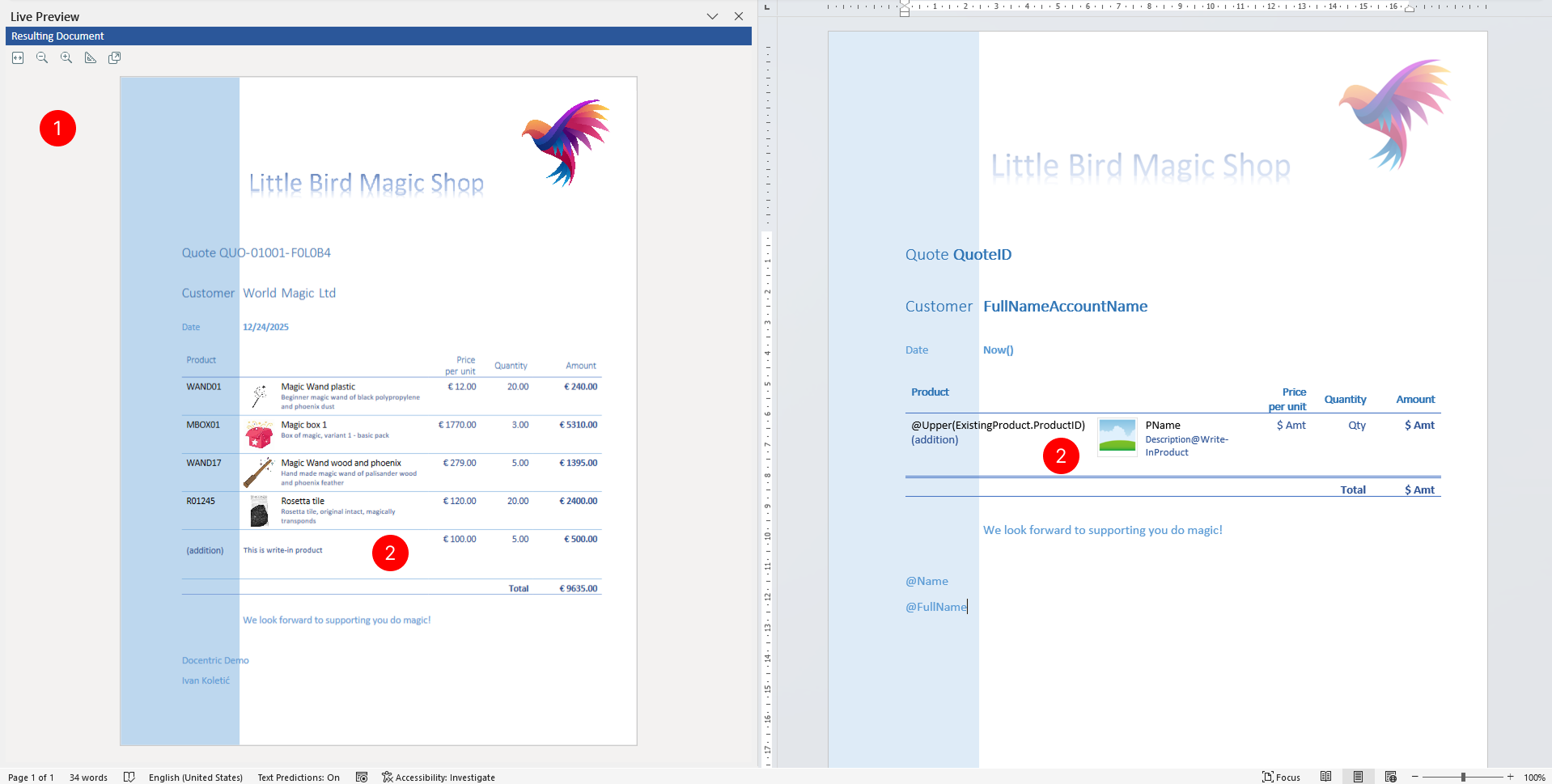
- Choose Live Preview to toggle the Live Preview pane, which displays a real-time preview of your template populated with sample data.
Understanding the panes
Elements Tree pane
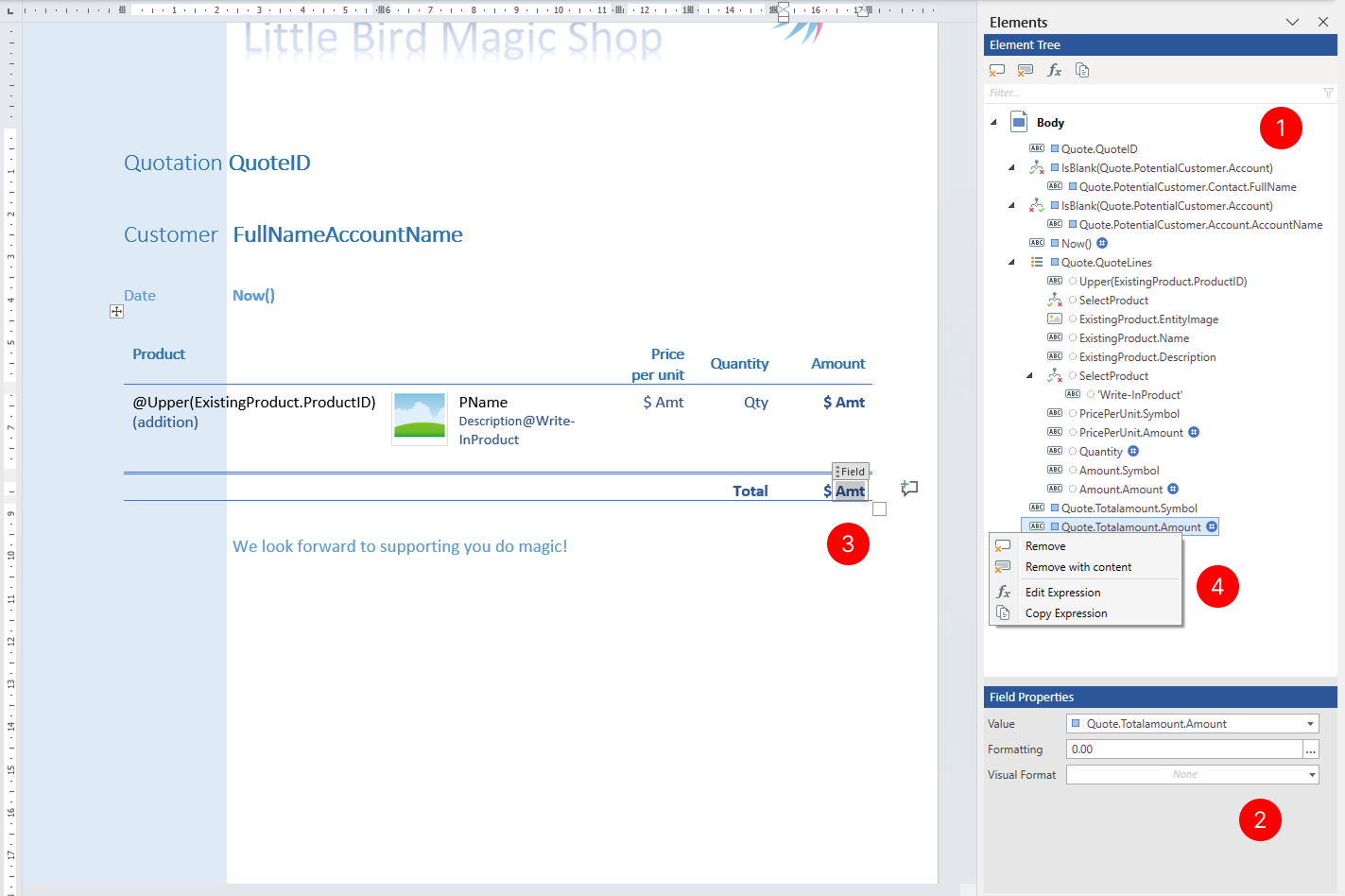
The Elements pane displays a tree-like hierarchical view of all tagging elements currently present in your Document Template. Use this pane to:
View the structure and nesting relationships of tagging elements.
Select tagging elements to view or edit their properties in element properties section of elements pane.
NOTE
Image below shows Field tagging element properties for illustration purpose. Tagging element properties vary depending on tagging element you select. For more information about specific tagging element properties, see Tagging elements overview.
Navigate quickly to specific elements in your template.
Right-click on elements to access additional actions such as editing properties or deleting elements.
Data Sources pane
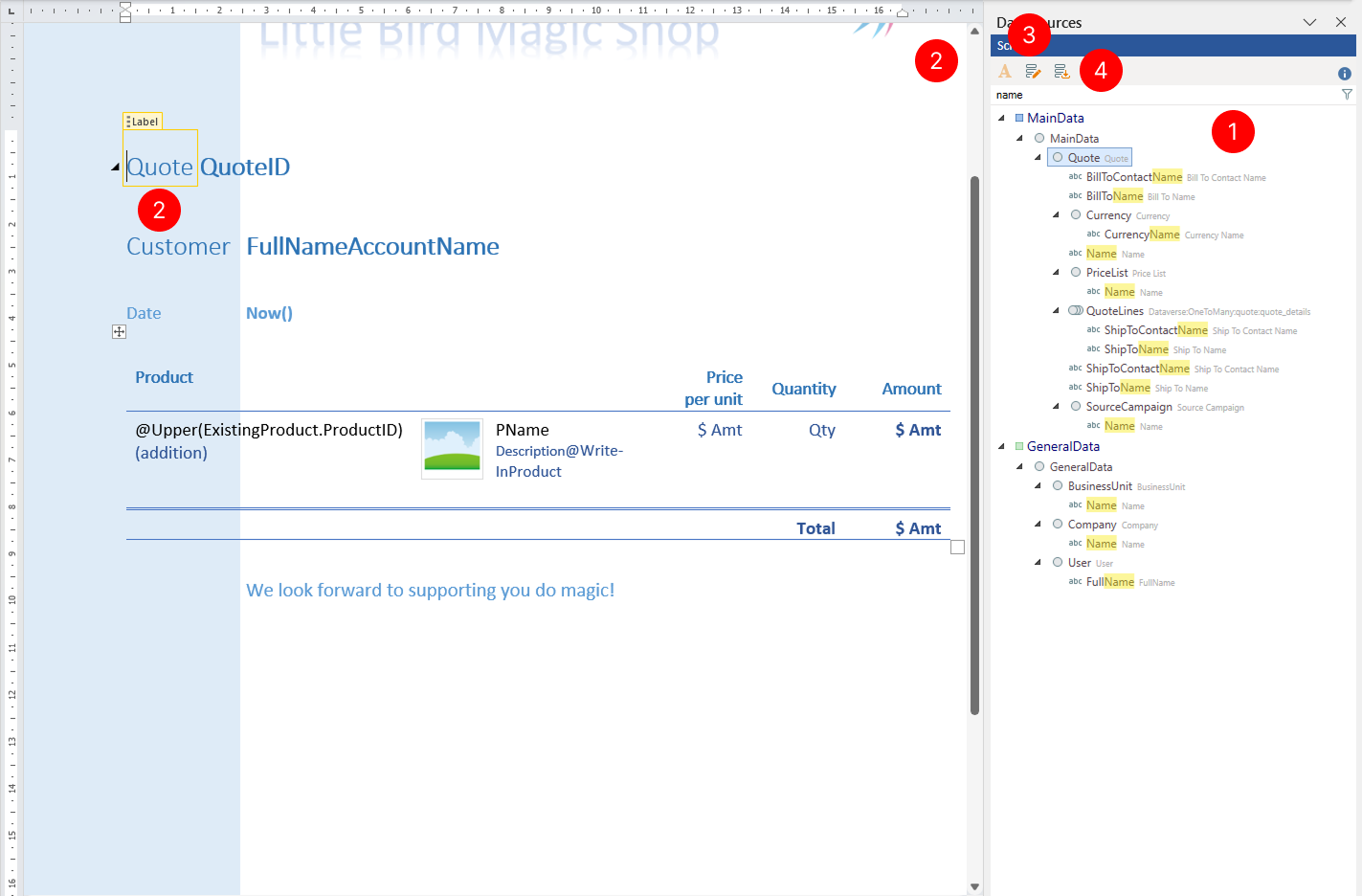
The Data Source pane displays the structure of the Data Model associated with your Document Template. It provides a hierarchical view of data sections, records, and fields available for data binding. Use this pane to:
- Browse or filter the available data structure defined in the Data Model. to understand which data fields and records you can bind to tagging elements.
- Insert labels tagging element for selected data source record or field.
- Edit Preview data.
- Download DDSP file.
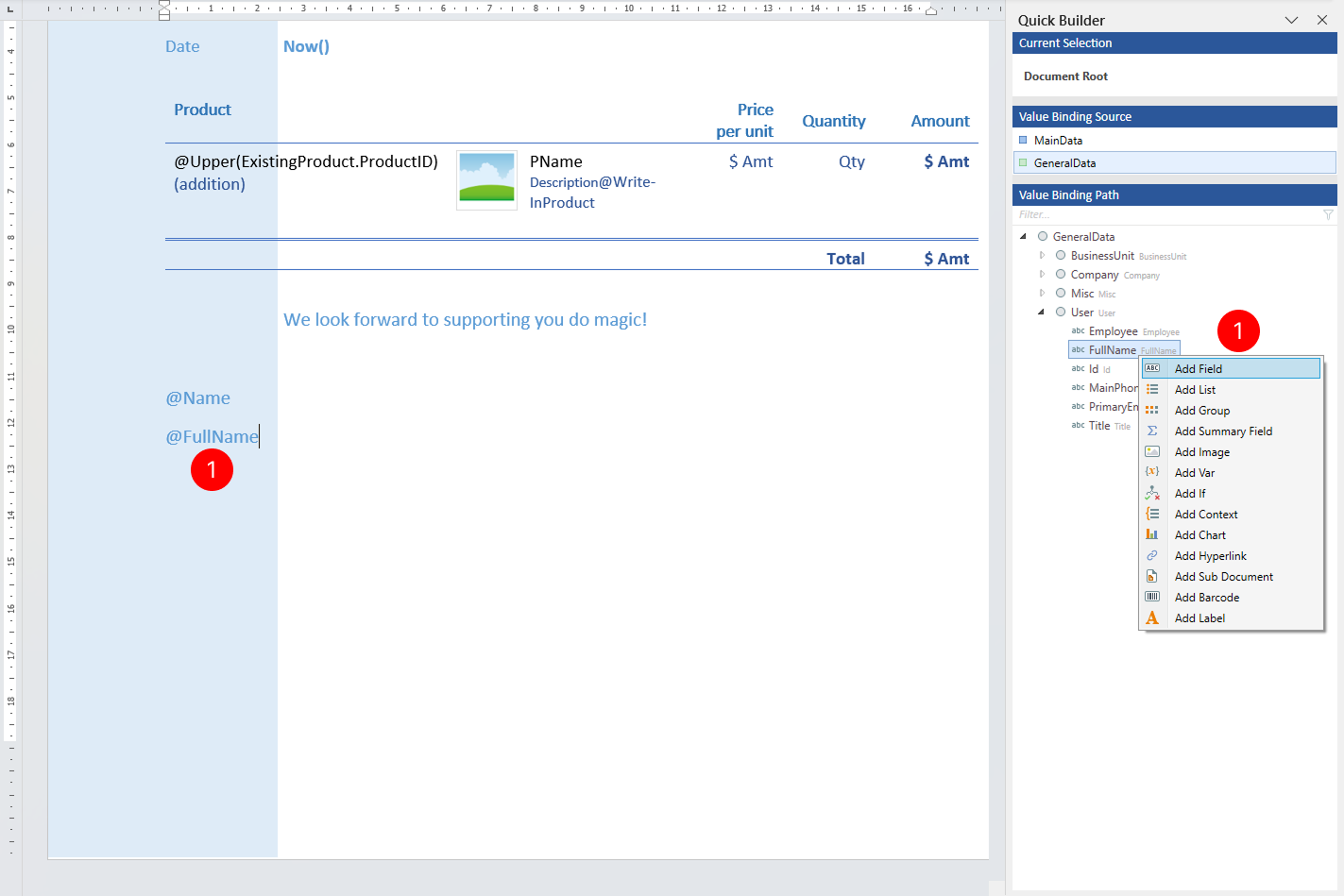
Quick Builder pane
The Quick Builder pane provides a streamlined interface for adding tagging elements to your template. Use this pane to:
- Quickly insert tagging elements without navigating the ribbon and configure binding sources and binding paths for tagging elements.
Live Preview pane
The Live Preview pane shows a real-time preview of how your Document Template will look when populated with sample data from the loaded DDSP file. Use this pane to:
- See immediate feedback as you design your template.
- Verify that tagging elements are rendering correctly without generating a document using the Preview button in the ribbon.