Set up a document template
To start designing a document template with Template Designer, you need to convert a plain Word document into a Docentric document template by loading a Data Source Package (DDSP) file. The DDSP file contains the data schema, sample data, and label translations that enable you to design templates with dynamic content.
NOTE
You can convert any Word document into a Docentric template. It can either be a completely blank document or an existing Word document containing a sample of a business document you want to turn into a template.
Prerequisites
- Template Designer installed. For more information, see Install Docentric Designer.
- A DDSP file generated from a Document Setup in the Docentric CE application. For more information, see Generate DDSP from Document Setup.
- A Word document to use as a starting point for your template design. This can be a blank document or an existing document that you want to convert into a template.
Convert a document to a Docentric template
In Microsoft Word, open the document you want to use as a template, then:
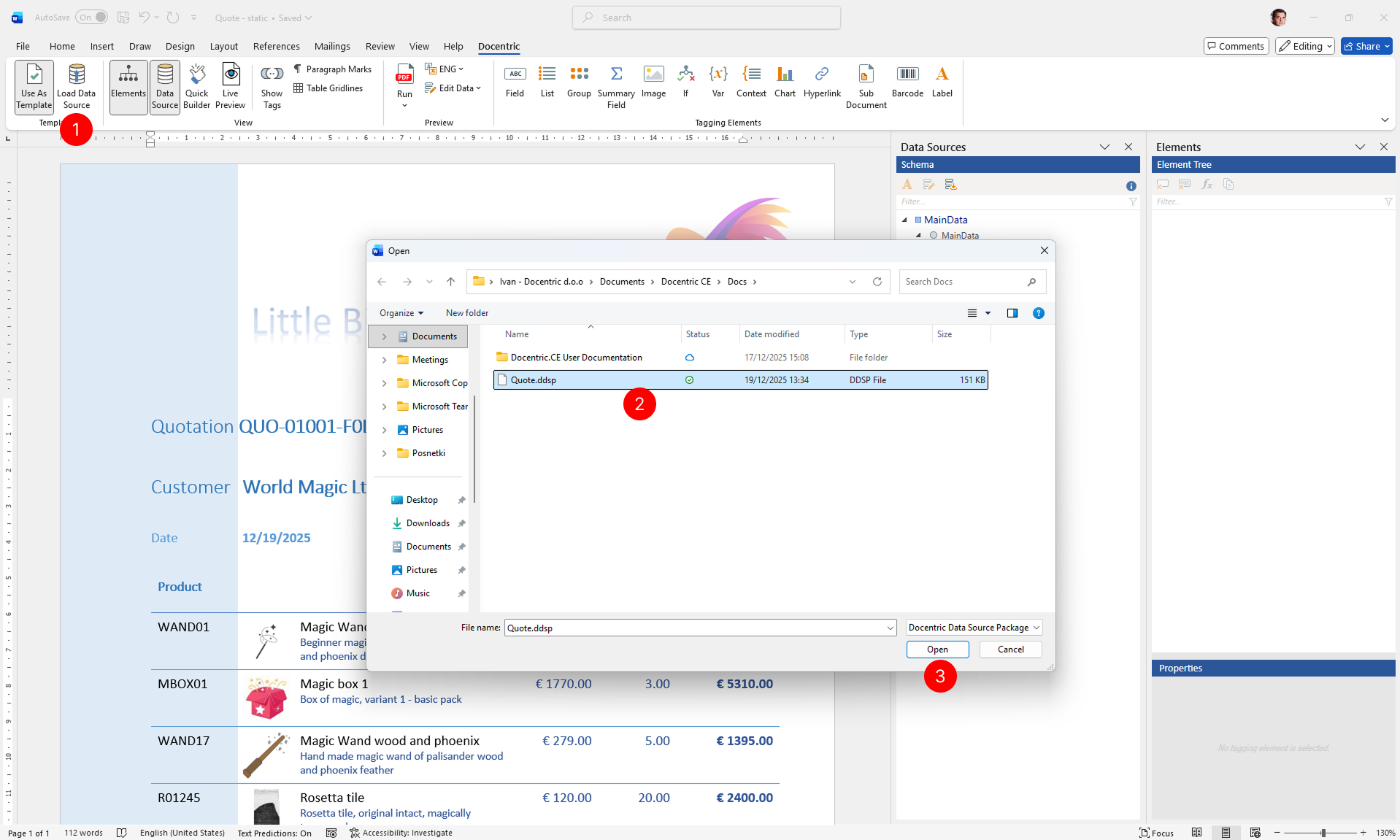
- On the Docentric ribbon tab, in the Template group, choose Use As Template.
- In the Open dialog box, browse to the location of your DDSP file. Select the DDSP file (with a .ddsp extension) that corresponds to the Document Setup you want to use.
- Choose Open.
After you load the DDSP file, your document becomes a Docentric document template. The Data Source pane appears, showing the data schema from your Data Model. You can now start adding tagging elements to create dynamic content in your template.
Reload a Data Source
If the Data Model has been updated in the Docentric CE application and you want to refresh the Data Source in your template to reflect the latest changes:
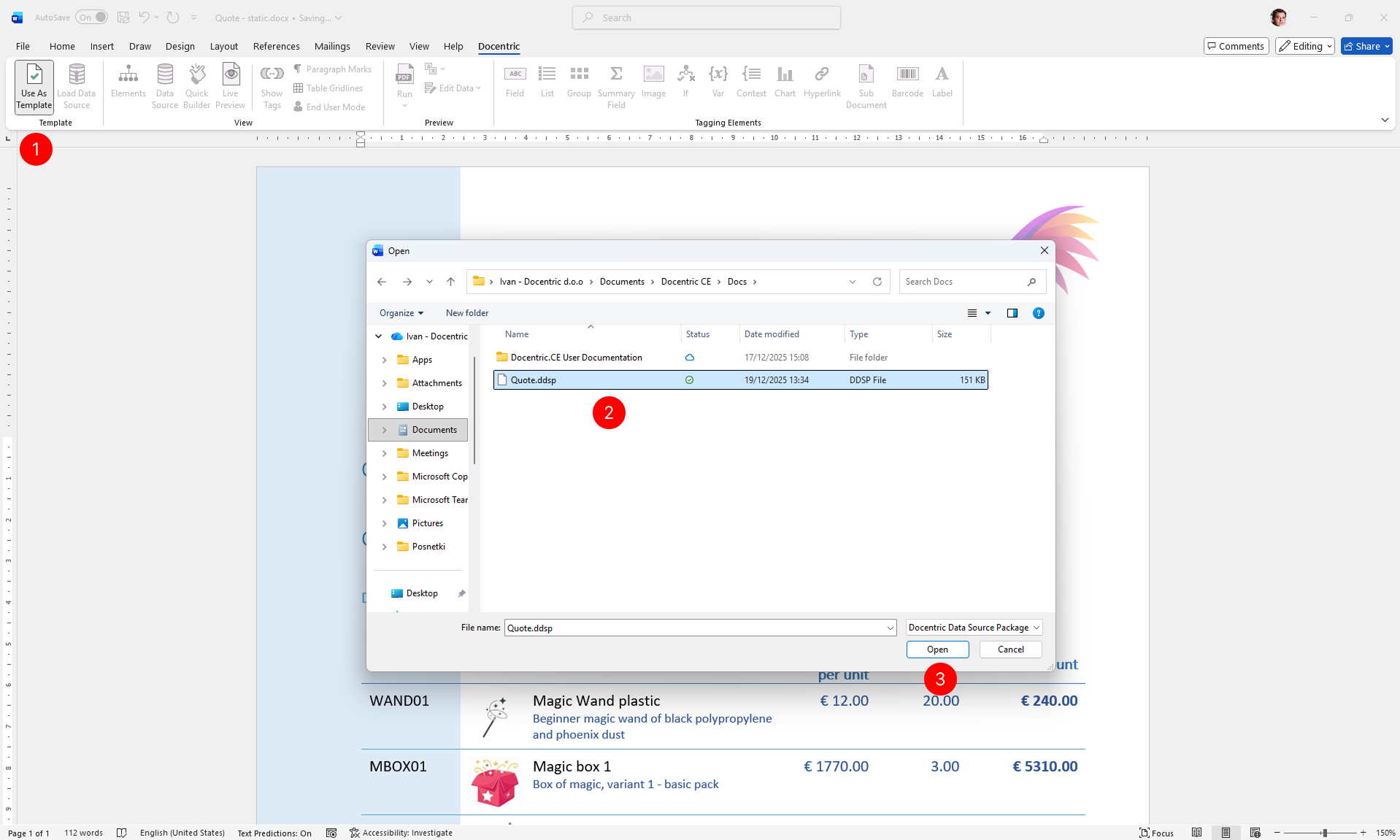
- On the Docentric ribbon tab, in the Template group, choose Load Data Source.
- In the Open dialog box, browse to the location of your updated DDSP file. Select the DDSP file (with a .ddsp extension).
- Choose Open.
The Data Source in your template is updated with the latest data schema, sample data, and label translations from the new DDSP file.