Configure diagnostic settings
Diagnostic settings let you control how Docentric CE collects and sends diagnostic data. You can send diagnostics data to Docentric for support purposes and optionally collect additional usage data in your own Azure Application Insights instance for monitoring and performance analysis.
Learn more about Docentric's Diagnostics and Usage Data Collection policy.
Prerequisites
- You have the Docentric CE Administrator security role assigned.
- You have opened Settings area of Docentric CE application
Enable diagnostic data collection
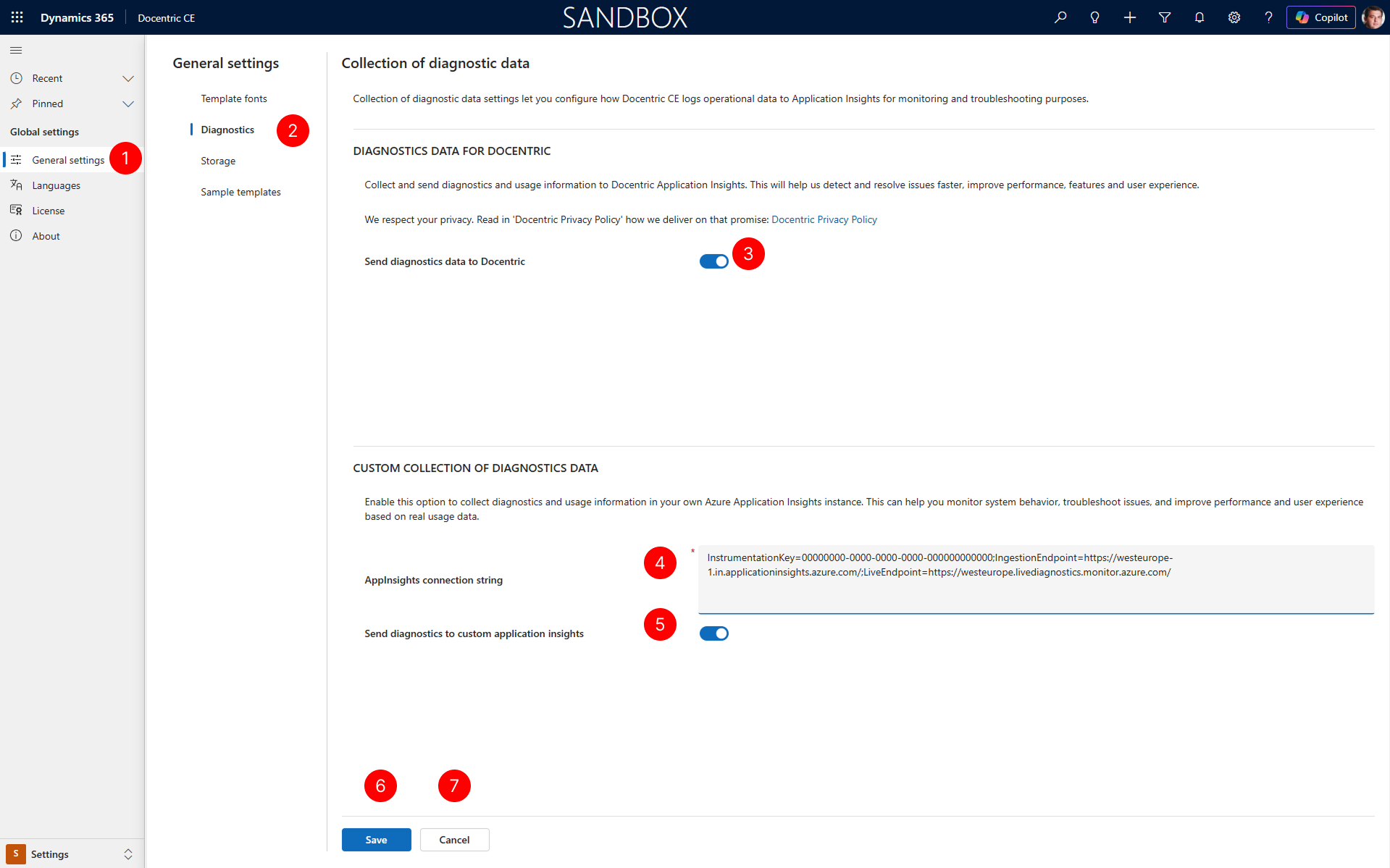
In the site map of Settings area, select General settings.
Under General settings, select the Diagnostics tab.
In the Diagnostics tab, locate the DIAGNOSTIC DATA FOR DOCENTRIC.Toggle Send diagnostics data to Docentric setting on (or off) to begin (stop) sending diagnostic data to Docentric
NOTE
When enabled, Docentric CE collects diagnostic data and sends it to Docentric. This data helps the Docentric team resolve support issues, improve performance, and enhance features and user experience based on real usage patterns. Default setting for sending diagnostics data to Docentric is On.
Locate the CUSTOM COLLECTION OF DIAGNOSTIC DATA section. Enter your Azure Application Insights connection string in the AppInsights connection string field.
Toggle Send diagnostics data to application insights setting on to begin collecting data to your Application Insights instance.
NOTE
You can collect custom diagnostic and usage data in your own Azure Application Insights instance. This lets you monitor system behavior, troubleshoot issues, and improve performance based on your organization's real usage data.
After making any changes to diagnostic settings, to activate your changes, select the Save button.
To discard any unsaved changes, select the Cancel button.
Next Steps
Configure storage settings — Learn how to configure storage settings.