Set up Data model
A Data Model defines the structure and data available for document generation for a Document Setup. It consists of a primary table with selected sub-set of columns and optionally related tables with selected columns that will populate data for your Document Templates. The structure you define in Data Model becomes available in MainData section of data source when you bind tagging elements to data using Docentric Template Designer.
NOTE
When setting up a Data model, you can select tables of the following Power Apps table types: Standard, Activity, Virtual, and Elastic. For more information, see Types of tables - Power Apps.
Prerequisites
- You have created a Document setup
Create Data model for primary table
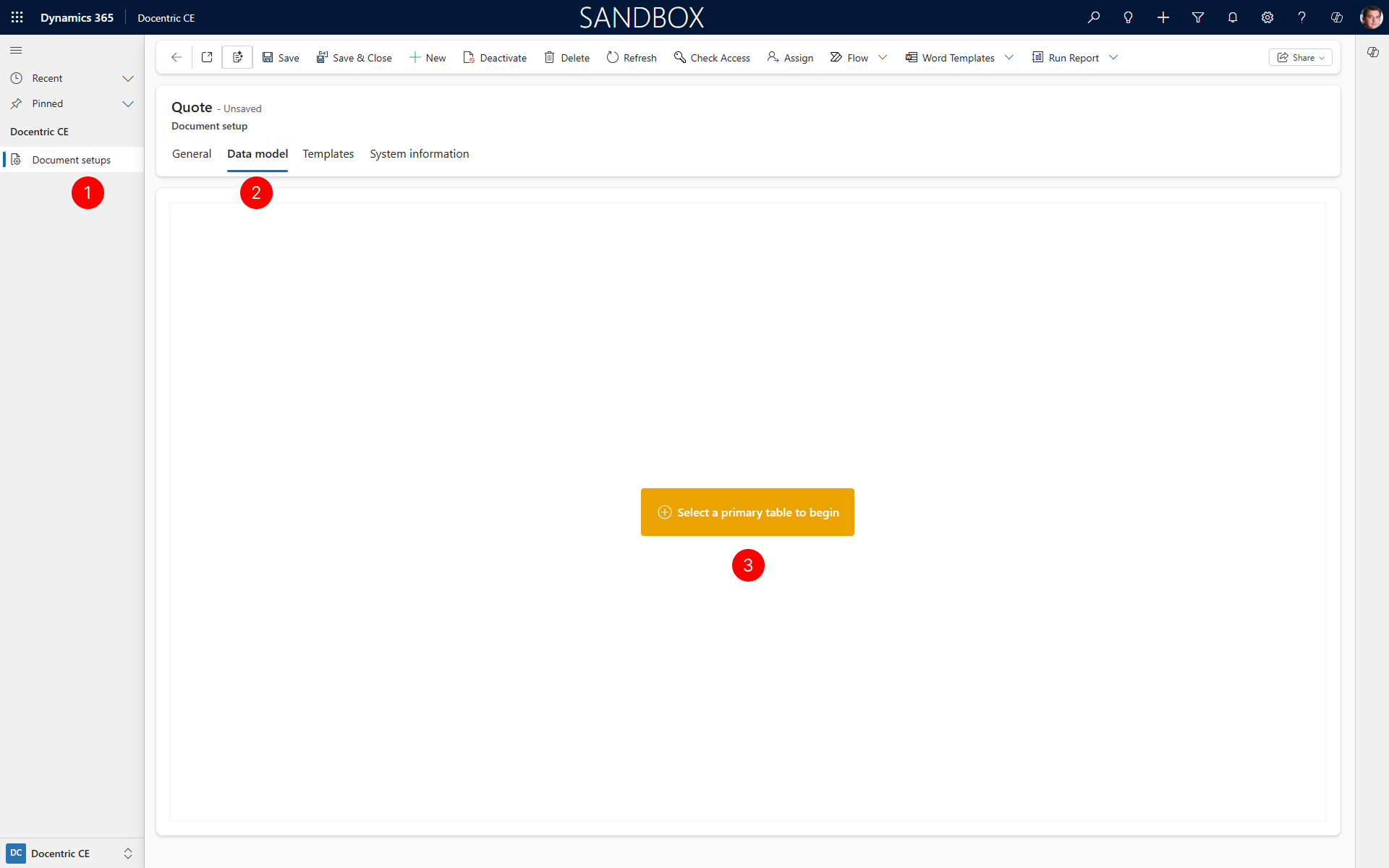
Open a Document setup.
Select the Data model tab in the Document setup form.
Select Select a primary table to begin to open the Select primary table wizard.
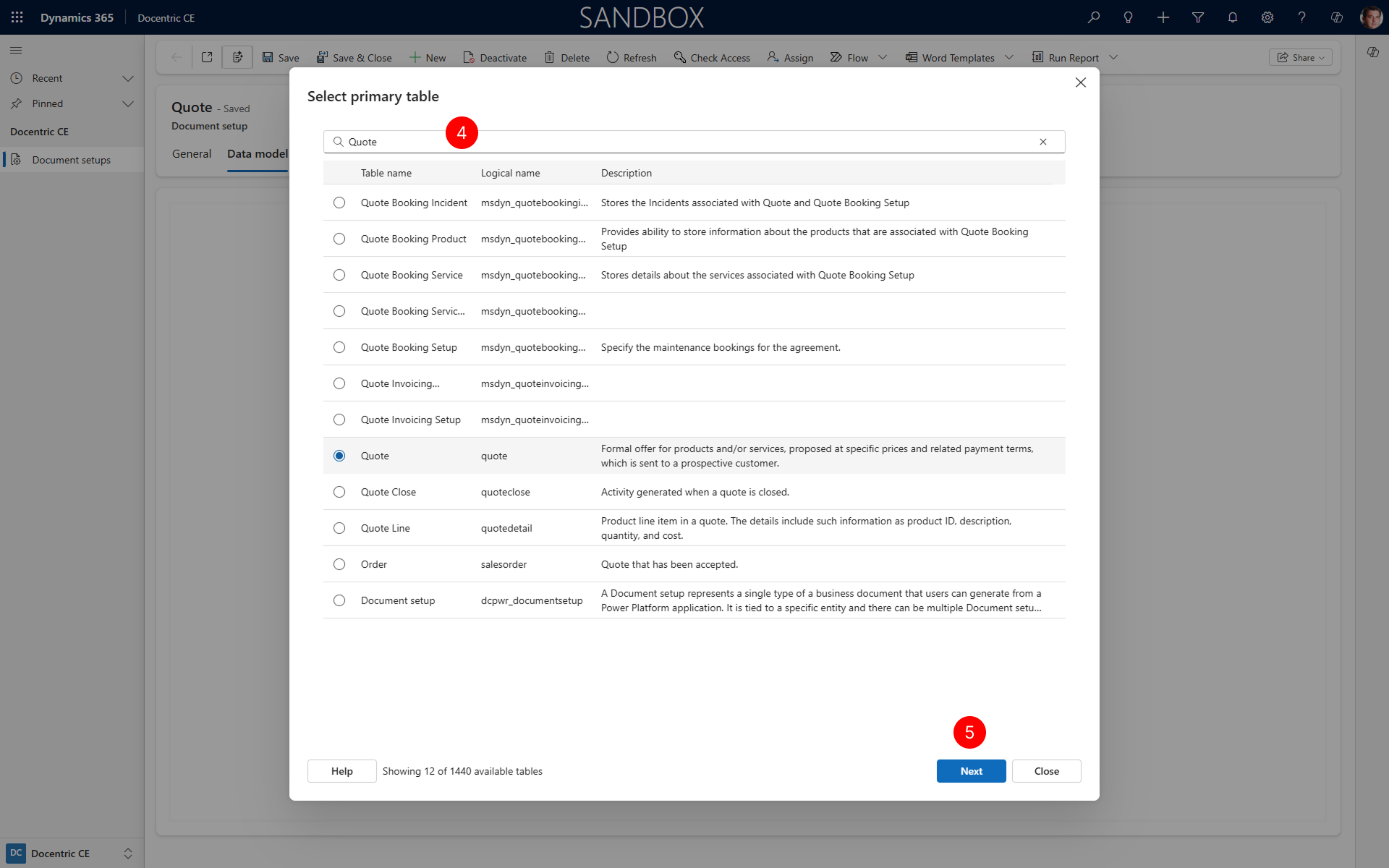
Search for or select the primary table you want to use, such as Quote
Select Next to select columns
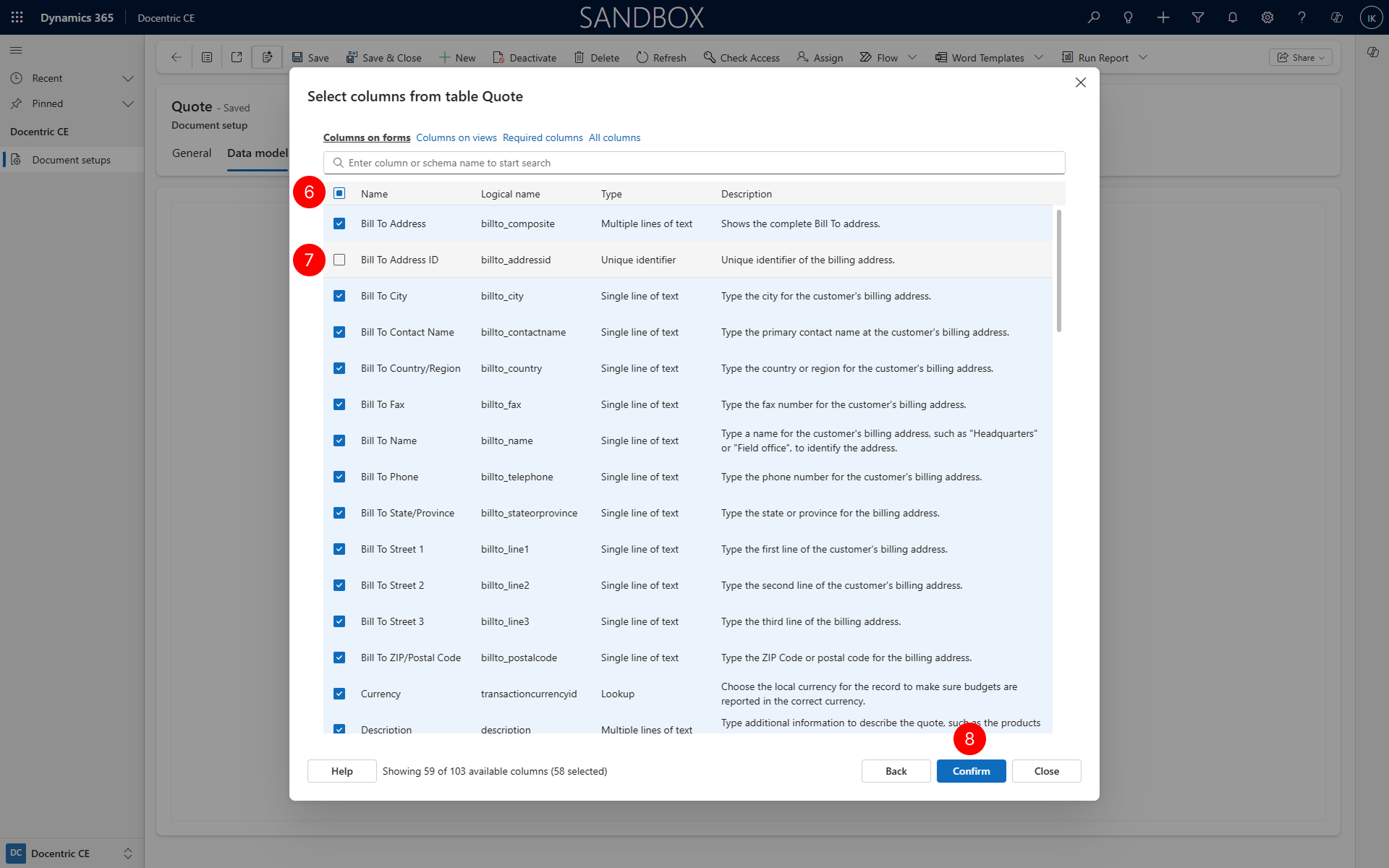
Search for or select columns from the primary table to include in your Data model. Choose from four views that are available:
- Columns on forms – Displays columns that appear on entity forms
- Columns on views – Displays columns that appear on entity views
- Required columns – Displays only mandatory columns
- All columns – Displays every available column
Choose columns to add or remove columns to your Data model by placing or removing a checkmark in checkbox next to column name.
Select Confirm to add the primary table and selected columns to your Data model.
NOTE
Including all columns of a table is a valid option, but it is not always optimal, as a large number of columns can hinder performance and slow down document generation. Also some internal data types are not supported.
Add related tables and columns to Data model
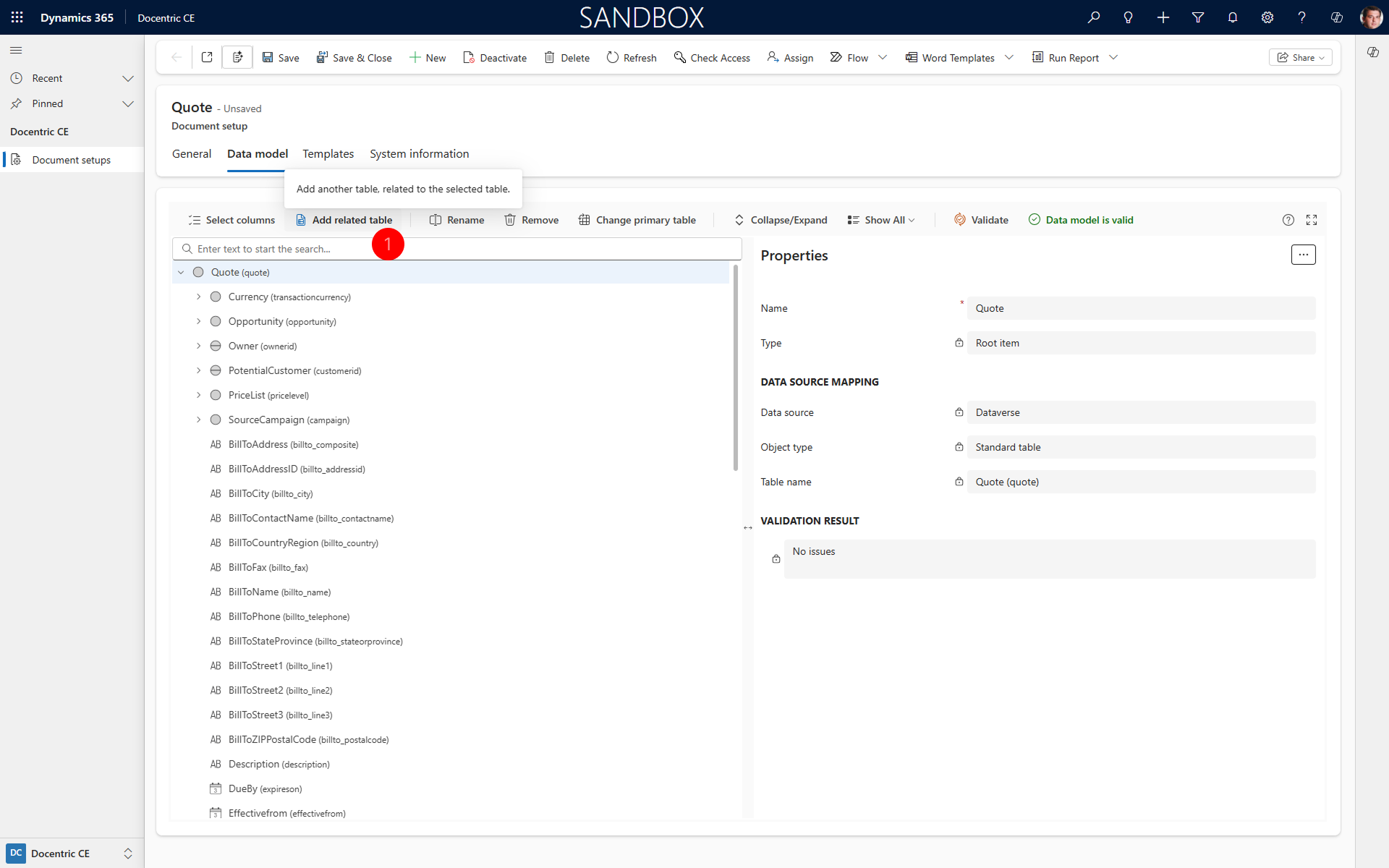
After establishing your primary table, you can now add related tables and columns to access additional data for document generation.
Select the table you want to add a related table to, then choose Add related table.
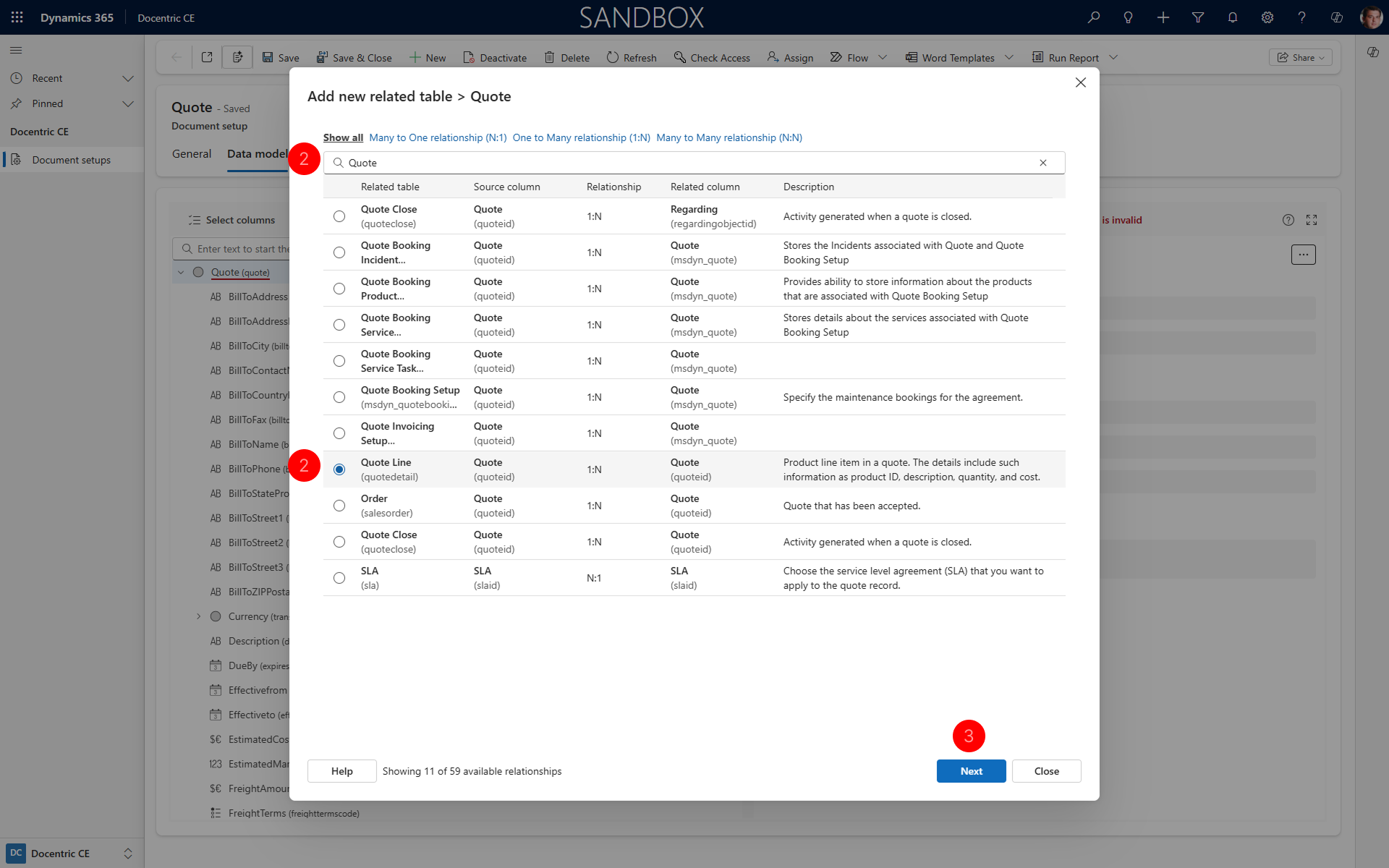
Search for or select the related table to add to your Data model, such as Quote Lines. Choose from four views that are available:
- Show all – Displays all related tables
- Many to One relationship – Displays tables with a many-to-one relationship
- One to Many relationship – Displays tables with a one-to-many relationship
- Many to Many relationship – Displays tables with a many-to-many relationship
Select Next to select columns
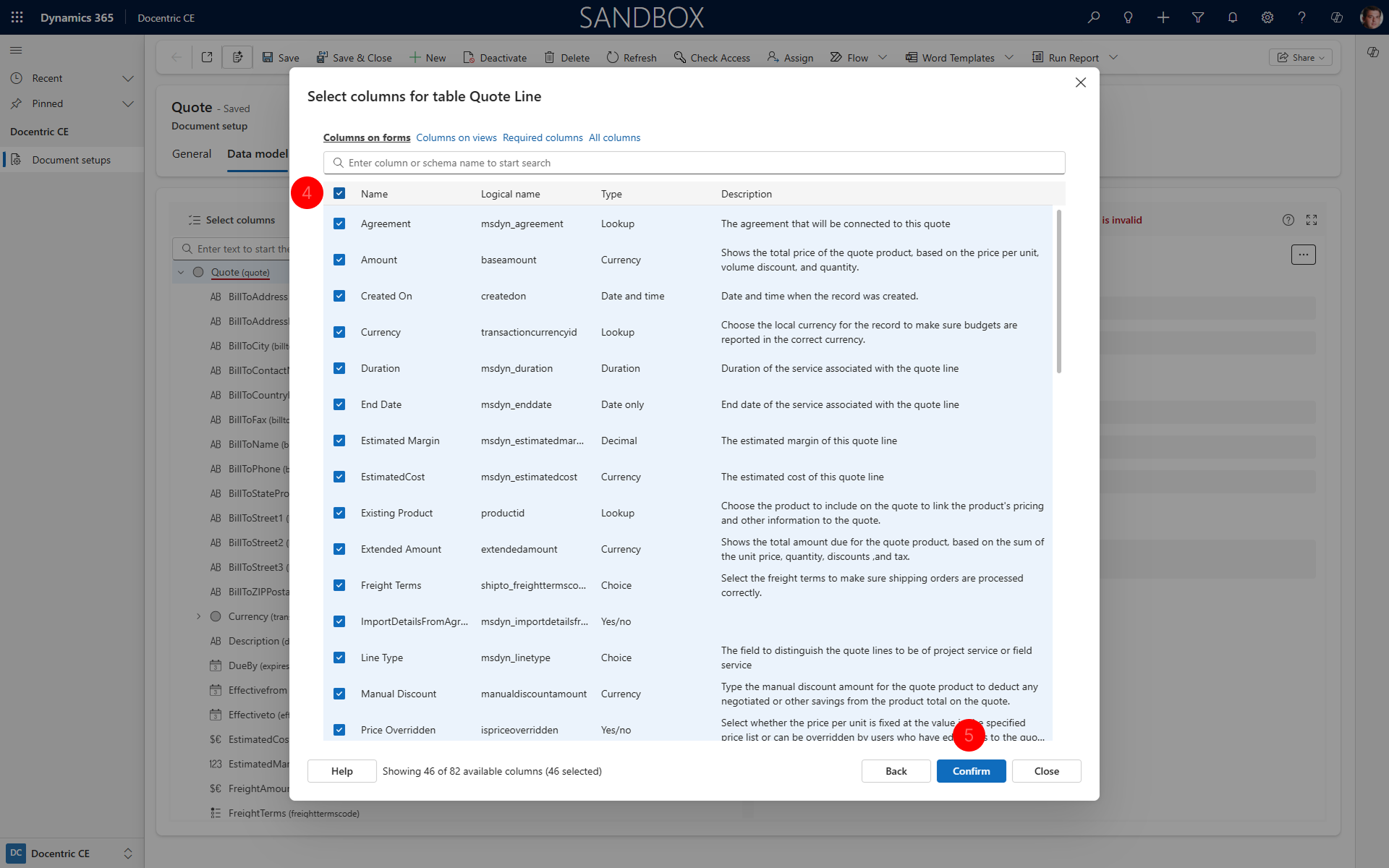
Select columns from the related table to include in your Data model. Choose from four views are available:
- Columns on forms – Displays columns that appear on entity forms
- Columns on views – Displays columns that appear on entity views
- Required columns – Displays only mandatory columns
- All columns – Displays every available column
Select Confirm to add the related table and selected columns to your Data model.
Validate Data model
After adding your primary table, related tables, and columns, validate your Data model to ensure there are no errors.
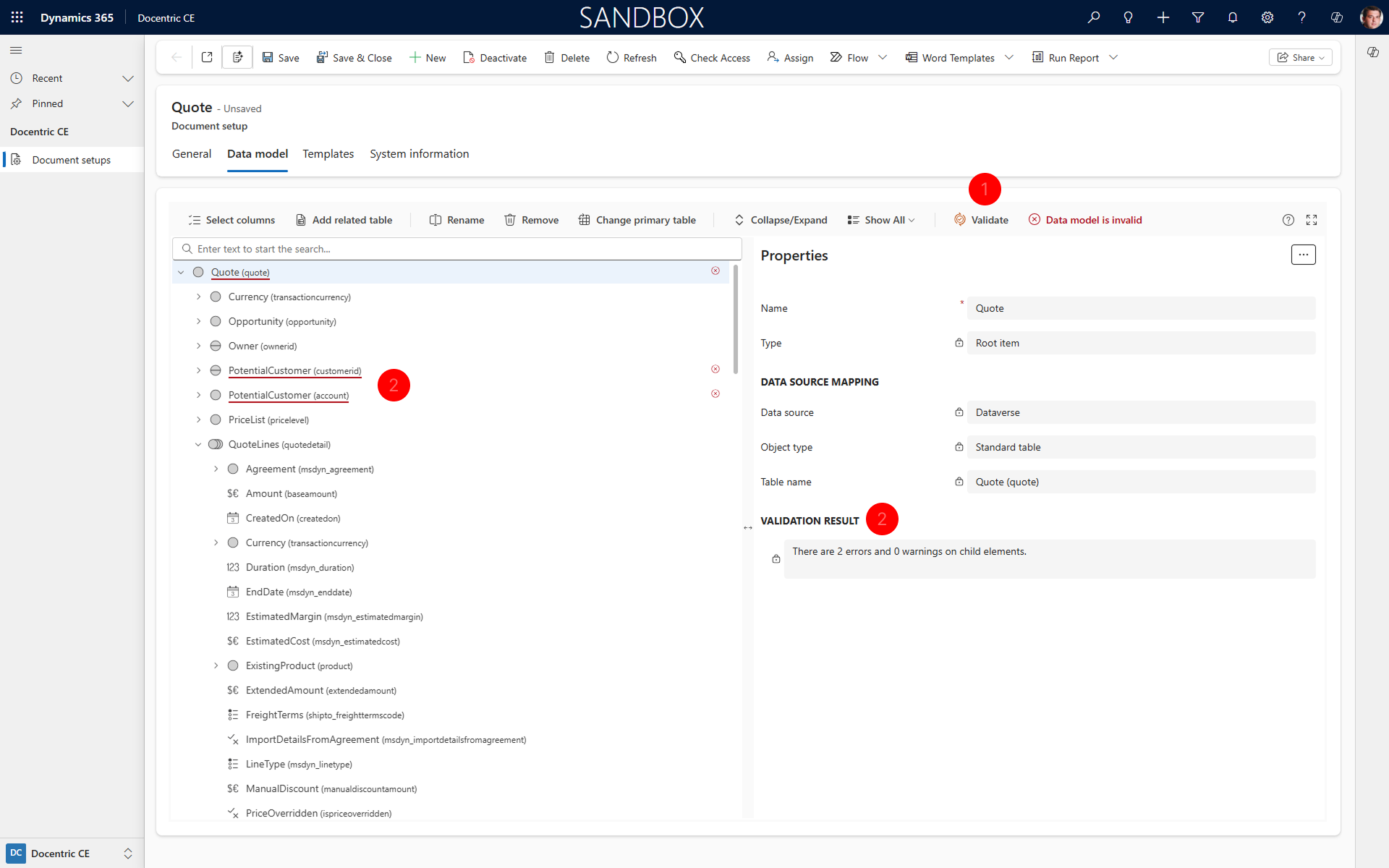
Select Validate to manually initiate validation of your Data model.
Results are displayed in the Data model tab's Validation results field. Any errors appear marked with red squiggly lines both in the left panel (listing tables, related tables, and columns) and in the Validation results section.
TIP
To view all data model elements with errors, open the Show All dropdown and select Show errors.
Rename Data model elements
If Data model elements (tables or columns) have names that are too long or too technical, you can edit them to make them more user-friendly. These names will be used in Docentric Template designer to build template designs.
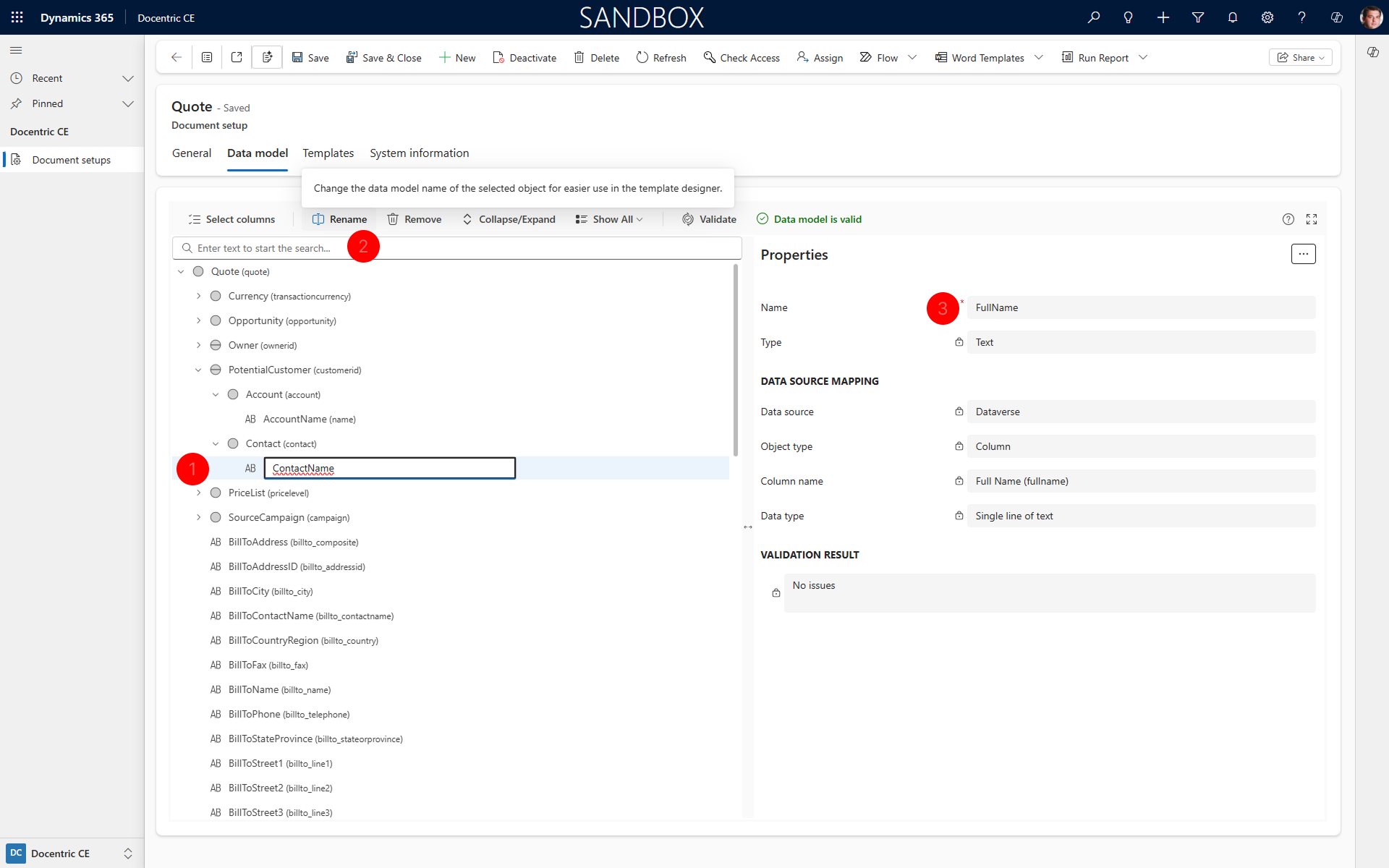
- Select the data model element you want to rename.
- Select Rename
- Edit the name of the selected element in data elements tree or in Properties section of Data model tab.
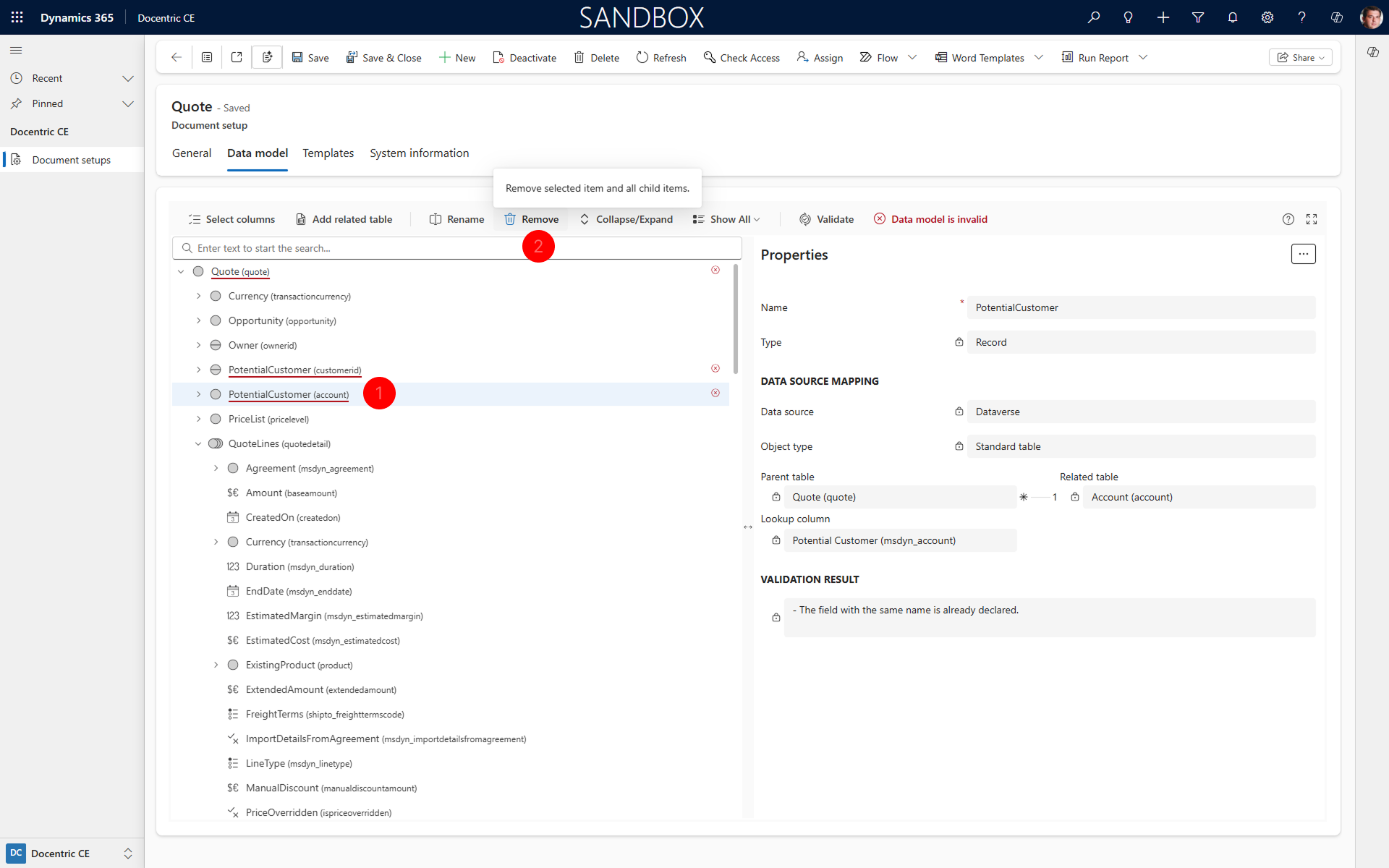
Remove Data model elements
If you added a table, related table, or column that you don’t need, you can remove it from your data model.
- Select the Data model element you want to remove.
- Select Remove to delete it from your Data model.
Troubleshoot validation errors
When you validate a Data model, validation errors may appear in the Validation results field. Errors are also marked with red squiggly lines in the data elements tree. This section describes common validation errors and how to resolve them.
Duplicate field name
Error message: "Field with the same name already declared."
Cause: A field with this name already exists in the same scope of the Data model.
Resolution: Rename one of the duplicate fields using the Rename action to ensure all field names are unique within their scope.
Problems when migrating to target environment
The following errors occur when Dataverse resources referenced in your Data model don't exist or have incompatible schemas in the target environment.
Table not found
Error message: "EntityLogicalName entity does not exist in Dataverse."
Cause: The table (entity) no longer exists in your Dataverse environment, or it was deleted or renamed.
Resolution:
- Verify the table exists in your Dataverse environment.
- If the table was deleted, remove it from your Data model using the Remove action.
- If the table was renamed, remove the old table and add the renamed table using Add related table.
Column not found
Error message: "ColumnLogicalName does not exist in EntityLogicalName entity."
Cause: The column no longer exists in the specified table, it was deleted or renamed.
Resolution:
- Verify the column exists in the table within your Dataverse environment.
- If the column was deleted, remove it from your Data model by deselecting it or using the Remove action.
- If the column was renamed, remove the old column and add the renamed column by editing the table and selecting the new column.
Relationship not found
Error message: "RelationshipType relationship RelationshipSchemaName does not exist in EntityLogicalName entity."
Cause: The relationship no longer exists in Dataverse, it was deleted or modified.
Resolution:
- Verify the relationship exists in your Dataverse environment.
- If the relationship was deleted, remove the related table from your Data model using the Remove action.
- If you need to access the related data, add a new related table using the currently available relationships.
Dataverse column not compatible
Error message: "FieldDataType data type is not compatible with AttributeType type."
Cause: Change in the Dataverse table schema, or by migrating configuration from another environment.
Resolution: Remove the field and add it again, so the data model type is updated.
Other problems about incompatibility with Dataverse schema
Error message: "The related table tableLogicalName of the relationship RelationshipSchemaName is not listed in the targets of the lookup column LookupColumnLogicalName."
Cause: The related table in the relationship is not a valid target for the polymorphic lookup column in the target environment.
Resolution: Remove the related table from your Data model and add it again using a valid relationship in the target environment.
Problems when migrating to a different version of Docentric CE
The following errors occur when migrating configurations from an older Docentric CE version to a newer version.
Mapping not supported
Error message: "ActualMappingType is not supported on the FieldType field. Expected one of: ExpectedMappingTypes."
Cause: The field has an incompatible mapping type due to changes in Docentric CE versions.
Resolution: Upgrade your source environment to the latest Docentric CE version before migrating configurations to an environment with a newer version.
Mapping not compatible with parent
Error message:
- "Root field requires a 'DataversePrimaryTableMapping', but is mapped to ActualMapping."
- "MappingType is not compatible with the ParentMappingType on the parent field."
Cause: The field's mapping type is not compatible with its parent field's mapping type due to changes in Docentric CE versions.
Resolution: Upgrade your source environment to the latest Docentric CE version before migrating configurations to an environment with a newer version.
The stored definition is not valid
Error message:
- "The stored data model definition is not valid: "Reason"."
- "The related table TableLogicalName in the relationship RelationshipSchemaName must be different from the table mapped to the parent field, unless the relationship is self-referencing."
Cause: The Data model definition is corrupted or invalid due to incompatibilities between Docentric CE versions.
Resolution: Upgrade your source environment to the latest Docentric CE version before migrating configurations to an environment with a newer version.
Data model not configured
Error message: "The data model has not been configured. Open the Data Model Builder to set up the data model."
Cause: The Document setup does not have a Data model defined.
Resolution: Configure the Data model by selecting a primary table and adding related tables and columns as described in the Create Data model for primary table section.
Next Steps
Set up Templates — Learn how to set up Data model for Document setup