Label tagging element
Use the Label tagging element to display localized text strings in your generated documents. Labels let you build language-neutral templates. The text is automatically displayed, as long as a translation exist in the selected language.
Prerequisites
- Template Designer installed. For more information, see Install Docentric Designer.
- A document template set up with a Data Source Package (DDSP) loaded. DDSP must include translations for languages you need. For more information, see Set up a document template.
- A Label tagging element inserted in your template. For more information, see Tagging elements overview.
- An Elements tree pane shown. For more information, see Elements tree pane
Bind Label tagging element to label data
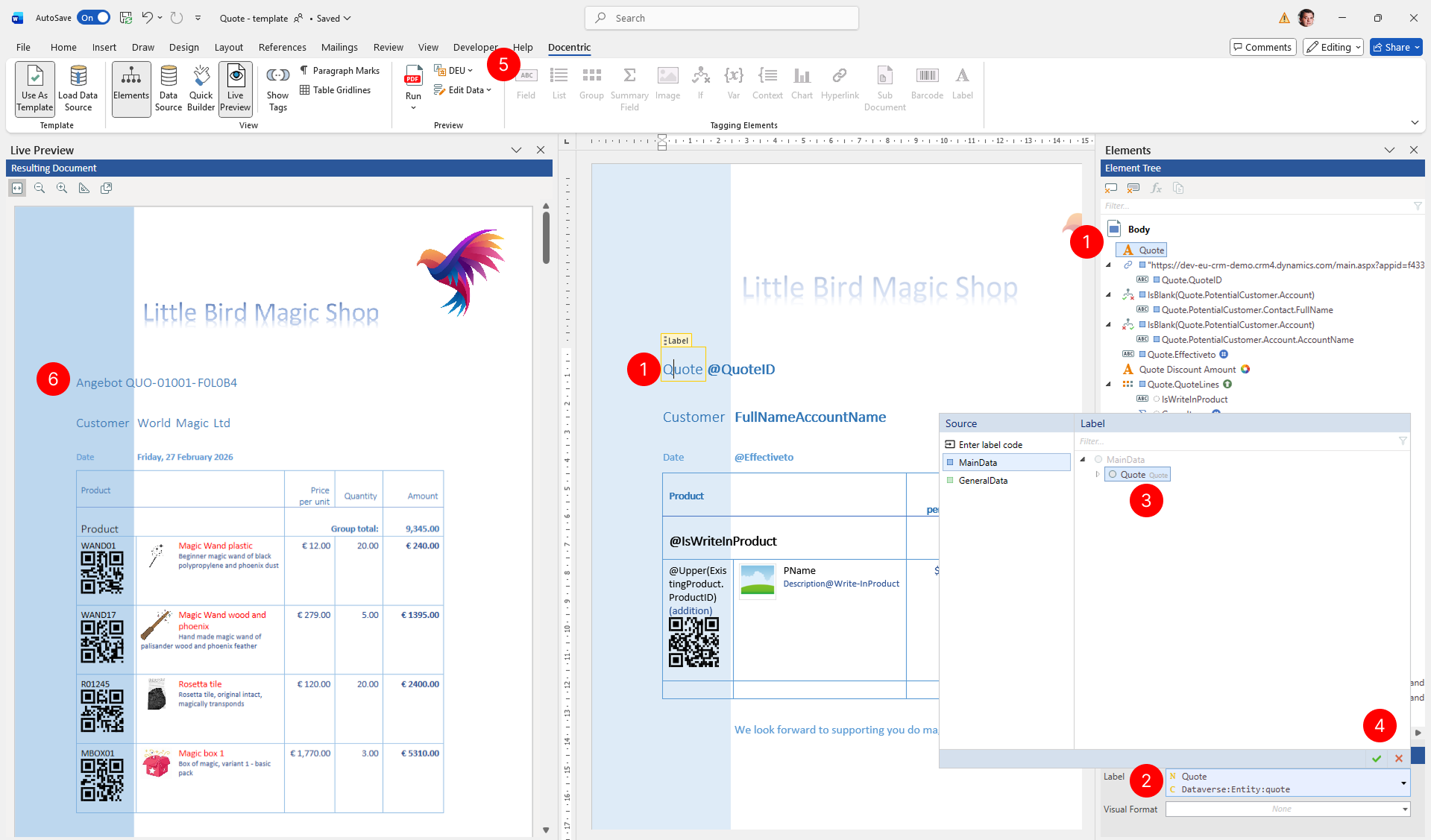
To use the Label tagging element, select a data field that contains label translations or input the label code.
- Select the Label tagging element to view its properties.
- In the Properties pane, locate the Value property and choose the value button to open the value binding panel.
- Under Source, select the data section that contains your label translations. Under Path, navigate the data structure tree and select the field that contains translated text.
- Choose the OK button (
 ) to confirm the binding.
 - Select Preview language in the Preview group on the Docentric ribbon tab to change the preview language. The label text will automatically update to show the translation for the selected language.
- Review results in Live Preview pane with different preview languages to verify all translations are correct.
TIP
Use the preview language selector to test your label translations during template design. This ensures that labels, date formatting, and number formatting all adapt correctly to each target language and culture.
NOTE
The Enter label code data source option is not supported in the current version of Docentric CE. Use label translations included in the Data Source Package (DDSP) instead.
Apply visual formatting
You can specify visual formatting rules on the Label tagging element to control the visual appearance of related content in the generated document in a dynamic, data-driven manner. For detailed steps, see Apply visual formatting to tagging elements.