Review, generate and distribute document
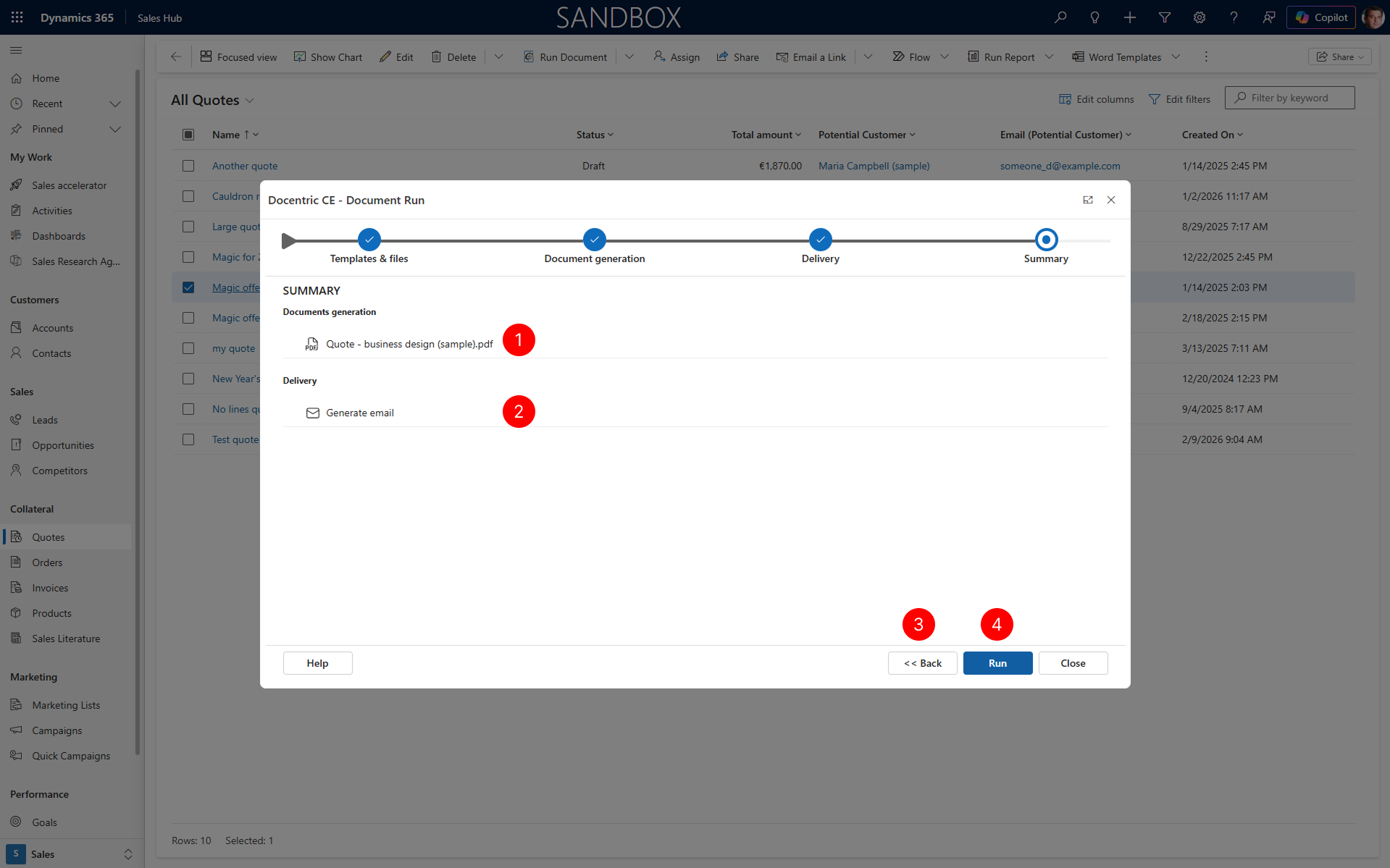
The Summary step of the Document Run dialog lists all tasks document run will execute based on your configuration from the previous steps. The Summary step allows you to review the configuration and tasks before confirming the setup, and run the configured Document Flow. If you need to make any changes, you can return to any of the previous steps. Once you're satisfied with your settings, you run the Document Flow.
Prerequisites
- You have one of the following Docentric CE security roles assigned:
- Docentric CE User or
- Docentric CE Maker or
- Docentric CE Administrator
- You have completed the Delivery step and selected Next
Prepare to execute the document run
After you review your the configuration, you can execute the Document Flow.
- Review Generated Document created based on your your selections contains the file name and format you need
- Review Delivery method you selected in the Delivery step (Download, Email, or Note) matches the one you need. If all settings are correct, proceed to the next section to run the document.
- If you need to modify any settings, choose Back to return to the previous step. You can navigate back through the wizard to make changes.
- Choose Run to start the document run. A progress spinner appears in the dialog next to each running task. Wait for the process to complete.
Start the document run
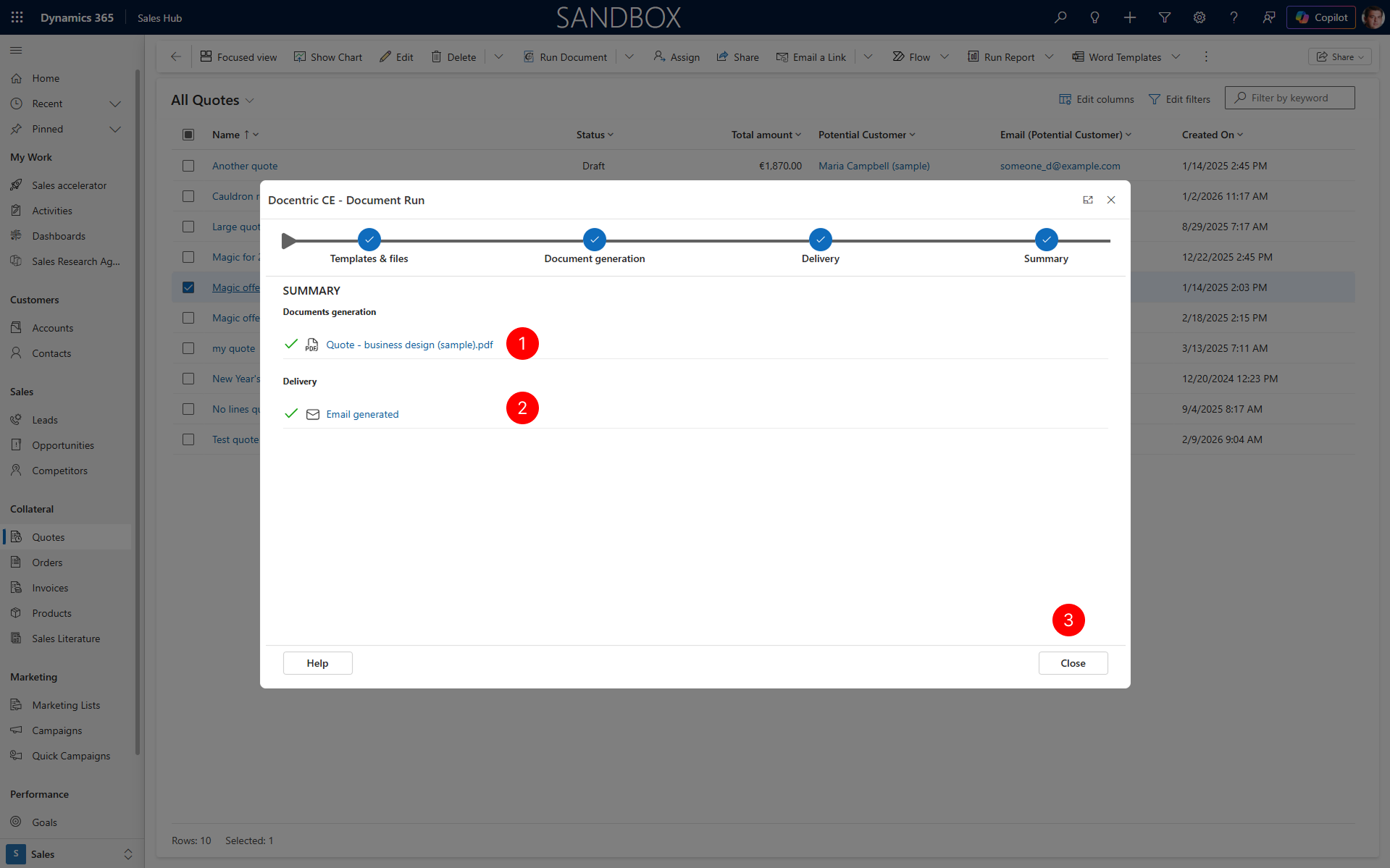
After the process completes, the SUMMARY panel of Document Run dialog displays:
- Status and the link to the generated document in Generated Documents section.
- Status and the link to delivery destination records:
- If you selected Download as your delivery destination, you can choose the link in Delivery section to download the file from your computer's download folder.
- If you selected Email as your delivery destination, a link to the created email message appears. Choose the link to open and review the email in builtin email editor, then send it when ready.
- If you selected Note as your delivery destination, a link to the created note appears. Choose the link to view the note with the attached document on the entity record where you ran the document.
- After you've completed your document run, you can Close the dialog.
NOTE
The exact format and appearance of these links depend on your delivery destination selection.