Configure license
Configure your Docentric CE license to activate the solution and enable its features. You can load a new license, request a license, remove an existing license, export your current license information, or collect your effective user count.
Prerequisites
- You have the Docentric CE Administrator security role assigned.
- You have opened Settings area of Docentric CE application.
Manage your license
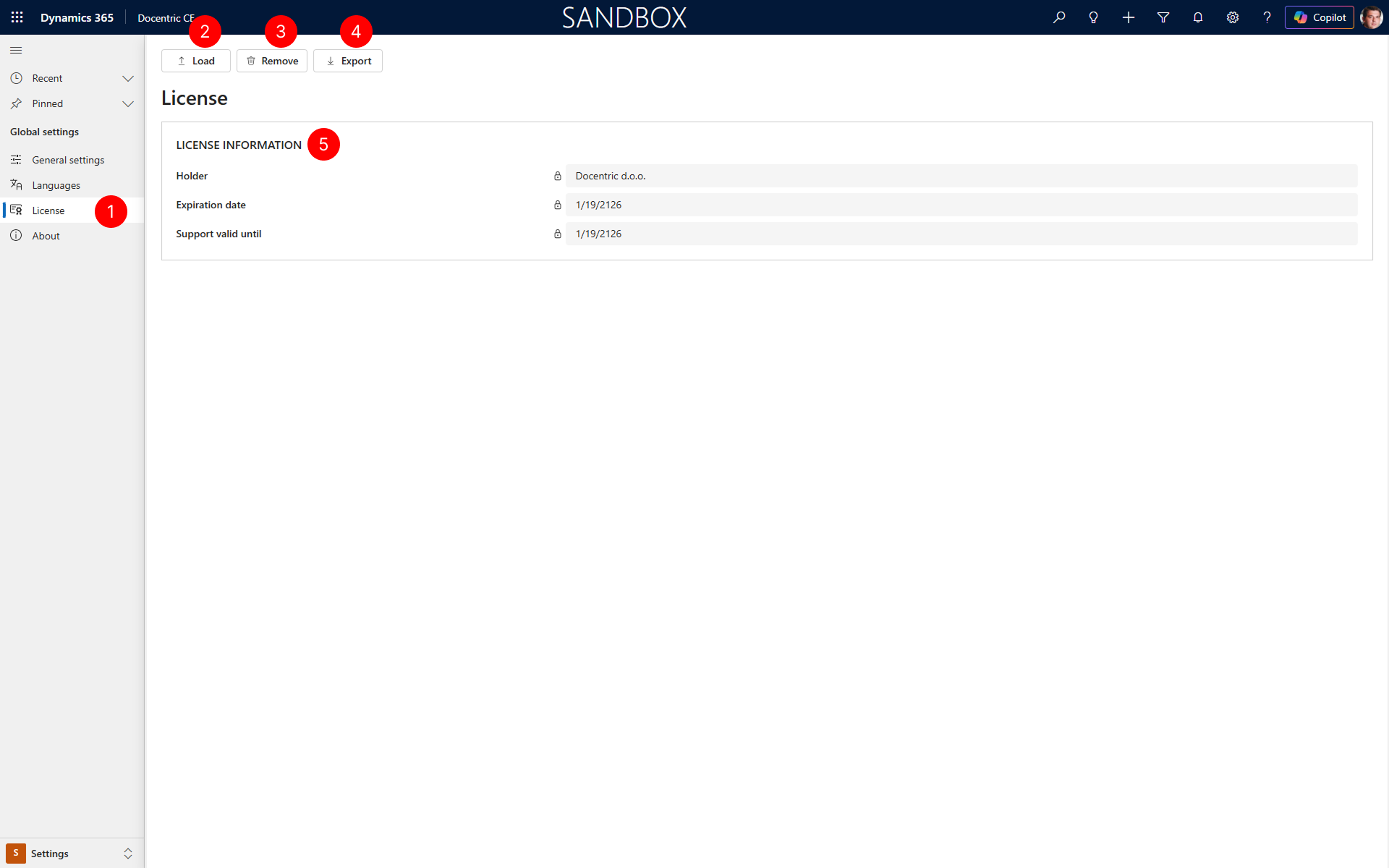
- In the site map of Settings area, select License.
- To load a new license file, select the Load button and browse to your license file.
- To remove the currently installed license, select the Remove button.
- To export your current license information to a file, select the Export button.
- Review the LICENSE INFORMATION section to see your holder, license type and license and support expiration date.
- To collect user count information and calculate effective users, select Collect user count button.
NOTE
The License page displays all details about your current license.
Collect user count
Use the Collect user count action to calculate your Docentric CE effective user count, the number that sets your subscription pricing tier on the Docentric CE pricing page. Provide this count when you request a new license or renew an existing one.
This action requires a Microsoft Entra ID Global Reader or Global Administrator role until admin consent is given, because Docentric CE reads user license information from your Microsoft tenant.
Users with these roles will need to grant admin consent to the Docentric CE Entra ID application to collect users' license assignment information. Docentric CE reads license assignments using the List licenseDetails Microsoft Graph API, which requires the Docentric CE Entra ID application to have the following permissions:
- Read all license assignments (LicenseAssignment.Read.All)
- Read all users's basic profiles (User.ReadBasic.All)
- View users basic profile (profile)
- Maintain access to data you have given it access to (offline_access)
NOTE
Docentric CE collects license assignment information from Microsoft Graph during an interactive user session and processes it on your device to calculate the effective user count. Docentric CE sends the user count summary to diagnostics, not individual user details. When you select Copy details, the same summary is copied to your clipboard.
To start collecting user count information follow these steps:
In the site map of Settings area, select License.
Select Collect user count to open User counts dialog.
Optionally, place a checkmark in We have Docentric AX license if your company is also using Docentric AX. This checkmark ensures attach licenses assigned to your users are processed correctly if you use both Docentric products.
Select Collect user count to calculate effective users.
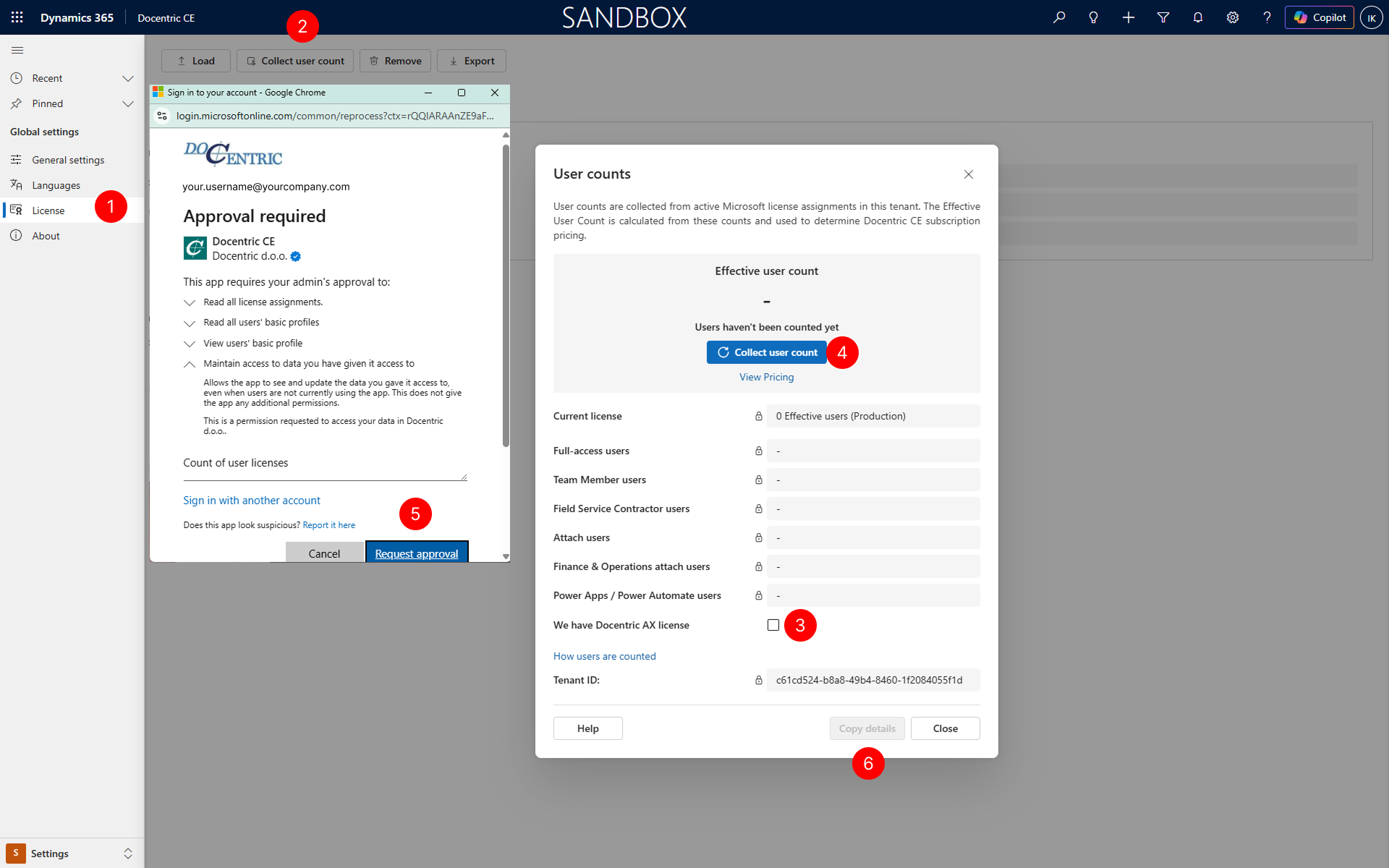
If admin consent hasn't been granted yet, ask your administrator to grant it.
TIP
When running Collect user count for the first time (with no admin consent granted yet), we recommend you sign in with a work account that has the Global Reader or Global Administrator role. Depending on the type of admin consent given, users granted that privilege won't need to see this dialog again on later runs.
Copy the effective user count by selecting Copy details, and include it when you request a new license or renew your existing one. Docentric CE logs following data in telemetry and copies the following data to the clipboard:
 === EFFECTIVE USER COUNT ===
 Product: Docentric CE
 Report correlation ID: f2865c80-377a-4e20-b4ca-00980132ee33
 Tenant ID: 00000000-0000-0000-0000-000000000000
 Last collected: 10/9/2026 2:53 PM
 We have Docentric AX license: No

 Effective user count: 43

 Full-access users: 41
 Team Member users: 1
 Field Service Contractor users: 0
 Attach users: 0
 Finance & Operations attach users: 0
 Power Apps / Power Automate users: 6
NOTE
After effective user count has been run, Collect user count button is renamed to Collect again and time lapsed since last user count collection is displayed together with your effective user count.
If you'd rather run this from a script, or don't have direct access to Docentric CE, see Collect user count with PowerShell.
Next Steps
Configure diagnostic settings — Learn how to enable diagnostic data collection.
