Install Docentric CE from AppSource
Docentric CE is available on Microsoft AppSource as a free trial. This article guides you through the installation process, from AppSource to the Power Platform Admin Center.
NOTE
Docentric CE is available only for cloud deployments. On-premises installations of Microsoft Dynamics CRM are not supported.
Prerequisites
- You have the System Administrator security role in your target Power Platform environment.
- You are signed in to AppSource with a work or school account.
Start the installation from AppSource
Begin the installation by requesting the free trial from the Docentric CE AppSource page.
- Go to the Docentric CE page on AppSource.
- Select Free trial.
- Confirm installation and your contact details or select Edit to modify them.
Install in Power Platform Admin Center
After starting the installation from AppSource, complete the setup in Power Platform Admin Center.
- Select the environment where you want to install Docentric CE.
- Review and agree to Microsoft's legal terms and privacy policy.
- Review and agree to Docentric's legal terms and privacy policy.
- Select Install.
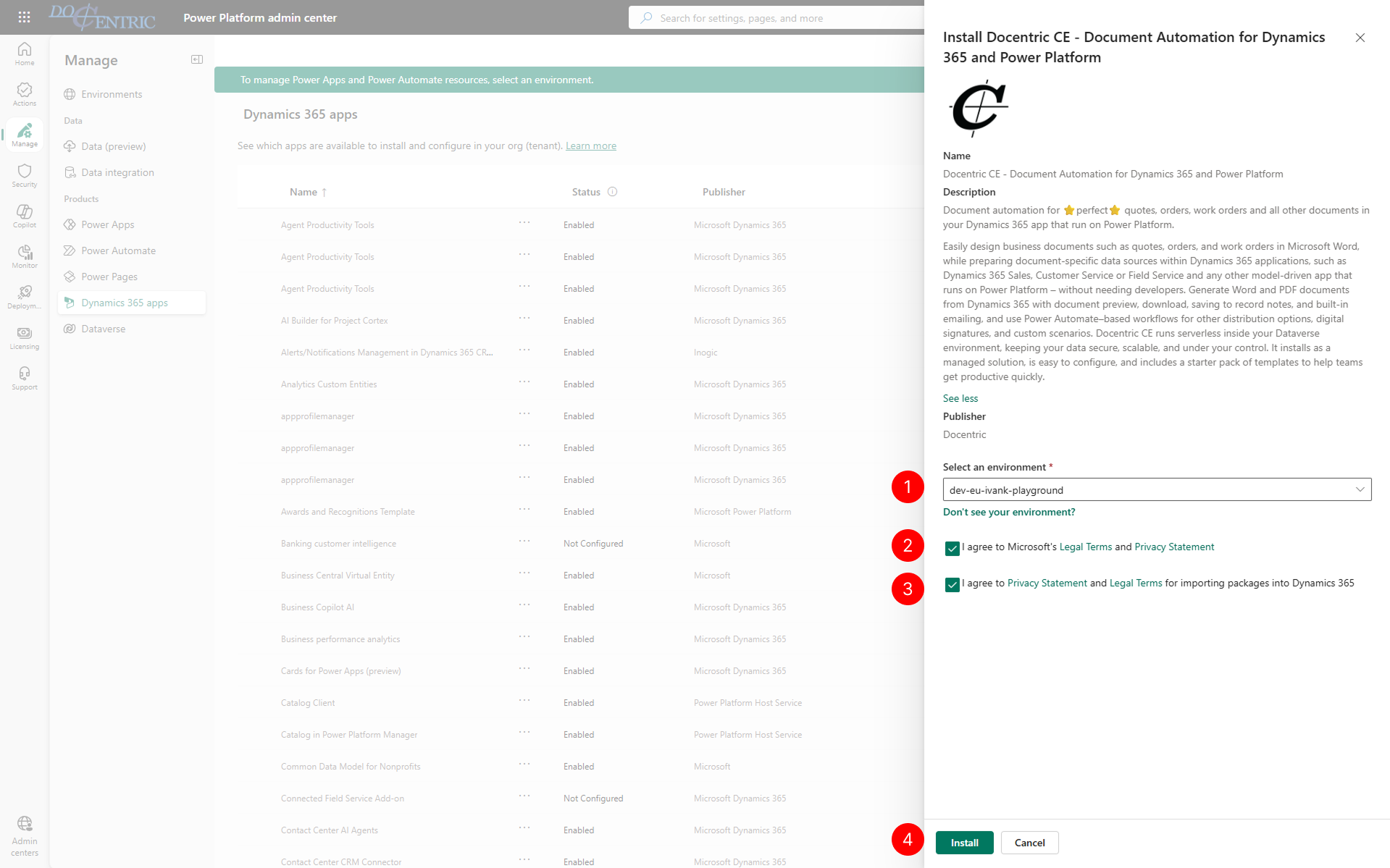
The installation begins and may take several minutes to complete.
Troubleshooting
Installation shows as failed, but solution history shows success
Symptom: The installation appears failed in the admin center, but when you check solution history, it shows as successful.
Cause: If another installation is running at the same time, Docentric CE installation may complete but fail to initialize Languages and Fonts.
Resolution: Initialize the missing components manually:
- Languages: Run the Repair languages action. For instructions, see Repair Languages after adding new ones.
- System fonts: Open the Template fonts settings page and select Run report to initialize system fonts. For instructions, see Check available fonts.
Ribbon buttons are missing after installation or an upgrade
Symptom: After installing Docentric CE or upgrading to a version that adds new ribbon buttons, one or more buttons don't appear. For example, the Run Document button or button for importing and exporting document setups is missing.
Cause: After installation or an upgrade, platform runs a ribbon regeneration job in the background. If you open the app before this job finishes, your browser can cache the ribbon without the new buttons.
Resolution:
- Don't open the app until the installation or upgrade finishes.
- If a ribbon button is still missing, open the app in an InPrivate or incognito browser window. If the button appears there, your browser cached an outdated ribbon. Clear your browser cache to fix the app in your regular window.
- If the button is still missing, check whether the ribbon regeneration job finished:
- Sign in to the Power Platform Maker Portal.
- Select your environment, then select Solutions.
- Select See history.
- Find the RibbonMetadataGeneration job. An empty Result column means the job is still running. Wait for it to finish, then reload the app.
Next steps
After installing Docentric CE, assign security roles to users who need access. See Assign Docentric CE security roles to users.
