Docentric Tools for Power Automate
The Docentric CE Tools connector is a custom Power Automate connector that helps you integrate document generation into your automation workflows. This connector is automatically deployed when you install Docentric CE in your environment and provides two actions that simplify using the Docentric CE document generation functionality from within your Power Automate flows.
Prerequisites
- Docentric CE installed in your Dataverse environment
- Access to Power Automate with permissions to create or edit flows
- A configured Document setup in Docentric CE
Add Docentric CE Tools connector to your flow
The Docentric CE Tools connector is available in the Custom connectors section in Power Automate.
- Create an instant cloud flow with the When a row is selected trigger. You can create an instant flow either from Power Automate flow designer or from the Flow menu in a Dynamics 365 app or a custom model-driven app.
NOTE
When an instant cloud flow is created from Flow, Create a flow menu in a Dynamics 365 app or a custom model-driven app, When a row is selected (in legacy flow designer) or Manual trigger (in New designer) is automatically added to such flow. When you create a instant cloud flow from Power Automate flow designer, you need to manually add this trigger to your cloud flow from a list of triggers available for Dataverse connector. This is described in Power Automate Trigger flows for selected rows documentation.
- Select New step or Add an action.
- Select Custom to view custom connectors.
- Search for Docentric CE Tools in the connector search box.
- Choose one of the available actions: Compose document generation request or Parse document generation response.
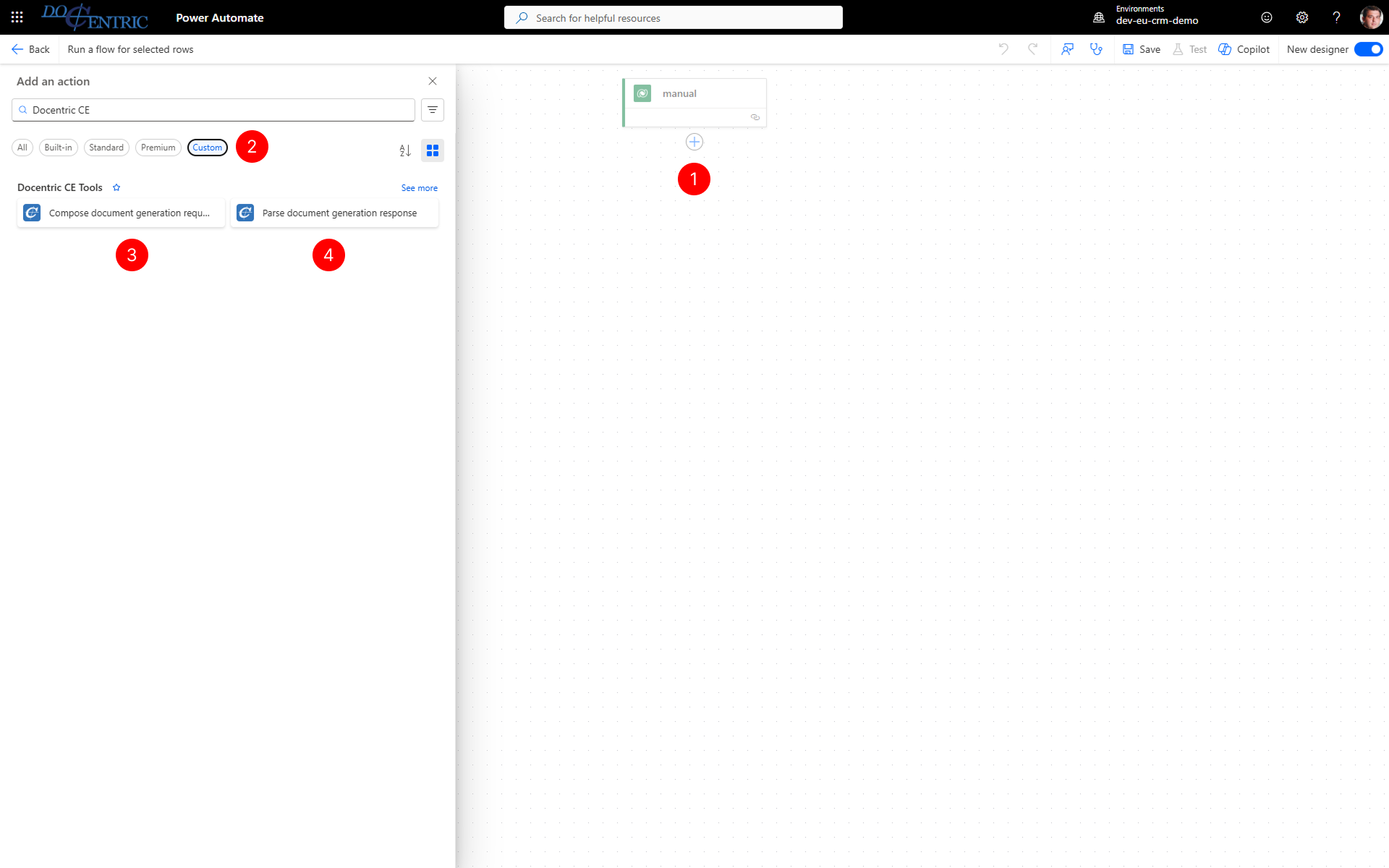
Compose document generation request
Use the Compose document generation request action to prepare a properly composed request for the Docentric CE document generation API.
Add the Compose document generation request action to your flow.
Configure File name: Enter the name for the generated document file without file extension.
Configure Record id: Enter the unique identifier of the Dataverse record for which you want to generate documents.
TIP
Unique identifiers entered in Record id typically match the table name and have "Unique identifier" in description. For example, unique record identifier for a quote record is the field Quote, even though field QuoteID also exists.
Configure Template reference code: Enter the Reference code of the Document template you want to use. This code identifies a specific template configured in your Document setup. For more information, see Set up templates.
Configure Output format: Specify the desired output file format for the generated document. You can select PDF or Word.
Configure Language tag: Specify the language tag for document generation (for example, en-US or de-DE). This determines the language used for document content and formatting of values when multiple languages are supported. For more information, see Languages.
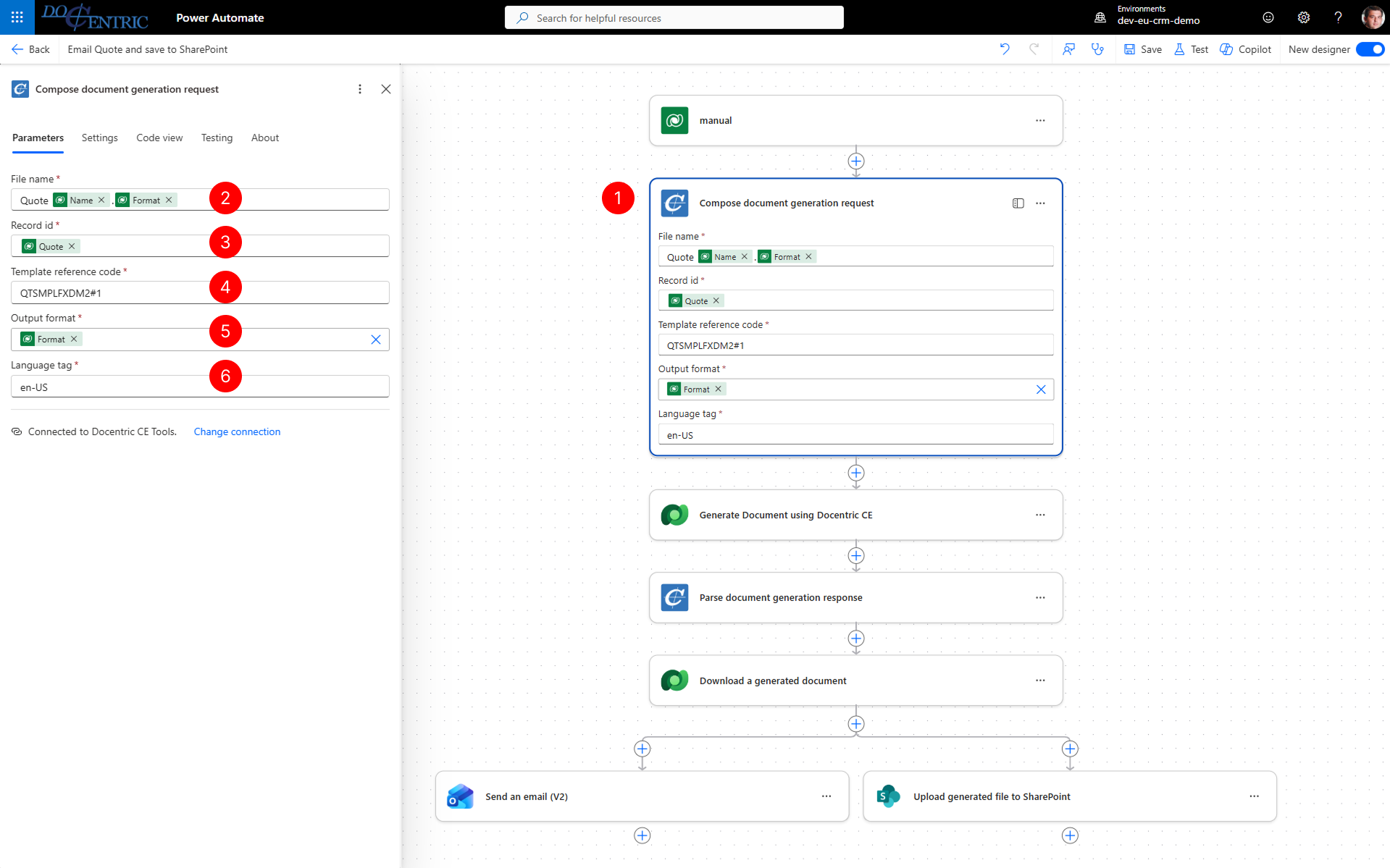
The action outputs a JSON object that contains the complete document generation request, ready to be used with the Dataverse Perform an unbound action action.
Use the composed request to generate a document
After composing the document generation request, you pass it to the Dataverse connector to execute the document generation action.
- Add a Perform an unbound action action from the Dataverse connector.
- Set Action Name to the Docentric CE generate document action name dcpwr_generatedocument.
- In Advanced parameters dropdown select Item/Request and pass the Generate document request output from the Compose document generation request action.
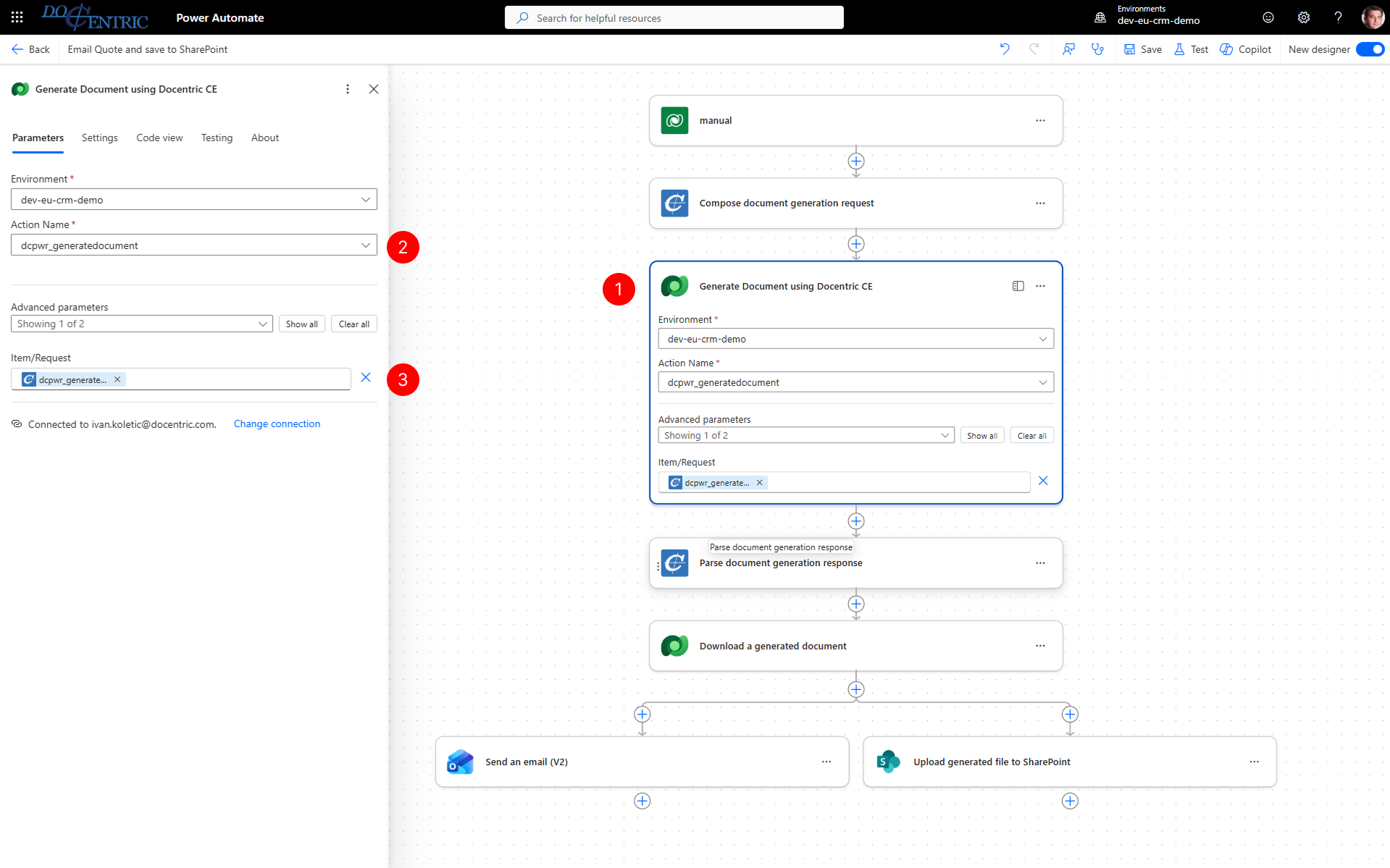
Parse document generation response
Use the Parse document generation response action to extract and read the results returned by the Docentric CE document generation API. This action helps you access information about generated documents, such as file name, file URL, and file id.
- Add the Parse document generation response action after the Dataverse Perform an unbound action that calls the Docentric CE document generation API.
- In Document generation response: Enter the response output from the Docentric CE document generation action.
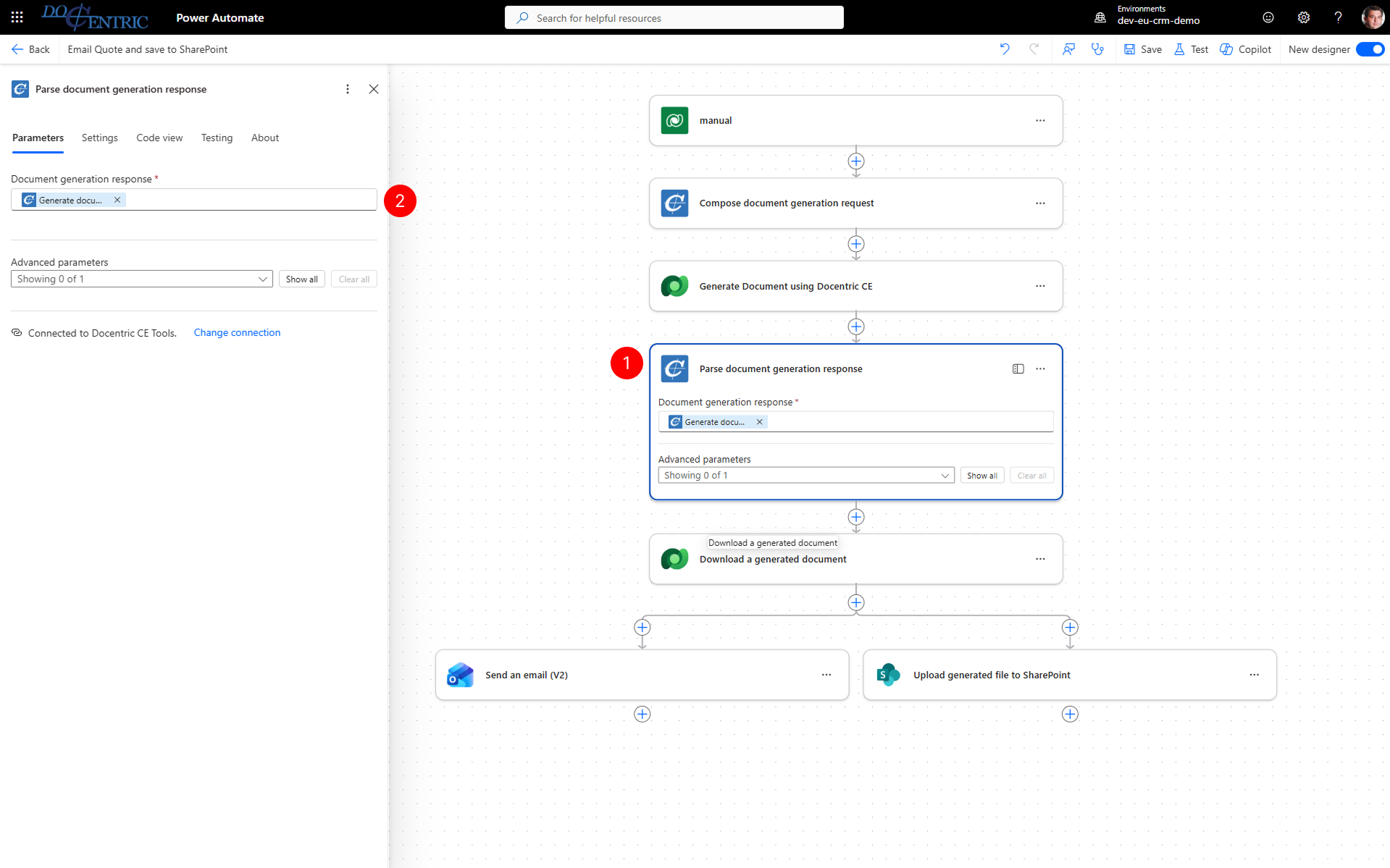
The Parse document generation response action outputs structured data that includes generated document details (file name, file URL, file ID).
NOTE
Parse document generation response also outputs diagnostic information. If errors or warnings occur during document generation, the response sets Document generation errors/warnings present to true. To see the errors and warnings, iterate over the Document generation diagnostics collection. Each item includes a severity and a message describing the issue.
Use the parsed response data to retrieve the generated document file
After you parse the response, use the returned temporaryFileId to download the generated document from Dataverse.
To retrieve document file content (for SharePoint or email for example), use Dataverse connector Download a file or an image action.
- Add the Dataverse connector Download a file or an image action to your flow.
- Configure Table name: Enter "Temporary files".
- Configure Row ID: pass the temporaryFileId parameter from Parse document generation response.
For complete file information then use:
- File name output property of Parse document generation response
- File or image content output property from Download a file or an image action response
Next steps
- Run a Document Flow - Learn how to run a Document Flow.
